
5 Best AI Tools for 3D Printing in 2026: Print-Ready STL
Quick Summary
- Print-ready output is a geometry question, not a texture question. What separates these tools is whether the mesh arrives closed and manifold.
- Meshy runs the largest ecosystem and publishes its own printability rubric, including a 97% slice pass rate for character models on Meshy’s own tests.
- Neural4D builds meshes from volumetric data at 2048³ native resolution, so its exports arrive watertight instead of needing hole-patching.
- Hi3D delivers 1536³ Pro resolution for resin miniatures, built on the Sparc3D and Ultra3D research pipeline.
- Your choice should follow your printer: organic figures, functional parts, and collectible miniatures each favor a different tool.
Not all best AI tools for 3D printing are equal when it comes to what actually matters: hitting print and walking away. Speed and texture quality mean nothing if the slicer flags non-manifold edges and hidden holes. Top AI 3D generators differ wildly on print readiness, watertightness, and real-world workflow fit. Knowing which tool actually saves you time starts with knowing which geometry actually holds up in a slicer. For a broader view of how AI is reshaping the 3D printing workflow in 2026, see our AI 3D printing trends roundup.
| Tool | Best For | Free Tier | Entry Price |
|---|---|---|---|
| Neural4D | Watertight output for FDM and resin | 50 Credits per week | $19.90/mo |
| Meshy | Characters, figurines, engine plugins | 100 credits/mo (CC BY 4.0) | $20/mo |
| Tripo | Fast iteration on simple shapes | Free credits, amount not published | $20/mo |
| Hi3D | High-resolution resin miniatures | 100 trial credits (non-commercial) | $19.90/mo |
| Rodin (Hyper3D) | Textured, render-ready assets | 7-day trial | $24/mo |
Prices are each vendor’s own published rate as of September 2026, before annual-billing discounts. Some vendors localize currency by region.
- Part 1: The Contenders: 5 AI Tools That Actually Generate 3D Models
- Part 2: What Makes an STL Actually Print-Ready
- Part 3: How to Prepare an AI-Generated Mesh for Printing
- Part 4: Wall Thickness, Overhangs, and the Numbers That Decide a Print
- Part 5: What AI 3D Generators Still Cannot Do
- Part 6: Multi-Part Prints: Splitting a Fused AI Mesh
- Part 7: Textures vs. Topology: Why High-Detail Resin Files Fail FDM
- Part 8: Cost Per Print and Licensing: What the Free Tiers Allow
- Part 9: FAQ: Your Questions About AI and 3D Printing, Answered
- Part 10: Final Verdict: The Best AI for 3D Printing Depends on Your Printer
Part 1: The Contenders: 5 AI Tools That Actually Generate 3D Models
Five platforms dominate AI 3D generation for printing in 2026. Each approaches the problem differently, and the differences show up the moment you open the slicer. Finding the best AI tools for 3D printing means looking past the marketing and at what each vendor actually publishes about its geometry, its exports, and its license.
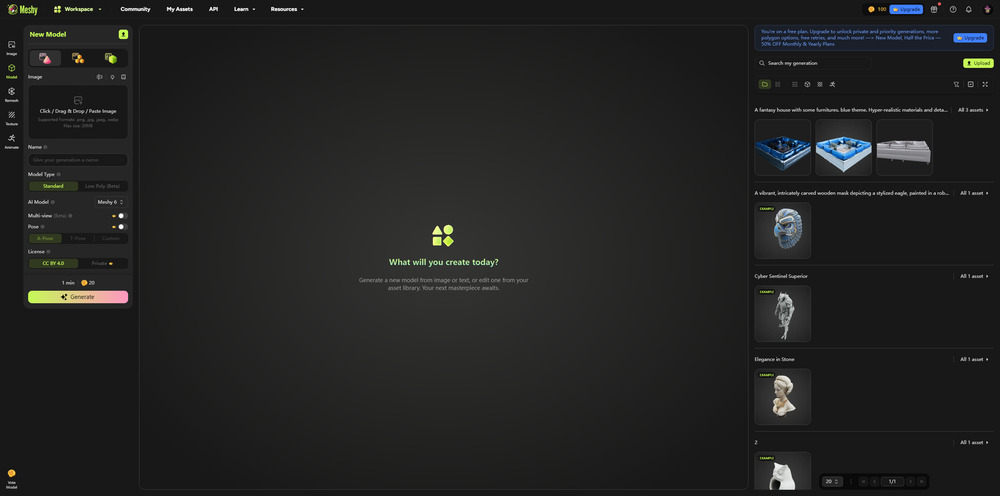
Meshy states 10M+ monthly visits, 12M+ users, and 100M+ generated models on its homepage, and it runs the most mature ecosystem of the five: Blender, Unity, and Godot plugins plus a one-click Bambu Studio export path. It generates from text or image and exports STL, 3MF, and OBJ. Meshy also publishes its own printability rubric, and on that self-assessment it reports a 97% slice pass rate for character models in Bambu Studio. Read that figure as the vendor’s own measurement, not an independent test. The free plan grants 100 monthly credits under a CC BY 4.0 license; Meshy’s Pro plan is listed at $20 per month, where the asset license switches to private and customer owned. For users exploring options beyond Meshy, see our roundup of best Meshy alternatives for 3D printing.
Tripo is built for iteration speed. Its Pro plan is listed at $20 per month and the free tier grants a starter credit balance that Tripo does not publish as a fixed number. Tripo documents a dedicated Turbo model version for latency-sensitive work but does not publish a specific generation time in seconds, and its marketing claims only “Text & Images to 3D in Seconds.” Its quads-based topology is clean on simple geometries, and it offers an auto-repair step before export. If Tripo’s quality or pricing isn’t meeting your needs, check out top Tripo alternatives for 3D asset creation or see how it stacks up on our Neural4D vs Tripo3D feature page.
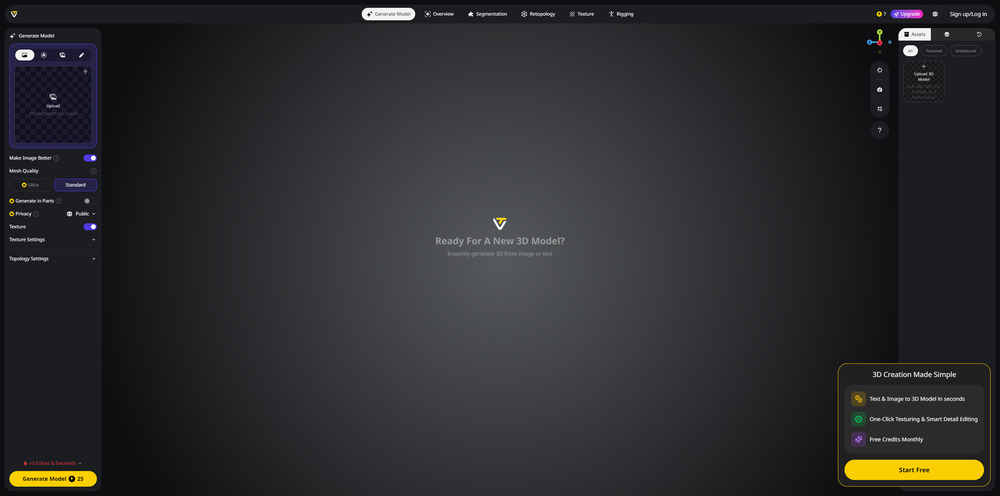
Hi3D, which still appears in older coverage under its former name Hitem3D, targets the resin printing crowd with 1536³ Pro resolution. Its stack is built on the Sparc3D and Ultra3D research pipeline, and it publishes a genuine watertight-reconstruction step rather than leaving hole-filling to the user. That makes it a strong fit for miniatures and jewelry masters. The free tier grants 100 trial credits for 7 models under a CC BY 4.0 license that excludes commercial use; paid plans from $19.90 per month add private models and commercial rights. Neural4D is the higher-resolution option at 2048³, so if raw detail is the deciding factor, compare the two directly. For free options with comparable output, see free alternatives to Hitem3D or our Neural4D vs Hitem3D comparison.

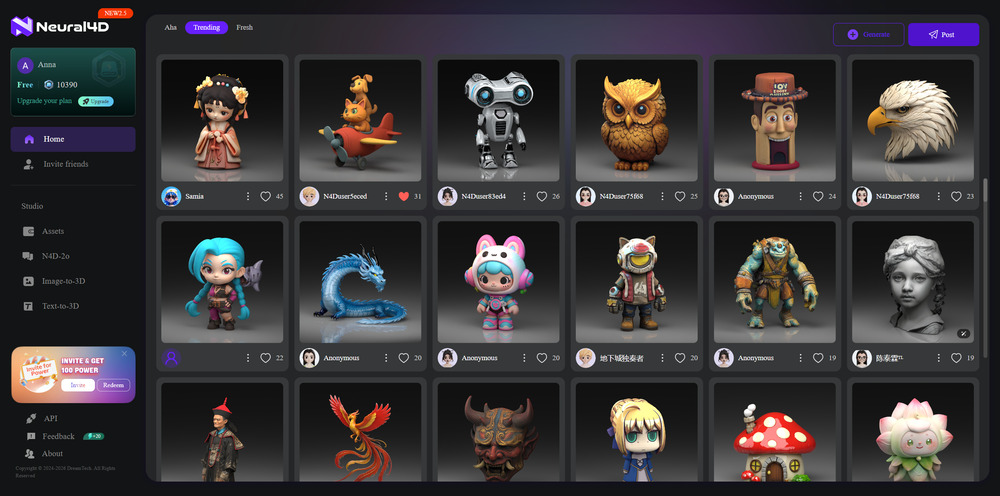
Neural4D uses the proprietary Direct3D-S2 architecture (NeurIPS 2025) with Spatial Sparse Attention to generate watertight, manifold-correct meshes from the ground up. Rather than guessing depth from flat images, the engine processes full volumetric data at 2048³ native resolution. The output exports directly as STL, OBJ, GLB, or FBX and lands in your slicer without hole-patching or mesh repair. New users get 50 Credits per week free, plus access to Neural4D-2o conversational refinement, which adjusts a model you generated in the current session with natural language like “make the base thicker” instead of regenerating from scratch. Each conversational edit costs 30 Credits.
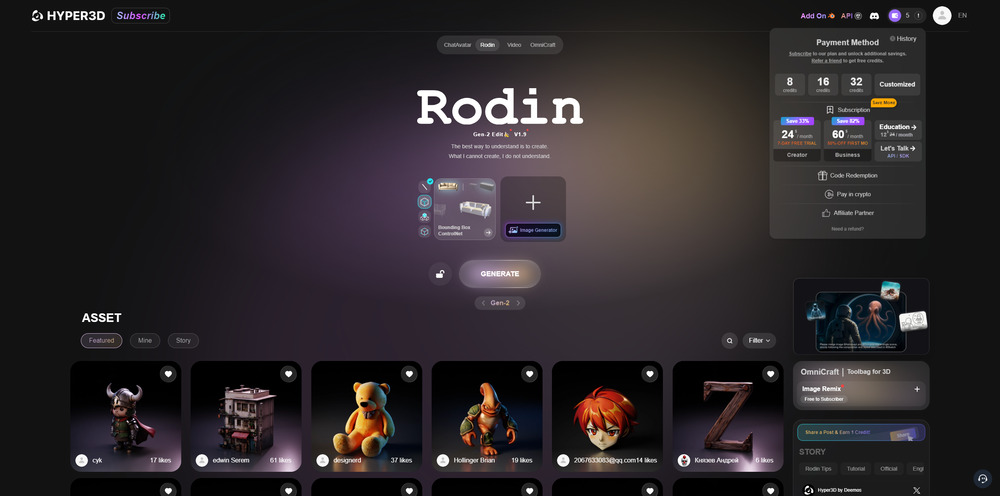
Rodin (Hyper3D) produces the most photorealistic PBR textures of the five, and it is built for rendering, portfolio, and game-art work rather than for the print bed. Its model selector shows Gen-2.5, and Hyper3D does not publish a parameter count for it. The free tier is a 7-day trial, and paid plans start at $24 per month with commercial licensing included from the Business tier. On print readiness our own observation is the same one every reviewer repeats: Rodin output is tuned for how a model looks in a browser, and that shows up when the slicer reports open edges. If you need both, generate in Neural4D or Hi3D and keep Rodin for the render. Browse Rodin Hyper3D alternatives for print-focused options.
| Tool | Best For | Export Formats | Free-Tier License | Entry Price |
|---|---|---|---|---|
| Meshy | Characters, figurines | STL, 3MF, OBJ | CC BY 4.0 (attribution) | $20/mo |
| Tripo | Fast iteration | STL, GLB, FBX | Not published | $20/mo |
| Hi3D | Resin miniatures | STL, OBJ | CC BY 4.0, non-commercial | $19.90/mo |
| Neural4D | Watertight print-ready output | STL, OBJ, GLB, FBX | Public domain, credit requested | 50 Credits/week free |
| Rodin (Hyper3D) | Rendering, textured assets | STL, OBJ, GLB | 7-day trial | $24/mo |
Each vendor sets a different license on its free tier, and that difference matters more than the price difference if you intend to sell prints. The section on cost per print and licensing breaks the terms down tool by tool.
If you are comparing the top two players in this space, our Neural4D vs Meshy breakdown covers the head-to-head differences in topology quality, generation speed, and export workflow. For a broader look at what is available, see our guide to the best AI 3D model generators across different use cases.
Part 2: What Makes an STL Actually Print-Ready
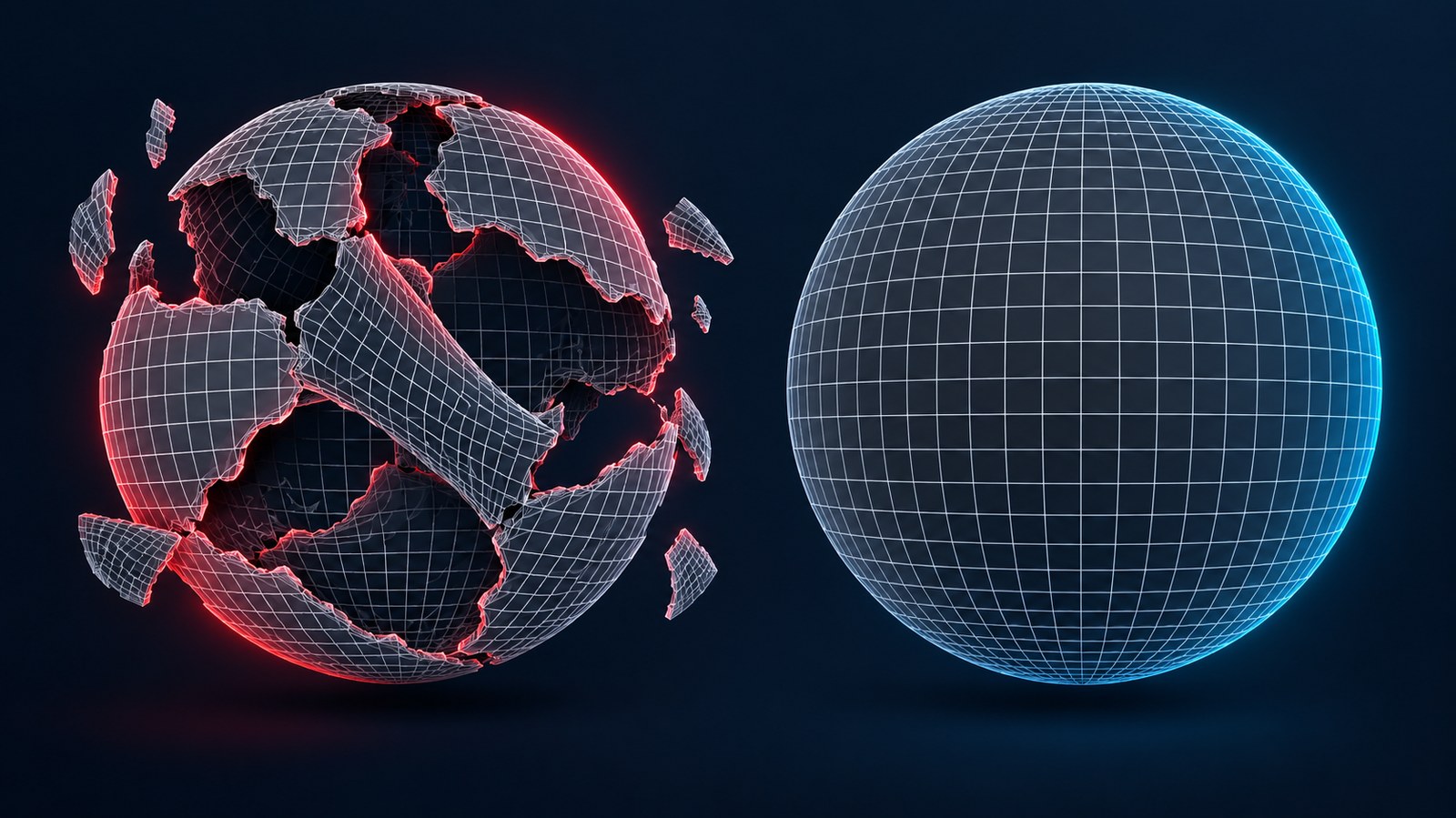
A print-ready export is a geometry problem, and it is settled before you ever open the slicer. The tool that builds a closed, manifold surface at generation time hands you a file you can slice immediately. The tool that estimates a surface from a flat image hands you a file that needs work, and the amount of work depends on the model.
Watertight, manifold, and closed surfaces
Watertight means the mesh has no holes, no gaps, and no inverted normals. Manifold is the stricter property: every edge is shared by exactly two faces, so the surface has a well-defined inside and outside with no branching. A mesh can be visually closed and still be non-manifold where two surfaces touch along an edge.
Slicers depend on that property. The Slic3r documentation states it plainly: “If the 3D mesh described in the model contains holes, or edges are misaligned (known as being non-manifold), then Slic3r may have problems working on it.” Cura’s troubleshooting guidance names the same condition and the same consequence, warning that where a surface cannot be mended, “it will be left out of the print.” That is the failure mode users actually see: missing layers, floating perimeters, or a print that collapses at hour seven because a wall was never generated.
Non-watertight output is the normal state of raw generative meshes, not an edge case. The Sparc3D paper (arXiv 2505.14521), whose reconstruction pipeline Hi3D builds on, describes the problem directly: most raw generated meshes are not watertight and must be remeshed, because without topological constraints “the generated object’s interior geometry may be incorrect and its surfaces can remain open.”
What each vendor publishes about its own output
Here is the part most comparison articles skip. We looked for an independent, third-party benchmark measuring the printability of AI-generated meshes and did not find one. Every percentage in circulation traces back to a vendor testing its own output. That does not make the numbers useless, but it changes what they mean, so this article attributes each one instead of presenting them as findings.
Meshy publishes the most detailed self-assessment of the five. On its own printability rubric, tested on a sample of its own models, Meshy reports a 97% slice pass rate for character and figurine models in Bambu Studio, and about 55% of the models in that sample exported fully watertight with the remainder needing hole-filling. Both figures describe Meshy models measured by Meshy.
Hi3D publishes a watertight-reconstruction step in its pipeline, derived from the Sparc3D approach, rather than leaving hole-filling to the user.
Neural4D builds from volumetric data through Direct3D-S2 and states that its output is watertight at generation, which removes the repair step rather than automating it.
Tripo runs an automatic repair pass before export. Automated repair closes obvious holes but can also over-close cavities that should stay open, a limitation inherent to automatic fix algorithms.
Rodin (Hyper3D) does not publish a watertightness or printability claim. Its published strengths are texture fidelity and rendering quality, and reviewers consistently describe print repair as part of the Rodin workflow.
Why the same STL passes one slicer and fails another
Print readiness is not a property of a file alone. It is a property of a file plus a printer profile. A 0.6 mm wall slices cleanly on a 0.4 mm nozzle FDM machine and disappears on a 0.25 mm nozzle. A 40 degree overhang prints unsupported on a machine with strong part cooling and droops on one without it. Resin printers tolerate far thinner walls and far steeper unsupported angles than FDM machines, because the part is supported by the resin vat rather than by the layer below it.
That is why a single pass or fail percentage cannot describe a tool honestly. The next two sections replace the percentage with the numbers: what the printer manufacturers actually recommend, and the procedure that takes any AI export to a sliceable file.
Part 3: How to Prepare an AI-Generated Mesh for Printing
Not every AI export arrives ready, and the tools to fix one are already installed on most machines. This is the procedure that takes a questionable mesh to a sliceable file, in the order that avoids wasted work.
1. Slice it before you repair it. Import the export into PrusaSlicer or Bambu Studio and let the slicer attempt its own repair. Both applications fix models to a degree automatically. On Windows, both can also call Microsoft’s Netfabb-based repair API: in PrusaSlicer you right-click the model and choose Fix by the Netfabb, and in Bambu Studio you use Fix Model from the right-click menu. Many AI meshes stop being a problem at this step, so it costs nothing to try it first.
2. Look for missing layers, not for red warnings. Scroll the sliced preview layer by layer. A non-manifold region shows up as a hole in the toolpath where the model should be solid. This is the fastest diagnostic available, because it shows the consequence directly rather than the cause.
3. Inspect the mesh itself only if step 2 fails. Open the file in Blender or Meshmixer and run a manifold check. Blender’s Select Non-Manifold command highlights the offending edges and vertices in one pass, which tells you whether you are dealing with two small holes or a structurally broken surface.
4. Delete floating geometry. Generators frequently emit loose shells and stray fragments beside the main body. They are invisible in a shaded viewport and obvious in a wireframe. Select them and delete before doing anything else, because they will otherwise be sliced as separate objects.
5. Enforce a minimum wall thickness. Thin features are the most common AI failure on FDM. Walls thinner than one nozzle perimeter do not print at all. Scale the model up, or thicken the feature, until the thinnest wall clears the threshold for your nozzle (see the table in the next section).
6. Flatten the base. AI figures often ship with a curved, hollowed, or uneven underside that produces a knife-edge first layer. Cut the bottom flat before slicing. A flat base is not cosmetic; it is what keeps the part adhered.
7. Simplify if the triangle count is extreme. Prusa documents that models with a very large number of triangles can slow PrusaSlicer down, take a long time to slice, and even slow the printer through the resulting flood of short toolpaths. No vendor publishes a numeric cap, so the practical test is whether slicing has become slow. If it has, use the Simplify model function rather than deleting detail by hand.
8. For badly scanned or badly generated surfaces, switch tools. Bambu’s own guidance for damaged scan surfaces is to disable Arc Fitting and repair the mesh in MeshLab instead of relying on the slicer.
9. Save the profile once it works. The settings that rescued one model usually rescue the next export from the same generator. Saving the print profile is what turns a repair procedure into a repeatable workflow.
Two of these steps, wall thickness and overhang, depend on numbers rather than judgement. Those numbers come from the printer manufacturers, and they differ sharply between FDM and resin.
Part 4: Wall Thickness, Overhangs, and the Numbers That Decide a Print
Print readiness comes down to a small set of thresholds, and the printer manufacturers publish them. The table below collects the figures that matter for AI-generated models, with the source for each one so you can check them against your own machine.
| Parameter | FDM | Resin (MSLA) |
|---|---|---|
| Minimum wall thickness | Walls thinner than one nozzle perimeter do not print. At the common 0.4 mm nozzle this means 0.45 mm for one perimeter, 0.9 mm for two, and 1.35 mm for three | 0.4 mm recommended on the Form 2; 0.2 mm on the Form 4 at 50 micron layers |
| Maximum unsupported overhang | 45 to 60 degrees depending on nozzle and settings; up to 75 degrees on machines with the Nextruder and 360 degree cooling | 19 degrees from level on the Form 2; 10 degrees on the Form 4 |
| Minimum embossed detail | Governed by nozzle diameter | 0.1 mm |
| Minimum engraved detail | Governed by nozzle diameter | 0.4 mm on the Form 2; 0.15 mm on the Form 4 |
| Triangle count ceiling | No numeric limit published. High counts slow slicing and printing | No numeric limit published |
The FDM figures come from Prusa’s modeling guidance and simplify mesh documentation; the resin figures come from Formlabs’ Form 2 design specs and Form 4 design guide. Prusa notes that its perimeter figures are approximations that shift with slicer settings, so treat them as a floor rather than a target.
What this means for AI output. Most AI meshes sit comfortably inside these limits on their large forms. The failures cluster in two places. Thin features are the first: fingers, filigree, thin cloth, antennae, and the tips of hair strands routinely fall below one perimeter on FDM. Unsupported overhangs are the second: capes, wings, and swept hair sit at angles past 45 degrees and need supports or a reorientation. Both are model-level problems, not file-format problems, which is why a tool that exports a clean STL can still hand you a part that will not print as generated.
Formal testing of geometric capability in additive manufacturing does exist. The ISO/ASTM 52902 standard defines test artefacts and the measurement methods for assessing a printing system’s geometric performance. It is written for evaluating machines and processes, not for grading a generative tool, which is one more reason the pass-rate percentages in circulation are vendor measurements rather than standardized results.
Part 5: What AI 3D Generators Still Cannot Do
The most useful section in any comparison of AI tools is the one that names their limits. Every tool in this article generates organic forms well and precision geometry badly, and knowing where the line sits saves you from starting a project with the wrong instrument.
Dimensional accuracy. AI generators produce a shape that resembles the prompt, not a part that holds a tolerance. Ask for a 40 mm bracket and you will get a bracket-shaped mesh at whatever scale the model chose. Rescaling in the slicer corrects the overall size but not the internal proportions, so features that need to relate to each other at a fixed distance drift. A vendor’s own founder frames the gap honestly: Ethan Hu, cofounder and CEO of Meshy, told 3D Printing Industry that “at the algorithmic level, we aim to produce manifold geometry wherever possible,” which is a statement about producing valid geometry rather than dimensionally exact geometry. For parts that must fit, use parametric CAD instead.
Threads and fasteners. Screw threads, heat-set insert bores, and press-fit sockets need geometry that is defined by a standard rather than inferred from a picture. No generative model in this comparison produces a usable thread. Model threads in CAD or insert a threaded component after printing.
Mating and moving assemblies. Two parts that must slide, snap, or rotate against each other need a designed clearance, typically a few tenths of a millimeter depending on the process. A generator produces the parts as a single fused body with no clearance anywhere, so hinges, snap-fits, and interlocking joints come out locked solid. This is the specific problem the next section addresses.
Precision internal features. Small holes, narrow channels, and internal cavities are the least reliable output of surface-estimation models, because the model has no information about what it cannot see. A hole that should be round comes out approximate and drifts in position.
Watertightness of the export, without a claim from the vendor. This is the one limit that varies by tool rather than applying to the whole category. Some vendors publish a watertightness claim and some do not, and a vendor that publishes nothing about geometry has not made a promise you can rely on. Check the export in your slicer before you build a workflow on it.
Where the line actually sits. AI generation is the right tool for organic forms where the shape is the point: figures, miniatures, props, decorative pieces, and sculptural models. It is the wrong tool for anything where a dimension is the point: brackets, enclosures, gears, adapters, replacement parts, and anything that must interface with an existing object. If your project has a drawing with numbers on it, the drawing is the better input than a picture.
For the workflows that do fall on the right side of that line, the practical remaining problem is multi-part geometry, because AI generators default to emitting one fused body.
Part 6: Multi-Part Prints: Splitting a Fused AI Mesh
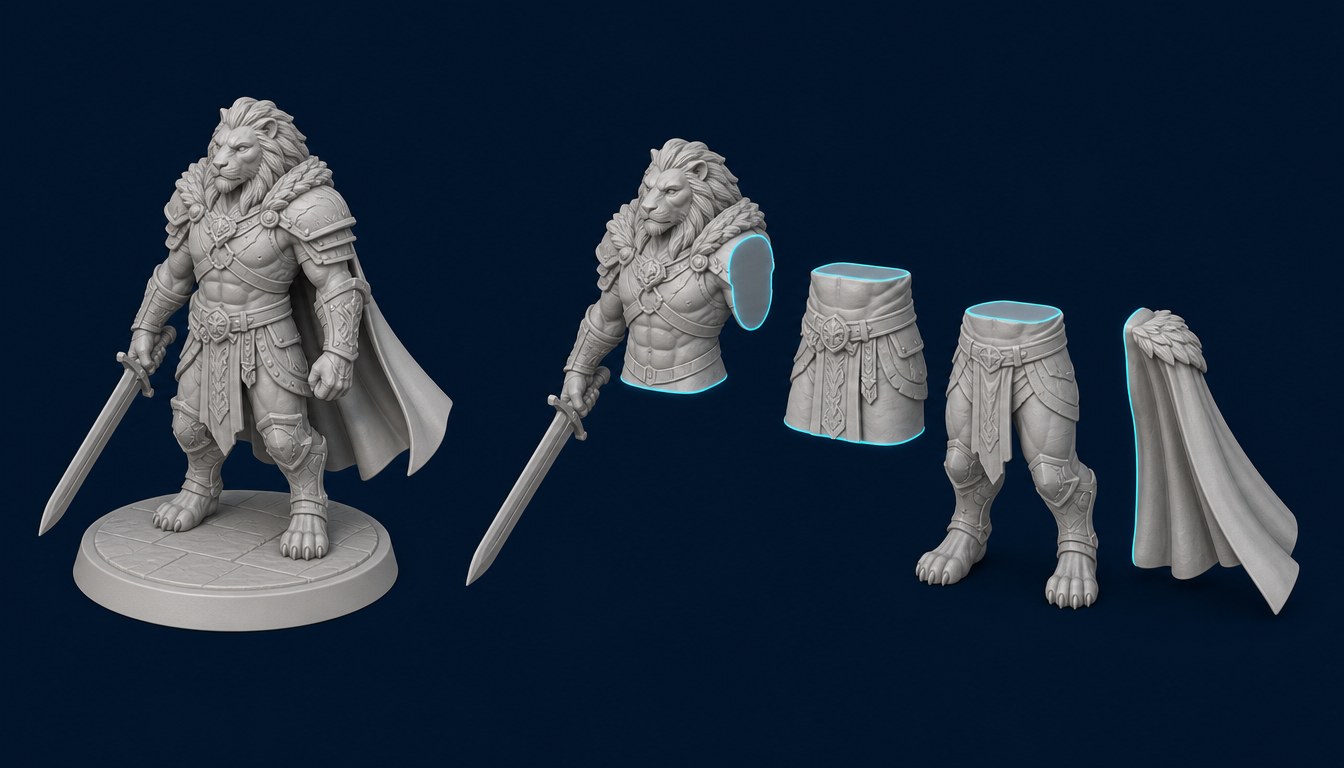
AI generators emit one body. Ask for a robot with a rotating arm, a figure with separate fingers, or a box with a hinged lid and you get a single fused mesh where every part is welded to every other part. No conversational prompt changes that, because the model is generating a shape, not an assembly.
That creates two separate problems, and it is worth keeping them apart.
Problem one: the model is bigger than the build volume. A 300 mm figurine will not fit a 256 mm bed, so the mesh has to become several pieces that print separately and assemble afterward. This is a cutting problem, and it is the one current tooling actually solves.
Problem two: you want parts to move. A hinge that pivots, a joint that rotates, a lid that opens. This is an assembly problem. It requires designed clearances between mating surfaces, and no AI generator in this comparison produces them. Not one of the five tools reviewed here outputs a mesh with functional clearances built in.
How splitting is actually done
The practical answer to problem one is to split after generation. Neural4D includes Part Split Printing, its model-segmentation feature, for exactly this: it takes a finished Neural4D model and separates it into printable parts, so a model that exceeds your build volume can be printed in pieces and joined afterward. The conditions are specific and worth stating before you plan around it.
- It works on your own completed, openable Neural4D models. There is no local upload, and other users’ assets and non-3D assets are not eligible.
- The source model must be finished and available. A model still processing, or one whose files are unavailable, cannot be selected.
- Each split costs 40 Credits, and the Credits are returned if the split fails. The feature requires a subscription: triggering it without one is blocked before the split starts, and no Credits are deducted.
- Splitting runs on the white model regardless of whether the source carries textures, so a textured model comes back as separate untextured parts.
- The parts download ahead of printing, packaged together, with 3MF as the default format. In the viewer you can locate a part, hide the others, switch between vertex-color and white display, and open an exploded view. The parts are not separate Studio assets, so they do not appear individually in your asset library. Merging is available for compatible parts only: incompatible selections are greyed out, the merge preview and reset are free, and applying a merge costs 20 Credits and saves the result as a new part.
For an oversize print, that is a working pipeline: generate, split, export the parts, print, join. For a moving assembly, it is not, because splitting a fused body gives you pieces that meet exactly, with no clearance to move against.
What to do about moving parts
Functional articulation still belongs in CAD. Model the mating surfaces in Fusion 360, FreeCAD, or Blender with an actual clearance, then print. If your goal is a display piece rather than a working mechanism, splitting is sufficient, and printing a model in parts also lets you orient each piece for strength and hide layer lines on the visible faces.
The honest summary is that AI generation gets you the sculpt and CAD gets you the mechanism. Tools that claim otherwise are describing prompt-time part recognition that none of the five vendors here documents in its public material. If your workflow involves converting images to STL for 3D printing, planning for the split before you generate is what saves the repair time later.
Tired of repairing broken STLs?
Neural4D builds meshes from volumetric data at 2048³, so the export is watertight before you touch it. No Blender cleanup. No hole-patching.
Try Neural4D Free with 50 Credits/Week
Free users get 50 credits per week. No credit card required.
Part 7: Textures vs. Topology: Why High-Detail Resin Files Fail FDM
A common mistake is assuming that more detail makes a better print. On resin printers the assumption holds. On FDM it inverts, and the reason is triangle count rather than visual quality.
Why the same file behaves differently on each machine. Resin printers expose a whole layer at once through an LCD mask, so surface density costs nothing extra at print time: the exposure is the same whether the slice contains a thousand triangles or a hundred thousand. FDM printers trace every triangle as a toolpath, one extrusion move at a time. A dense mesh therefore becomes a very long list of very short moves, and that is where the problems start.
Prusa documents the consequence directly in its own simplify mesh guidance: models with a huge number of triangles can slow the slicer down, take a very long time to slice, and even slow the printer itself, because of the huge number of short toolpaths generated. No vendor in this comparison publishes a numeric triangle ceiling for a slicer, and we are not going to invent one. The usable test is empirical: if slicing has become slow or the preview stalls, the mesh is too dense for your setup, and the fix is to simplify the model rather than to abandon the detail.
The layer-height tradeoff. Detail on FDM is bounded by layer height before it is bounded by mesh density. Lower layers, in the 0.12 to 0.16 mm range on a 0.4 mm nozzle, resolve more of the surface and cost proportionally more print time. Higher layers around 0.20 mm halve the print time and smooth away the fine surface the dense mesh was carrying. A dense mesh printed at coarse layers is paying for detail it will not show.
Where topology beats texture. Texture is a rendering layer; topology is the surface itself. A tool can produce a beautiful render from a mesh that a slicer will reject, because the render engine tolerates what the slicer does not. Watertightness, manifold edges, and wall thickness are properties of the topology, and no amount of texture quality compensates for a missing one. This is the whole reason a comparison for print work cannot be settled by looking at sample renders.
How this plays out per tool. Hi3D’s 1536³ Pro output is dense by design and rewards the resin workflow it targets; on FDM, expect to simplify or raise the layer height. Rodin produces the strongest renders of the five through its Gen-2.5 model, and Hyper3D publishes no parameter count and no printability claim, because it is built for visualization rather than for the print bed. Meshy sits in the middle and publishes its own printability rubric. Neural4D targets the print workflow specifically: quad-dominant topology at 2048³ native resolution, which keeps the toolpath count manageable while retaining the surface detail the model carries.
The rule that survives all of this is simple. For FDM, choose the tool that produces clean topology at a density your slicer can process, and treat detail as a secondary setting you tune with layer height. For resin, choose on resolution, because that is what the process can actually reproduce.
Part 8: Cost Per Print and Licensing: What the Free Tiers Allow
The sticker price is the least interesting number in this comparison. Two questions decide what a tool actually costs you: what the license lets you do with the output, and how much of your own time the repair step consumes. This section answers both from each vendor’s own published terms.
| Tool | Free Tier | Entry Paid Plan | Free-Tier Commercial Use |
|---|---|---|---|
| Meshy | 100 monthly credits | $20/mo (Pro) | Yes, CC BY 4.0 with attribution |
| Tripo | Starter credits, amount not published | $20/mo (Pro) | Not stated on the pricing page |
| Hi3D | 100 trial credits, 7 models | $19.90/mo (Pro) | No. Free tier is CC BY 4.0 and non-commercial |
| Neural4D | 50 Credits per week (about 20 models per month) | $19.90/mo (Go), first month $9.90 | Yes, output is public domain with credit requested |
| Rodin (Hyper3D) | 7-day trial | $24/mo (Creator) | Varies by plan and license |
All figures are the vendors’ published rates as of September 2026, before annual-billing discounts. Meshy and Neural4D localize currency by region, so the amounts you see may differ by country.
The licensing differences are the real price gap
Meshy grants a CC BY 4.0 license on the free plan, which permits commercial use if you credit the tool, and states that paid subscribers own the assets they create. Hi3D is the most restrictive of the five: its free tier is explicitly non-commercial, and you need a paid plan before you can sell a single print. Neural4D puts free-tier output in the public domain and asks for credit, while paid subscribers own what they generate outright. Rodin states that it will not limit your use of the output but makes no representation about whether the output is copyrightable, and its commercial license is bundled with the Business tier rather than the entry plan.
If you print for yourself, these differences cost you nothing. If you sell prints, a free tier that forbids commercial use is not a free tier; it is a trial, and the true entry price is the first paid plan.
Cost per viable print, not cost per generation
Generating a model costs credits. Generating a model you can actually print costs credits plus your time. A tool whose output usually needs twenty minutes of mesh repair is more expensive than its subscription price suggests, and a tool whose output slices on the first attempt is cheaper than it looks.
That is the argument for weighing the repair step alongside the plan price. Neural4D’s free tier of 50 Credits per week covers roughly 20 models a month, and each export arrives watertight, so the free tier produces usable prints rather than usable previews. Meshy’s 100 monthly credits are comparable in volume, with a repair step that varies by model type. Tripo charges the same $20 entry price as Meshy and does not publish how much you get free. Hi3D’s entry plan is the cheapest at $19.90, and its free tier is the only one of the five that bars commercial use outright.
The question worth asking is not “how much does the tool cost” but “how many hours does it take to fix what it made.” A $20 subscription that produces printable files on the first attempt is cheaper than a $12 subscription that costs you an evening a week.
How to verify these numbers yourself. Vendors change plans and licenses more often than they change their models. Before committing to a paid plan, open the pricing page for the tool you are considering and read the license row, not the feature row. The license is the line that determines whether the thing you generate is yours to sell.
Part 9: FAQ: Your Questions About AI and 3D Printing, Answered
Q: Can I use AI for 3D printing without ruining the geometry?
Yes, if you pick a tool that treats printability as a requirement rather than a side effect. Neural4D and Hi3D both publish watertight output, and Meshy publishes its own printability rubric. Rodin is built for rendering and does not publish a printability claim. Check the export in your slicer before you commit to a paid plan, because the slicer is the only judge that matters.
Q: Which AI is best at 3D modeling for resin printers vs. FDM?
For resin, resolution is the limiting factor because the process reproduces fine surface detail, so Hi3D’s 1536³ Pro output and Neural4D’s 2048³ output are the two strongest options. For FDM, topology and triangle count matter more than raw resolution, because the printer traces every triangle as a toolpath. Neural4D’s quad-dominant topology keeps that toolpath count manageable.
Q: Can ChatGPT actually make STL files I can use?
ChatGPT can write OpenSCAD scripts that produce parametric STL files, so it can make a simple mechanical part if you can describe the dimensions in code. It is not a native 3D generator and cannot produce organic geometry. For figures, miniatures, and sculpted forms, use a dedicated generator such as Neural4D, Meshy, or Hi3D.
Q: What does watertight mean and why does it matter for 3D printing?
Watertight means the mesh has a completely closed surface with no holes, gaps, or inverted normals. A related and stricter property is manifold, which means every edge is shared by exactly two faces. Slicers need both. When the surface is open, the slicer cannot tell interior from exterior, and the documented consequence is that an unmendable surface is simply left out of the print, which shows up as a missing layer or a collapsed wall.
Q: Will these AI tools export directly to STL, or do I need Blender to fix the model?
All five export STL. Whether you need a repair tool depends on the generator, not the format. Try slicing first, since PrusaSlicer and Bambu Studio both repair models automatically and can call the Netfabb-based repair API on Windows. If the sliced preview still shows missing layers, fix the mesh in Blender or Meshmixer, or repair a damaged scan surface in MeshLab.
Q: What minimum wall thickness do I need for an AI-generated model?
On FDM, walls thinner than one nozzle perimeter do not print at all. With the common 0.4 mm nozzle that means about 0.45 mm for a single perimeter, 0.9 mm for two, and 1.35 mm for three. On resin, Formlabs recommends 0.4 mm on the Form 2 and 0.2 mm on the Form 4. AI models most often violate this in fine features such as fingers, filigree, and thin cloth.
Q: Can AI generate a 3D model with screw threads or moving joints?
No. Threads, press-fit sockets, and mating surfaces that must move against each other need designed clearances, and none of the five tools reviewed here produces them. A generator emits one fused body with every part welded together. Neural4D’s Part Split Printing can separate a fused model into printable parts for models that exceed your build volume, but the resulting pieces meet exactly and will not articulate. Model functional mechanisms in CAD.
Q: Is the output from a free AI 3D plan licensed for commercial use?
It varies by vendor, and the difference matters if you sell prints. Meshy grants CC BY 4.0 on its free plan, which allows commercial use with attribution. Neural4D puts free-tier output in the public domain and asks for credit. Hi3D’s free tier is explicitly non-commercial. Rodin’s commercial license comes with the Business tier. Read the license row of the pricing table, not the feature row, before you plan to sell anything.
Q: Do any independent tests measure how printable AI-generated meshes are?
We looked, and we did not find one. The percentages in circulation, including Meshy’s 97% slice pass rate and its 55% fully watertight figure, come from vendors measuring their own models. That does not make them dishonest, but it does mean they are first-party results rather than independent benchmarks, and they should be read that way. The standardized geometric testing that does exist, ISO/ASTM 52902, is written for evaluating printing systems rather than grading generative tools.
Q: Which AI 3D tool gives the highest success rate on a Bambu Lab or Prusa printer?
It depends on the model. Meshy reports a 97% slice pass rate for character models in Bambu Studio on its own rubric, which is the most specific published figure from any vendor here. Neural4D claims watertight output at generation and exports STL, OBJ, GLB, and FBX. Hi3D targets resin machines such as the Form series. Because no independent benchmark exists, test your own models on your own printer before you rely on any published rate.
Part 10: Final Verdict: The Best AI for 3D Printing Depends on Your Printer
There is no single best AI tool for every 3D printing scenario, and the deciding factor is usually the printer rather than the tool. The right choice depends on what you print, which process you print it with, and how much repair time you are willing to absorb.
Quick Pick Guide
- You want the shortest path from concept to a printed object: Neural4D. Watertight output at generation, 2048³ resolution, and 50 Credits per week free.
- You print characters and figurines on a Bambu Lab machine: Meshy. The one-click Bambu Studio export is genuinely convenient, and its own rubric reports a 97% slice pass rate on character models.
- You print high-detail resin miniatures: Hi3D. The 1536³ Pro resolution captures detail that matters at small scale, and the free tier is fine for testing before you upgrade for the commercial license.
- You need rapid iteration on simple shapes: Tripo. The Turbo model version targets latency, though budget time for cleanup on anything complex.
- Your model is too large for your build volume: Neural4D Part Split Printing separates a fused model into printable parts, 40 Credits per split.
- You care about rendering more than printability: Rodin. Keep it for digital portfolios. It publishes no printability claim.
Best AI tools for 3D printing are not all created equal on the one metric that matters: whether the print succeeds on the first attempt. What separates them is not texture quality or generation speed but whether the mesh arrives closed, manifold, and inside the physical limits of your machine. Check the export in your slicer, keep the wall thickness and overhang numbers from Part 4 within reach, and the tool choice becomes a shortlist rather than a gamble.
Stop Fixing. Start Printing.
Neural4D generates watertight, slicer-ready files from your images or text prompts at 2048³. No Blender. No repair.
Get 50 Credits/Week Free: Try Neural4D
Free users get 50 credits per week. No credit card required.