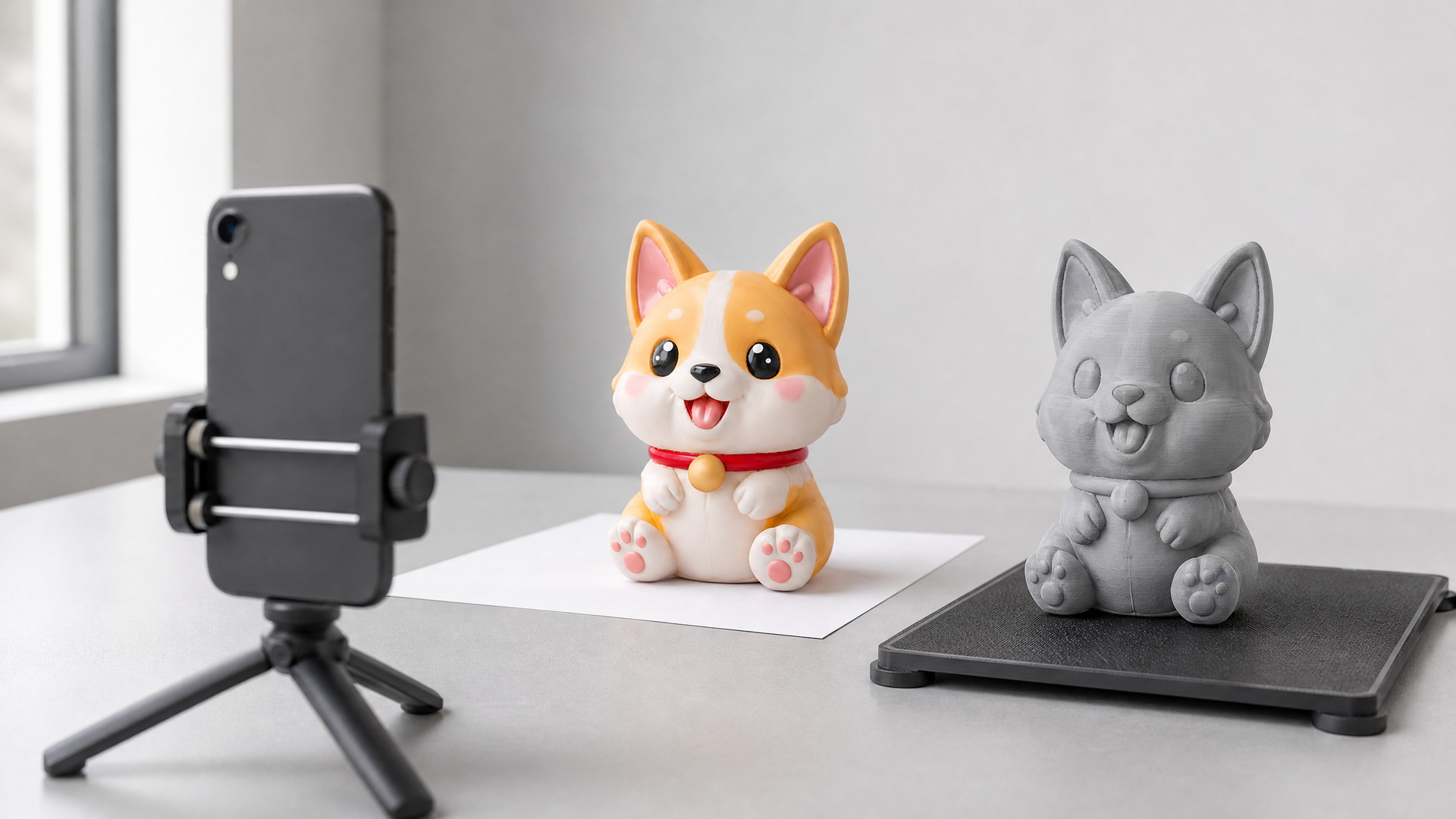
Phone 3D Scan to 3D Print: From Six Photos to a Printable Model
A phone can start a printed part. Photograph the object from six sides, upload those photos to a desktop generator, and you get a mesh you can scale, slice, and print. This tutorial follows that route end to end: the shots worth taking, what the reconstruction does with them, and the checks that decide whether the file actually prints. Two things are worth keeping straight from the start. Photo-based reconstruction is not photogrammetry, which triangulates dozens of overlapping frames, and it is not a measured scan, so treat the result as a shaped model rather than a dimensional replica. N4D has no mobile app, so capture on the phone and do the rest in a desktop browser.
What a Phone 3D Scan to 3D Print Workflow Can and Cannot Do
Two different things get called a phone 3D scan, and only one of them measures anything. This tutorial covers the kind that does not. It rebuilds shape from photographs, which is more than enough for a printed part and is not the same thing as scanning.
The phone itself is genuinely sufficient as a camera. N4D’s multi-view to 3D page addresses the equipment question directly: you do not need professional photogrammetry equipment, and a standard smartphone camera is enough.
What separates this from photogrammetry is the volume of input. Photogrammetry matches hundreds of overlapping frames and triangulates points between them. Multi-view reconstruction takes a small set of posed views, up to six in this case, and reconciles depth across opposing pairs. Fewer photos, faster turnaround, and geometry that follows the views you actually supplied.
The “3D” half of “phone 3D scan” is the half to be careful with. Nothing here measures the object. The engine reads the surfaces your photos show and builds a closed mesh from them, which is why a hidden underside is the weakest point in any reconstruction and why an object that hides its own shape will not come back clean.
Object types that defeat this workflow
Five kinds of object are consistently hard, and knowing them in advance saves a wasted upload.
- Reflective and glossy surfaces. The highlight slides across the surface as you walk around the object, so the same patch of material looks different in every frame.
- Transparent objects. The camera records whatever sits behind the glass or acrylic rather than the surface itself.
- Very dark matte finishes. Reconstruction leans on tonal variation to find form, and a near-black object offers very little of it.
- Fine protruding detail. Whiskers, thin fins, wires, and narrow spikes are the first things to merge into the body or vanish.
- Anything whose underside is the point. If the object has to rest flat and you cannot photograph underneath it, that face is being inferred rather than read.
Where you start depends on what you already have in hand.
| What you already have | What the route does | Where to read it |
|---|---|---|
| One photo of the object | Single-image generation, which has to estimate the surfaces the camera never saw | Convert an existing image to a print model |
| Six photos of the object: front, back, left, right, top, bottom | Multi-view reconstruction, which reads the angles you actually captured | This tutorial, from Step 1 |
If you already have a picture and no object to walk around, the single-image route is the one to follow. Everything below assumes you can still pick the object up.
Step 1. Before You Shoot: Gear, Light, and Background
Good captures come out of preparation rather than luck. Four things decide the result before you press the shutter.
Support the camera
A tripod or a cheap phone clamp does more for reconstruction quality than a better camera does. Handheld shots change the distance and angle between frames, and the generator has to reconcile those differences before it can reconcile the object. If a tripod is not available, brace the phone against something solid and keep the object at the same distance for every shot.
Light it evenly
You want diffuse, even light with soft or no shadows. Overcast daylight through a window, or a diffused lamp on each side, both work. Direct flash and a single hard light source are the two to avoid, because they carve deep shadows that move as the camera moves, and moving shadows look like moving geometry to the reconstruction.
Once the light is set, leave it alone. If you need the object to rotate, rotate the object and keep the light fixed, which is the one job a turntable does well.
Keep the background plain
Set the object against something clean and contrasting: a sheet of paper, a matte board, a bare surface. A busy background gives the engine edges that belong to the room rather than the object.
Measure the object once
Write down the object’s height, width, and depth in millimeters before you start shooting. You will need those numbers at the slicer, because a reconstructed mesh is not guaranteed to arrive at real-world size. Measuring first is the difference between scaling once and guessing repeatedly.
This is practical guidance, not a calibrated procedure. Nothing in this section is a tested specification. Treat the lighting and support advice as a starting point, and adjust it for whatever you are photographing.
Step 2. The Six-View Capture Protocol
N4D’s Multi-View input uses six labeled slots: Front, Back, Left, Right, Top, and Bottom. The official wording is “up to six” angles, so the set is a recommendation for this tutorial rather than a hard requirement. That said, the more of the surface you can show, the less the engine has to infer, and the underside is where inference hurts most.
The four side views
Shoot front, back, left, and right at the object’s own height, roughly ninety degrees apart, so the camera looks straight at the side rather than down at it. Keep the object the same size in the frame each time. If you are using a turntable, turn it a quarter of a revolution between shots instead of moving the phone.
The top view
Move the camera directly above the object and look straight down. This is the one view a turntable cannot give you, because the camera has to change position rather than the object.
The bottom view
Turn the object over and photograph it from directly underneath, or rest it on a narrow support so the base is visible. A print that sits flat on a bed needs a credible bottom face, and this is the view most people skip.
Keep the settings consistent
Lock focus and exposure across the whole set if your camera app allows it. Set the same zoom for every frame and do not switch lenses between shots, because a different focal length changes the geometry the engine is trying to reconcile. Check each image for motion blur or soft focus before you upload anything.
Formats and limits
Multi-View accepts png, jpg, jpeg, and webp files up to 20MB each. You can add them by clicking, dragging, or pasting.
Capturing a six-view set is useful well beyond printing. The same photos can become a multi-view model for product listings, where the destination is a rendered listing image rather than a physical part, so the capture method transfers even when the goal changes.
Step 3. Upload and Reconstruct in N4D
There is no mobile app in this pipeline. Capture happens on the phone, and the reconstruction happens in a desktop browser, which is worth planning around rather than discovering halfway through.
Open the multi-view input, then match each photo to its slot. The interface labels every position, so a shot taken from the left goes in Left and nowhere else. Getting a view into the wrong slot is the most common self-inflicted error, and it produces a model with a section that looks flattened or reversed.
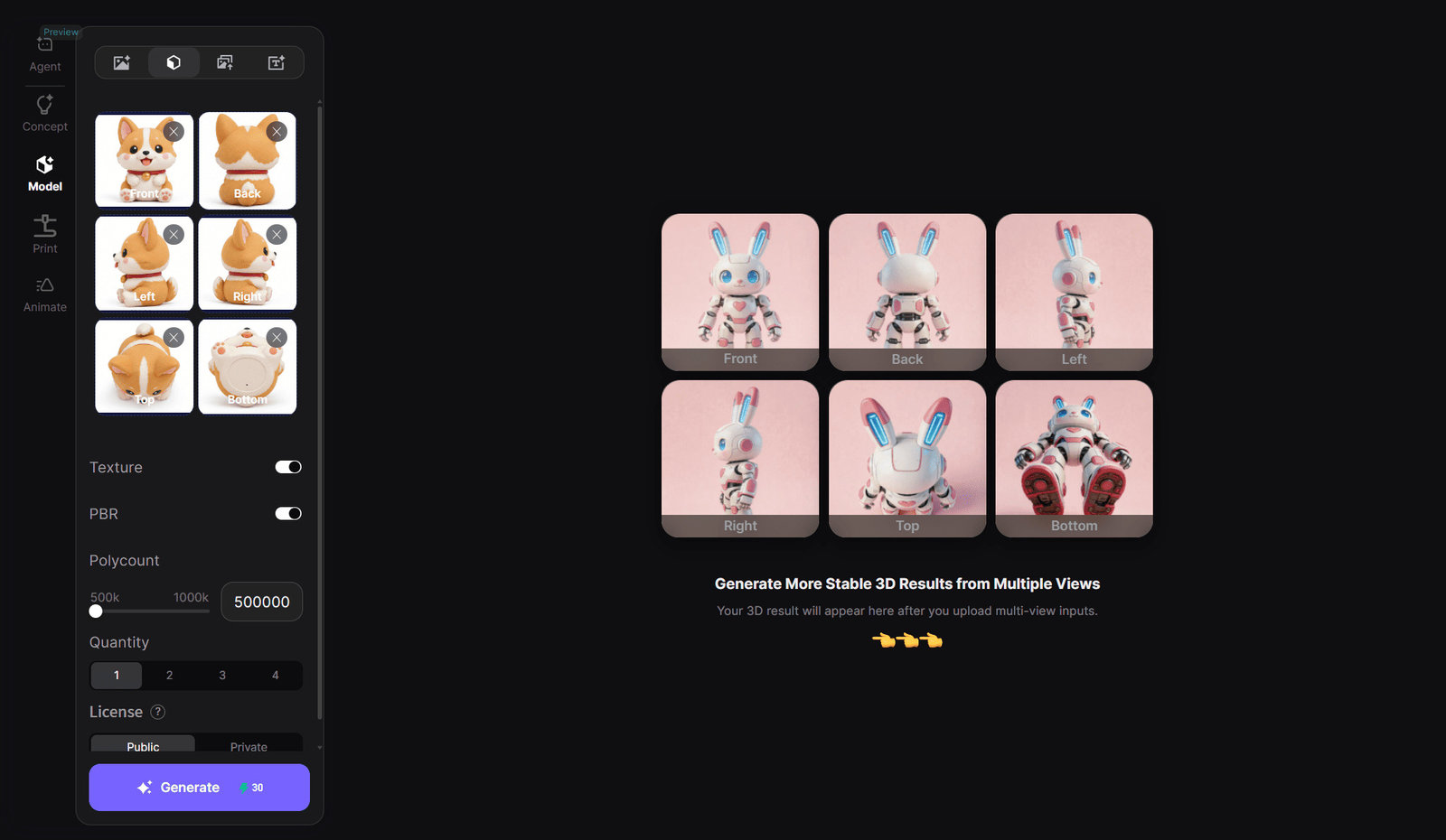
The controls visible alongside the input are Texture, PBR, and Polycount. This example sets Polycount to 500,000. Do not read that as a default or as a full range: the screenshot shows one configuration, not the boundaries of the control.
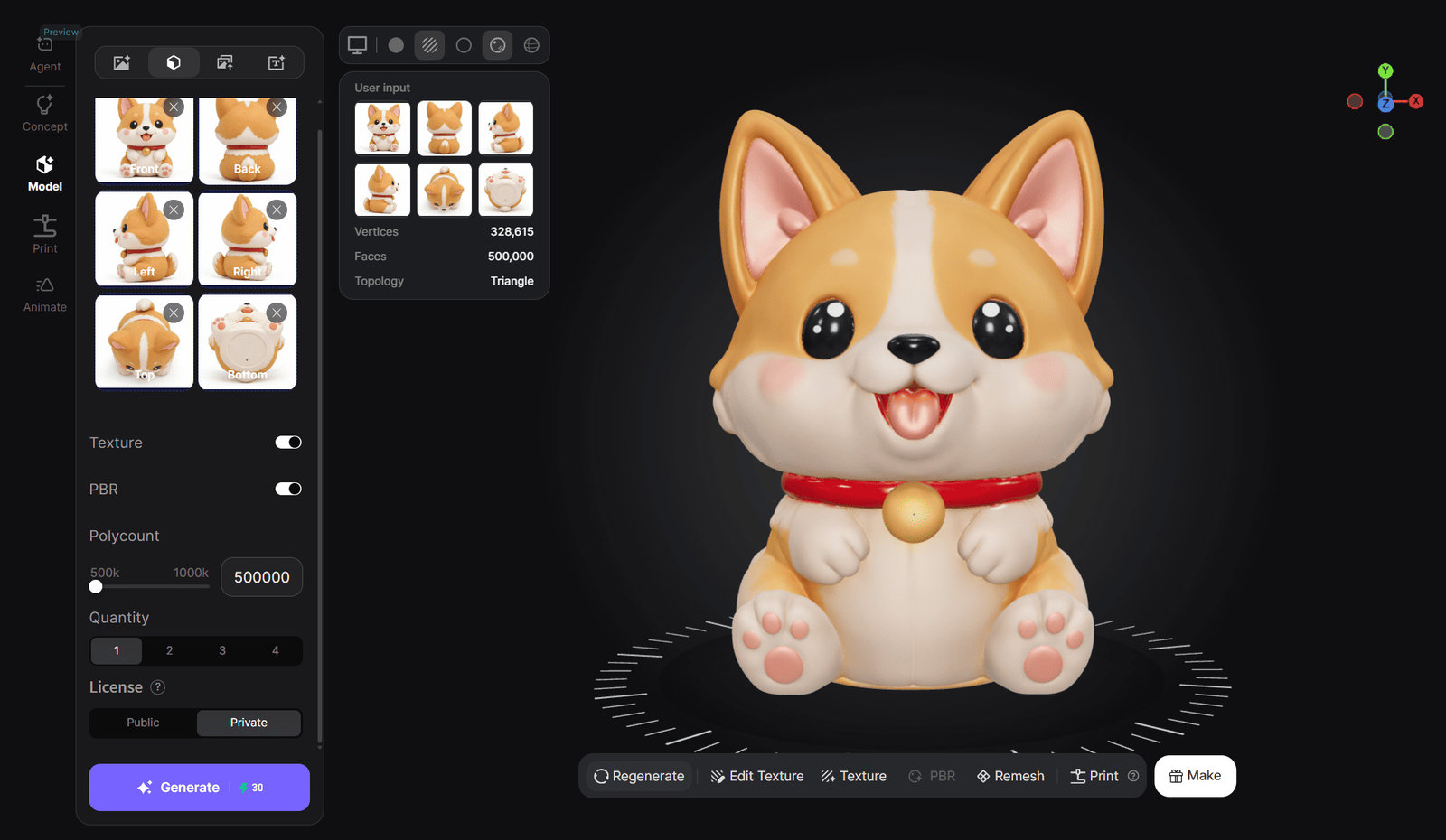
Once the generation finishes, the viewer reports mesh statistics alongside the model. In this example the result came back with 328,615 vertices, 500,000 faces, and Triangle topology, matching the polycount that was requested. Those numbers describe the mesh the generator produced. They do not by themselves establish that the model is printable, watertight, or dimensionally faithful, and it is worth treating the statistics panel as a description rather than a certificate.
If you have only one picture to work from rather than a set, the image to 3D route handles that input directly. It is a different job, since a single view forces the model to invent the surfaces it cannot see. The comparison between generating in batches and generating from a deliberate multi-view set is covered in the guide to batch versus multi-view generation.
Step 4. Export and Pre-Print Checks
N4D’s Multi-View page states that generated models export as FBX, GLB, or STL. STL is the one your slicer wants, because it carries the geometry and nothing else. FBX and GLB keep the PBR materials, which matters if the model is heading to Blender or an engine instead of a printer.
From there the job moves to the slicer, and five checks decide whether the file is worth a print.
Scale
This is the check people skip and then regret. Enter the measurement you took in Step 1 and resize the model to match. A reconstructed mesh is not guaranteed to arrive at real-world dimensions, so the number on your note is the only thing anchoring the print to the size you intended.
Build volume
Confirm the model fits the bed in its chosen orientation, including any supports. A model that technically fits but needs a tall support tower behind it is a different problem than one that fits cleanly.
Thin features
Look for the parts of the mesh that are thinner than two or three extrusion widths. Thin fins, ears, and tapered points are where a print fails first, and it is easier to thicken them in the model than to repair them on the plate.
Orientation and supports
Choose the orientation that puts supports against the least visible face. A model rotated so its detail faces up will show support scars exactly where the part will be looked at, which is usually the wrong trade.
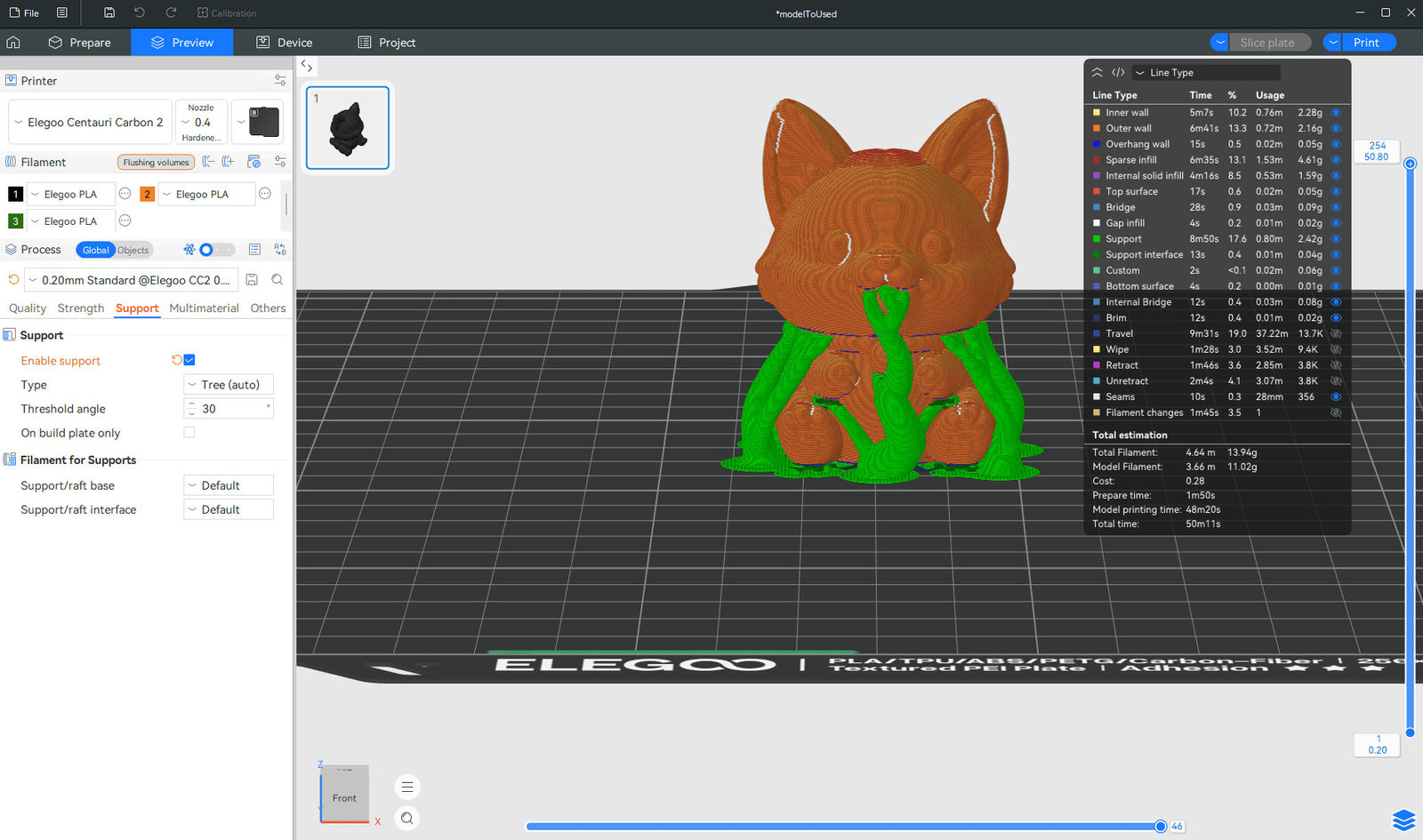
Read that preview as a plan rather than a result. A slice preview shows where the toolpaths will go; it does not prove that the part will print, that the walls are thick enough, or that the mesh is free of geometry problems. Those are properties of the model and the machine, and the preview is a picture of the first and not the second.
If the mesh needs a closer look before you commit a spool to it, the watertight mesh page describes what the engine is targeting, and the walkthrough on preparing an AI-generated model for printing covers the same handoff in more depth.
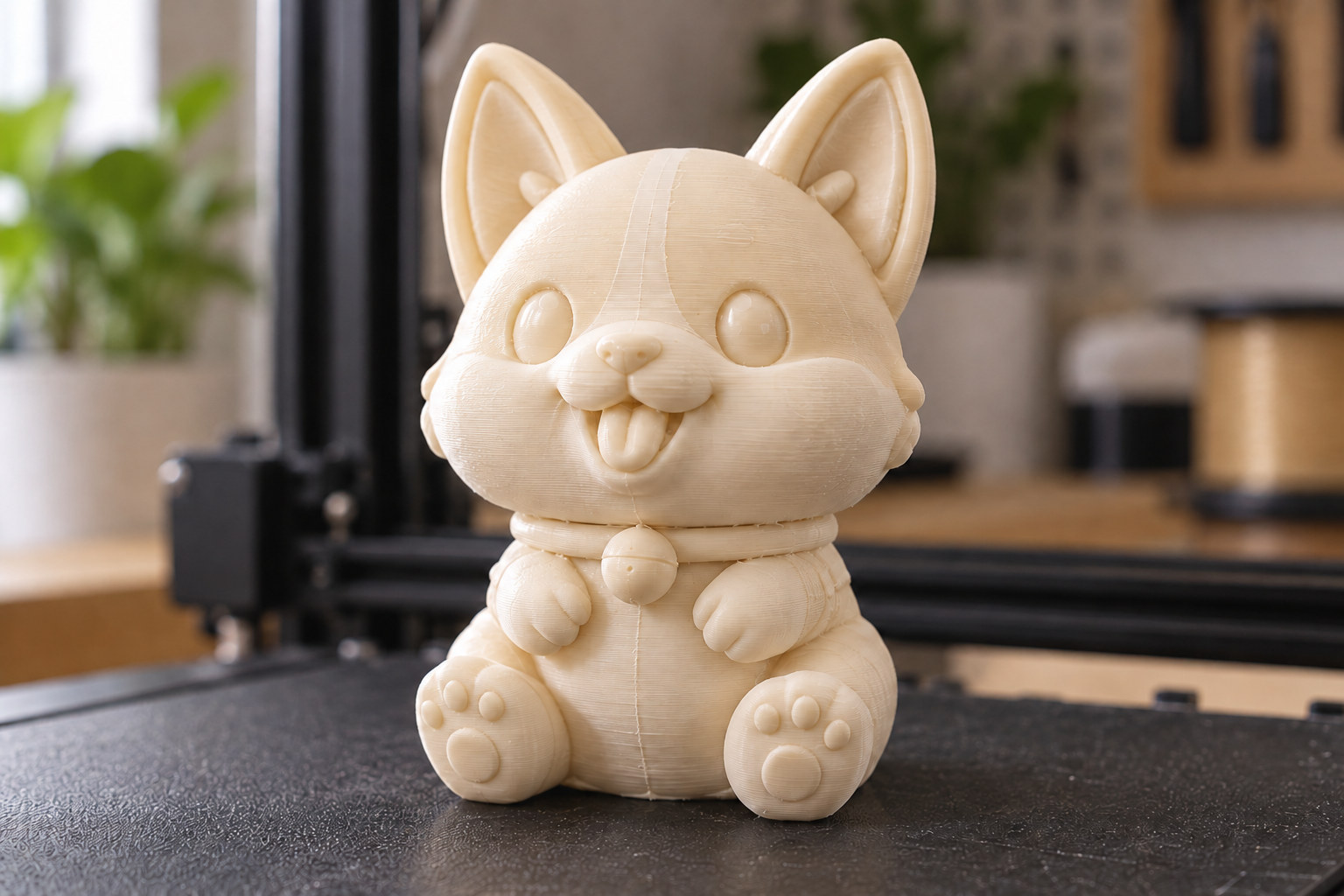
The whole loop runs in one place, which is the practical argument for keeping capture and reconstruction close together: shoot the six views on the phone, then open the multi-view generator in the browser and upload them.
Your Six Photos Are Ready to Generate
Start a Phone 3D Scan to 3D Print
Free 50 credits every week, no credit card required.
Oversized Parts and Color
Two situations come up often enough to plan for before you slice: the model is bigger than the bed, or you want it in more than one color.
Part Split Printing divides one model into separate parts so a piece that exceeds the build volume can be printed across several jobs. It works on your own completed N4D models and does not accept local uploads, and it always produces the split as a white model regardless of whether the source had textures. There is a single Smart Split with no accuracy tiers or custom parameters to tune, and it is a subscription feature: if you are not subscribed, or the subscription has lapsed, clicking generate is intercepted before the split starts and nothing is charged. Each split costs 40 credits, returned if the split fails. The AI for 3D printing page covers where this sits in the wider print workflow.
Multicolor reads a textured model that was generated inside the platform, identifies the color regions, and proposes a palette you can adjust. Smart Coloring returns four colors by default, and My Colors lets you save a personal scheme between one and eight colors that can be reused across models and sessions. Each generation costs 30 credits, returned on failure or timeout, and the download opens the standard format dialog with 3MF as the default and GLB also available. Like Part Split, it does not accept local uploads. The multicolor 3D print file page has the feature details.
One boundary worth stating plainly. Multicolor is a software color separation step. It assigns color regions inside the model file. It is not the printer-side workflow that most people mean by multicolor printing, which is filament swapping through an AMS or a multi-toolhead setup. N4D prepares the color regions in the file; your slicer and your hardware still handle the actual material changes.
Common Failures and Fixes
The problems below are the general ones that come out of this capture-and-generate loop. No failed run from this example was supplied with the screenshots, so treat these as standard troubleshooting rather than a record of what happened here.
Solution 1: The back or underside came out wrong
This almost always traces back to missing views rather than a bad generator. If the back looks flat or the base is mushy, the engine was inferring those surfaces instead of reading them. Add the missing view, or photograph the object on a narrow support so the underside is visible, and generate again.
Solution 2: The surface looks lumpy or melted
Usually a capture problem, not a generation problem. Motion blur, soft focus, or a shadow that moved between frames all read as surface deformation. Reshoot on a stable support with the light fixed and the exposure locked, and check the images at full size before uploading.
Solution 3: The color looks washed out or inconsistent
Mixed white balance between frames is the usual cause, since the texturing step projects each photo onto the mesh and blends them. Shoot the whole set under one light source with the camera’s white balance locked rather than on auto.
Solution 4: The model arrives at the wrong size
Expected, and exactly what the Step 1 measurement is for. Set the scale in the slicer against the real dimension rather than trusting the export. If you skipped the measurement, measure the object now and rescale.
Solution 5: A reflective or transparent object will not reconstruct
This is a genuine limitation of photo-based reconstruction rather than something to fix with settings. A matte spray or a temporary dusting of powder can break up a glossy surface, but a clear object usually has to go a different route, such as modeling it directly.
Common Questions
Yes, and that is the route this tutorial takes. You use the phone purely as a camera, then do the reconstruction in a desktop browser. Scanning apps capture and process on the phone, which is a different workflow with its own tradeoffs, and it is not required to get from an object to a printable file.
For shape, usually yes. For dimensions, do not assume it. The reconstruction reads the surfaces your photos show, which produces a usable form, but nothing in the process measures the object. Set the scale from a real measurement in your slicer, and check any critical dimension on the sliced model before committing to a long print.
No, but it helps with the four side views by keeping the camera fixed and the distance constant. It cannot help with the top view, which needs the camera to move, or with the bottom view, which needs the object turned over. You can capture the whole set by hand as long as the lighting stays the same and the object stays the same size in frame.
Not from an arbitrary file. Multicolor works on textured models generated inside the platform, where it identifies color regions and proposes a palette you can adjust between one and eight colors, exported as 3MF or GLB. It is a software color separation step rather than a filament-swapping workflow, so your slicer and printer still handle the actual material changes.
Start with one object you can pick up and turn over, keep the light fixed while you shoot, and run the six views through. The first model tells you more about your own capture habits than any amount of reading, and the settings that matter are usually the scale and the orientation rather than anything exotic.
Turn a Phone Capture Into a Printable Model
Start a Phone 3D Scan to 3D Print
Free 50 credits every week, no credit card required.