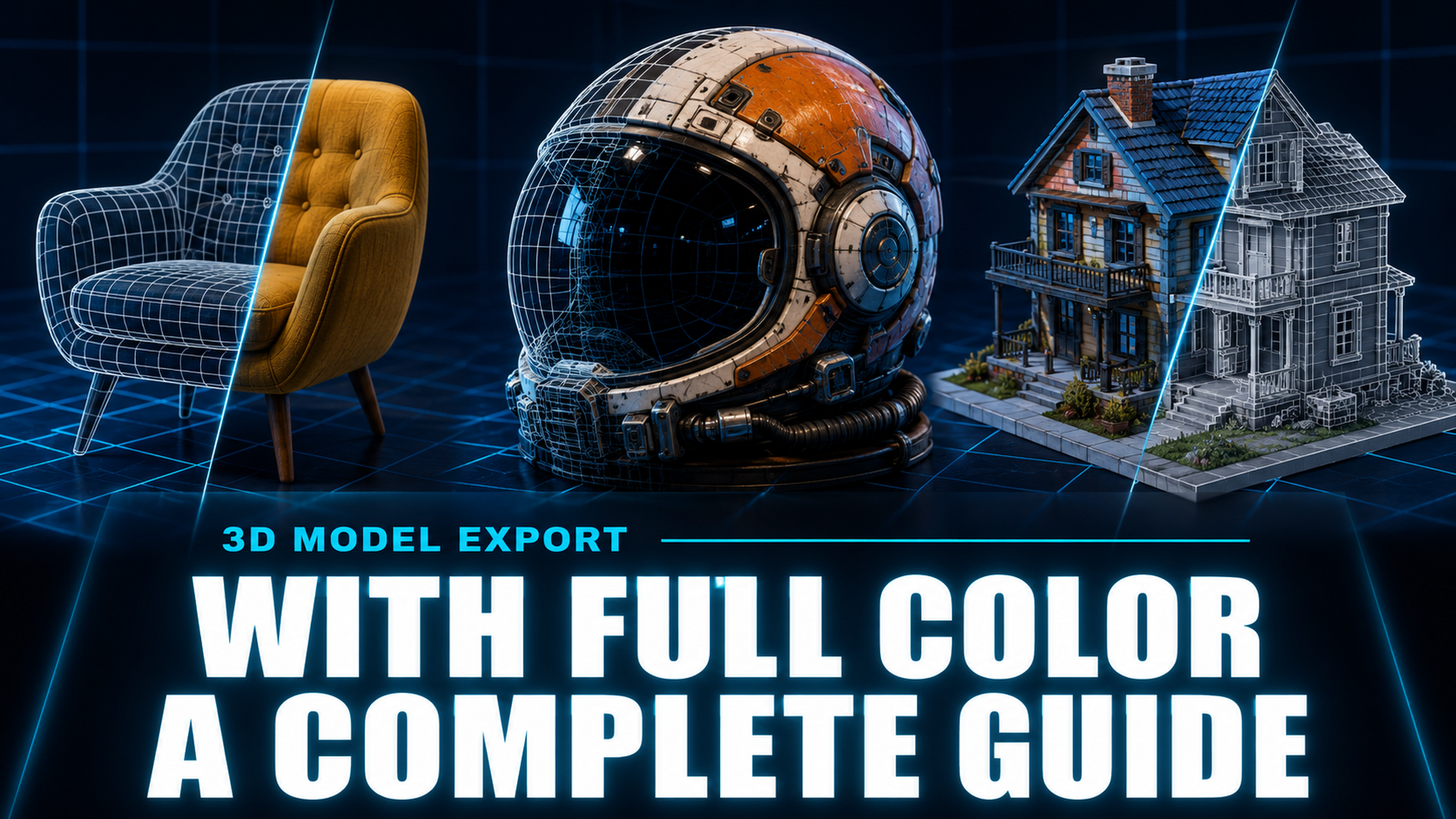
How to Export Meshy AI Models Without Losing Color (2026 Guide)
Quick Summary
- Exporting Meshy AI models without losing color depends on choosing the right format (FBX, GLB, or OBJ with MTL) and enabling the correct export settings in the export dialog.
- STL is the most common cause of total color loss since it discards all texture maps and vertex color data, while FBX and GLB offer the best color preservation for game engines and web platforms.
- Broken texture paths, mismatched color space settings, and missing material assignments are the top three reasons exported Meshy models appear gray or pink in target software like Unity or Blender.
- Neural4D generates watertight manifold meshes with PBR textures in a single pass, eliminating export color issues at the source by producing production-ready 3D files from the start.
This guide explains how to export Meshy AI without losing color, covering format selection, export settings, and actionable troubleshooting steps to keep textures and vertex colors intact across every target platform.
Part 1: Why Color Gets Lost in Meshy AI Export
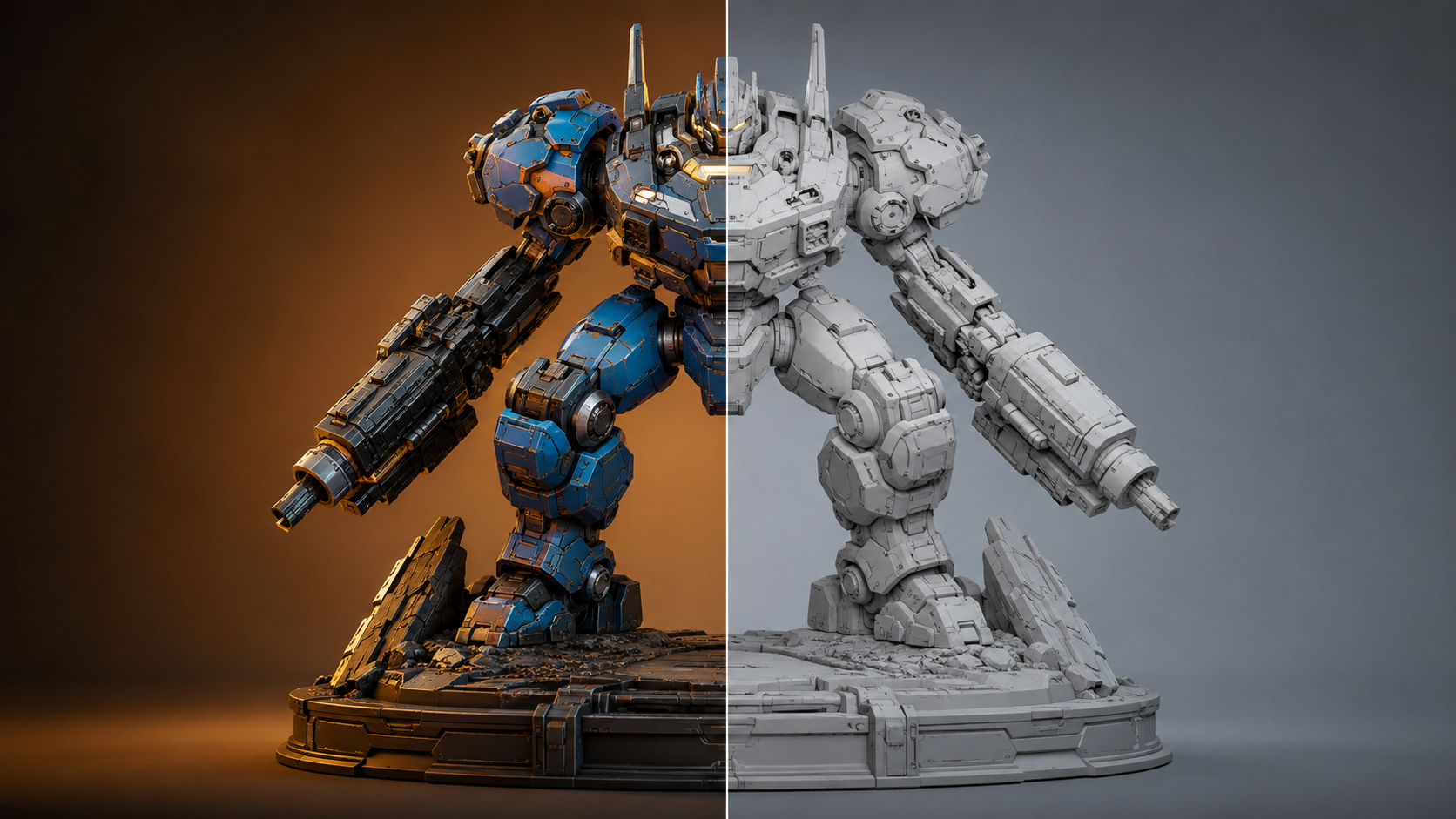
Meshy AI generates 3D models with two distinct types of color data: texture maps (image files wrapped around the surface) and vertex colors (color values painted directly onto mesh vertices). Texture maps deliver higher fidelity for complex patterns and gradients, while vertex colors are lighter and require no external image files. When you export a model, the chosen format determines whether these color data types survive the transfer.
The export process translates Meshy’s internal material representation into a file format that target applications can read. Each format has different rules for encoding color data. STL, for example, stores only raw triangle geometry with zero color channels. FBX and GLB embed textures internally, while OBJ relies on a companion MTL file. If the export pipeline breaks the link between the mesh and its color data, the model arrives without color even though the original Meshy scene was fully textured.
💡 Key insight: Color loss is almost never a bug in Meshy’s generator. It is almost always a mismatch between the export format, the export settings, and the target application’s import expectations. The model itself retains its color data inside Meshy. The challenge is transferring that data faithfully.
Three factors cause the vast majority of color loss cases: selecting a color-stripped format (usually STL), disabling the Texture or Material export toggle in Meshy’s export dialog, and breaking the file dependency chain by moving the model file away from its companion texture images. Fixing any one of these solves most color loss situations.
Part 2: Step-by-Step Color-Safe Export Workflow
Follow these steps inside Meshy AI to ensure your model retains full color data through the export pipeline. The same workflow applies whether you are targeting Unity, Unreal Engine, Blender, or web platforms.
Step 1: Verify Texture and Material Integrity Before Export
Before opening the export dialog, inspect your model in Meshy’s preview pane. Every surface that should show color must have a material assigned. Look for any faces that appear flat gray or white, which indicates a missing texture link. If you find untextured areas, regenerate the model or reapply the material in Meshy’s material panel. Skipping this verification step is the single most common oversight that leads to post-export disappointment.
Step 2: Choose the Right Format for Your Target Platform
Meshy offers multiple export formats, but not all of them carry color. Use this quick selection guide to pick the right one:
- Game engines (Unity, Unreal): FBX with embedded textures. This is the most reliable pipeline for complex material networks and skeletal animation.
- Web display (AR, e-commerce, portfolio): GLB. A single binary file contains the mesh, all textures, and PBR material data with no external dependencies.
- Blender and general 3D editing: OBJ with separate MTL file. Reliable and widely compatible, but keep the MTL and texture files in the same folder as the OBJ.
- 3D printing with color: OBJ (for multi-material printers) or PLY (for vertex-colored models). Avoid STL if color is required.
Step 3: Enable All Color-Related Export Settings
In Meshy’s export dialog, three toggles directly control color output. These typically default to enabled, but it is worth confirming each one before clicking Export:
✅ Include Textures: Must be checked. This exports the image-based texture maps (diffuse, normal, roughness) alongside the mesh.
✅ Preserve Materials: Must be checked. This retains material assignments, shader properties, and texture slot mappings.
✅ Vertex Colors: Check if your model uses vertex painting rather than texture maps. This setting is format-dependent and may not appear for all export types.
Step 4: Set Appropriate Texture Resolution
Meshy lets you choose texture resolution during export. Higher resolutions preserve more detail but increase file size and load time. 1K (1024×1024) is the safe baseline for most game and web use. Use 2K for hero assets or close-up product renders. Avoid 4K unless the camera will be extremely close to the surface, as the perceptual improvement over 2K is marginal for most real-time applications.
Step 5: Export and Verify Immediately
After exporting, import the file into your target application before closing Meshy. This way, if the model imports without color, you can troubleshoot while the Meshy scene is still open. Check that texture maps are linked in the material editor, not reported as missing or disconnected.
Part 3: Format Comparison for Color Preservation
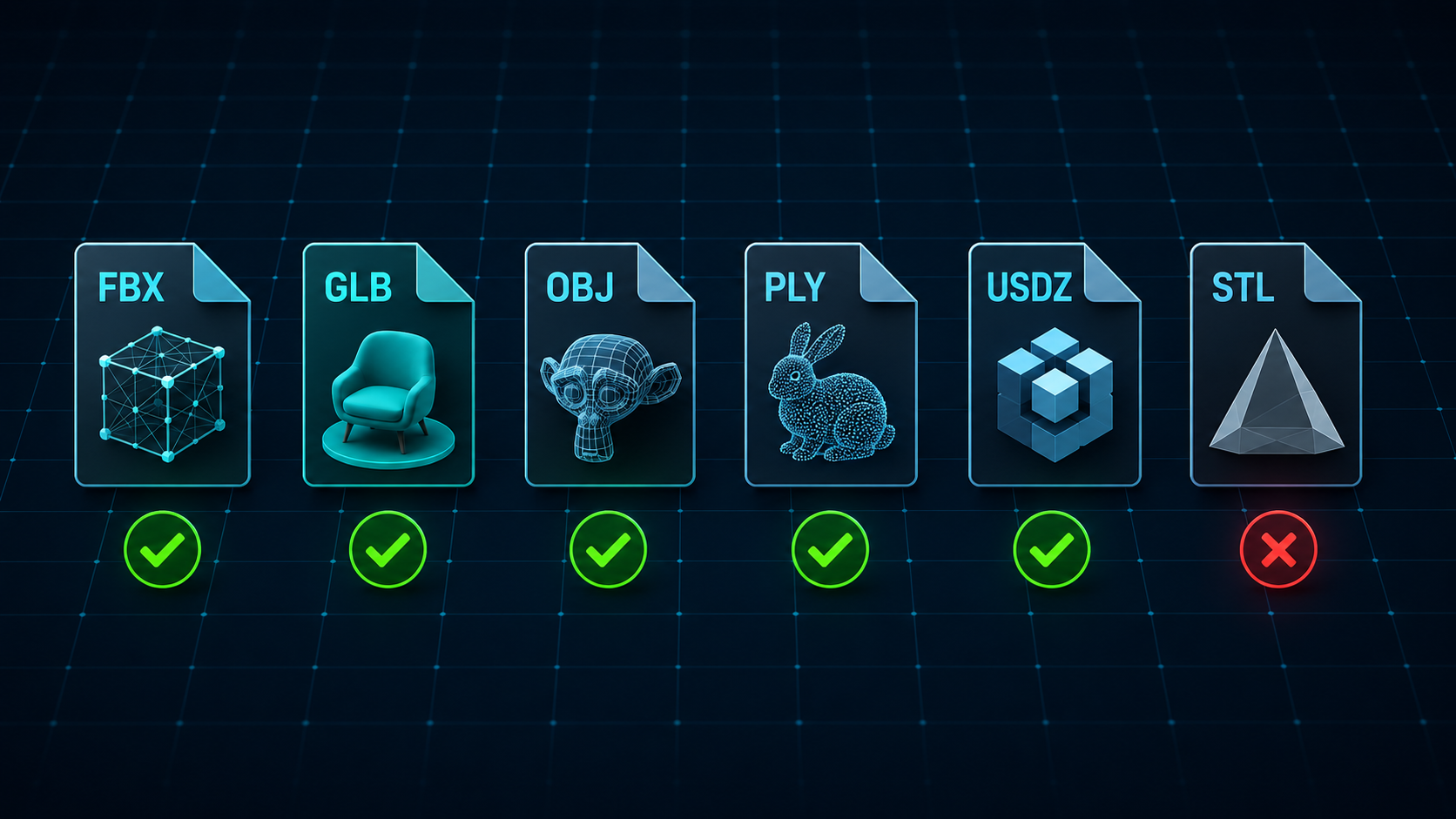
Each export format handles color differently. The table below compares the most common Meshy export formats across color capability, external dependencies, and best-use scenarios.
| Format | Color Support | Texture Handling | Dependencies | Best For |
|---|---|---|---|---|
| FBX | Excellent | Embedded or external | None (embedded mode) | Game engines, animation, complex materials |
| GLB | Excellent | Embedded binary | None (single file) | Web, AR, fast sharing |
| OBJ + MTL | Good | External texture files | MTL file + texture images in same folder | Blender, general editing |
| PLY | Good (vertex colors) | Vertex attributes only | None | Scanned data, scientific viz |
| USDZ | Excellent | Embedded or referenced | Apple ecosystem tools | AR Quick Look, iOS apps |
| STL | None | Not supported | None | 3D printing (no color needed) |
FBX and GLB are the safest choices when color preservation is the priority. FBX supports embedded textures and complex material networks including PBR maps, making it the standard for game and film pipelines. GLB packages everything into one binary file with zero external dependencies, which eliminates broken-path issues entirely. STL should never be used when color data must be retained, as the format stores only raw triangular mesh geometry with no mechanism for color or texture information of any kind.
🔍 GLB vs FBX: Which One Preserves Color Better?
Both formats preserve color equally well at the texture level. The practical difference is workflow: GLB keeps everything in one file, making it ideal for web delivery and quick transfers. FBX supports more advanced material types (layered shaders, custom material attributes) and is the preferred format when moving assets into Unity or Unreal where the material graph will be further edited. For a straight color-preserving export with no downstream editing, GLB is simpler and less error-prone.
If you need to convert image to GLB from scratch using an AI generator rather than fixing a broken Meshy export, Neural4D directly produces GLB files with embedded PBR textures, removing the export color problem entirely at the generation stage.
Part 4: Why Neural4D Eliminates Export Color Issues
Meshy AI builds models using a multi-view diffusion approach that reconstructs geometry from multiple camera angles. While effective for generating approximate shapes quickly, this approach can produce geometry with thin walls, non-manifold edges, and self-intersecting faces. These structural problems do not always cause visible issues inside Meshy’s preview, but they create downstream export failures: UV maps misalign, texture coordinates break, and the resulting file imports into target software with missing or distorted color data.
Neural4D takes a fundamentally different approach. Built on the Direct3D-S2 architecture (presented at NeurIPS 2025, arXiv:2505.17412), Neural4D generates geometry in native 3D space rather than projecting from 2D views. The output is always a watertight, manifold mesh with clean topology. When PBR textures are generated (standard or full PBR maps), they are produced in the same pass as the mesh, not stitched on afterward. This means the texture coordinates are an integral part of the model from the first frame, not an afterthought that can detach during export.
The practical result for color export: A Neural4D model exported as GLB or OBJ carries its textures as first-class data. There are no broken UV channels. There are no misaligned texture coordinates. The file opens in Unity, Blender, or any web viewer with the exact color data it had at generation time. Users do not need to toggle “Include Textures” or worry about whether their chosen format supports color, because the model was built color-ready from the ground up.
For a direct comparison of how the two platforms differ across every dimension, see the detailed Neural4D vs Meshy comparison. Readers looking for alternative tools that avoid Meshy’s export limitations entirely should also review the best free Meshy alternatives guide.

Export Color-Ready 3D Models, Every Time
Stop fighting broken textures and missing materials. Generate watertight 3D assets with Neural4D with PBR textures included from the start.
💡 50 free credits every week. No credit card required.
Part 5: Troubleshooting Common Color Loss Problems
Even with the correct format and settings, color loss can still happen at the import stage. Below are the most common post-export problems and how to fix them in each target environment.
Pink Materials in Unity
This is the most widely reported issue when importing Meshy FBX or GLB files into Unity. Pink materials mean Unity cannot find the texture files, or the shader assigned to the material is incompatible with the current render pipeline. Fix: Select the material in the Unity Inspector and change the shader to Universal Render Pipeline/Lit (for URP) or HDRP/Lit (for HDRP). If textures still appear missing, check that the texture files are in the same folder as the imported model or reimport with textures embedded.
Missing Textures After OBJ Export
OBJ files store material references in a companion MTL file. If you move the OBJ file without also copying the MTL and texture images, the model opens as a flat gray mesh. Fix: Keep the OBJ, MTL, and all PNG/JPG texture files together in the same directory. When importing into Blender, use File, Import, Wavefront OBJ and ensure the MTL file is in the same folder. Blender reads the MTL file automatically and assigns textures to the correct channels.
Washed-Out or Overly Dark Colors in GLB
Color space mismatch causes this problem. Most 3D applications expect textures in sRGB color space for diffuse (base color) maps, but the same textures may be interpreted as linear data by the importer. Fix: In Blender’s Shader Editor, select the Image Texture node and set Color Space to sRGB for base color maps and Non-Color for roughness, metallic, and normal maps. For Unity, ensure the texture import settings match (sRGB for albedo, linear for data maps).
No Color After STL Export
STL does not support color at all. If you exported to STL and lost your color data, the only recovery path is to return to Meshy, change the export format to FBX or GLB, and export again. There is no way to add color back to an STL file. This is why verifying your export format before clicking Export is critical, especially if you use STL regularly for 3D printing and may have left the format selected from a previous export.
For a comprehensive walkthrough of importing Meshy and other AI-generated models into Unity, see the guide on importing 3D models into Unity 6, which covers FBX and GLB pipelines with AI-generated assets.
Part 6: Common Questions on Meshy AI Color Export
Q: Why does my Meshy AI model lose color after export?
Color loss after export is almost always caused by one of three things: exporting to a format that does not support color (STL), disabling the Include Textures or Preserve Materials toggle in the export dialog, or separating the model file from its companion texture files after export. Less common causes include mismatched color space settings (sRGB vs linear) and incompatible shader assignments in the target application. Checking these three areas resolves roughly 90% of color loss cases.
Q: What is the best format for exporting Meshy models with color?
FBX with embedded textures is the most reliable format for maximum color preservation across game engines and DCC tools. GLB is equally good for color quality and has the advantage of being a single self-contained file with no external texture dependencies. For Blender and general editing, OBJ with MTL works well but requires keeping the texture files in the same directory as the model. The worst choice for color export is STL, which discards all color data entirely. If you need to retain color, never select STL as your export format.
Q: Does GLB preserve color better than FBX from Meshy?
Both GLB and FBX preserve color at the same texture fidelity level. The difference is in workflow, not quality. GLB uses a single binary file that contains the mesh, textures, and PBR material data with zero external dependencies, making it immune to broken path issues. FBX supports a wider range of material types and is preferred when the asset will be further edited in Unity or Unreal where custom shader graphs are needed. For a straight color-preserving export with no downstream editing, GLB is actually harder to break than FBX because there are no external files to manage.
Q: How do I fix pink materials when importing Meshy FBX to Unity?
Pink materials in Unity indicate that the shader assigned to the Meshy FBX material is not compatible with the active render pipeline. Select the pink material in the Unity Project window, open the Inspector, and change the shader to Universal Render Pipeline/Lit if you are using URP, or HDRP/Lit if using HDRP. If the model still shows no textures after the shader change, the FBX may have been exported with external texture references that were broken during import. Re-export from Meshy with the Embed Textures option enabled, then reimport. This ensures all texture data is contained within the FBX file itself.
Q: Can I recover color after accidentally exporting to STL?
No, color cannot be recovered from an STL file because STL stores only raw triangle geometry with no color channels, texture coordinates, or material data of any kind. The only recovery path is to return to Meshy, reopen the original scene, and re-export using FBX, GLB, or OBJ with MTL. This is why it is critical to verify the export format before clicking Export, especially if you frequently switch between color and non-color workflows. Once the STL is written, the color information is permanently discarded.
Q: Is Neural4D better than Meshy for color-preserving 3D model export?
Neural4D takes a fundamentally different approach that avoids export color issues at the architectural level. Its Direct3D-S2 engine generates watertight manifold meshes with PBR textures in a single pass, producing texture coordinates that are integral to the model rather than post-processed. This means Neural4D models export as GLB, OBJ, or FBX with all color data intact on the first try, with no special settings or toggles needed. For users whose primary workflow requires color-preserving 3D model export, Neural4D eliminates the entire class of texture-loss problems that plague other generators. See the full Neural4D vs Meshy comparison for a side-by-side breakdown of both platforms.
Export 3D Models With Full Color, Every Time
Exporting Meshy AI without losing color comes down to three decisions: picking a color-supporting format (FBX, GLB, or OBJ with MTL), enabling the Include Textures and Preserve Materials toggles, and keeping texture files alongside the model after export. Most color loss cases trace back to one of these three areas, and fixing them takes seconds once you know where to look.
If you find yourself repeatedly troubleshooting broken textures and missing materials across different platforms, the root cause may not be your export workflow at all. The geometry your AI generator produces determines how reliably color data can be transferred. How to export Meshy AI without losing color starts with choosing a platform whose UV layout and topology are solid from the start. Neural4D builds every model with watertight geometry and integrated PBR textures, eliminating export color issues before they happen.
Ready to skip the export troubleshooting entirely? Generate your first color-ready 3D asset with Neural4D, free to start, no credit card required.
Create 3D Models With Color Built In
Neural4D generates watertight meshes with PBR textures in a single pass. GLB, OBJ, or FBX, color included, every time.
💡 50 free credits every week. Upgrade to Pro for unlimited generations from $6.90/week.