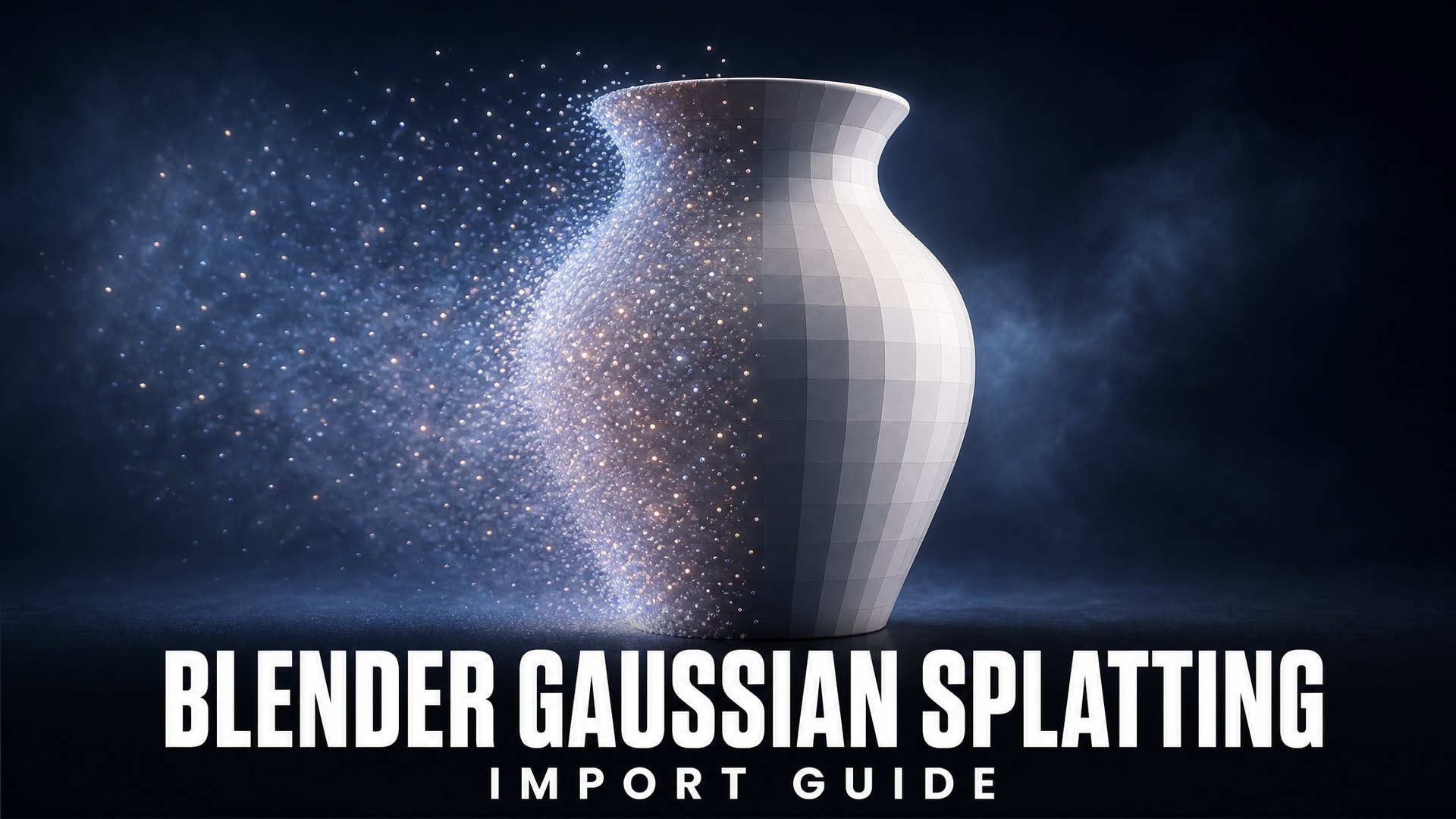
How to Import Gaussian Splats into Blender: Native and Addon Workflows
Quick Summary
- Blender 5.3 is the first version that imports Gaussian splats natively, through PLY and SPZ files, and renders them in Workbench, EEVEE, and Cycles without a third-party addon.
- Native support is import only. The 5.3 release notes state there is currently no export support, so a splat that goes into Blender does not come back out.
- An imported splat is a point cloud data-block, not a mesh. You cannot rig it, unwrap it, or slice it for printing.
- If your goal is an editable asset, generating a mesh from the source photo is a shorter path than trying to rebuild one from splat points.
Blender 5.3 imports Gaussian splats natively. Drop a PLY or SPZ file into the scene, set the point cloud type to 3D Gaussian Splat, and Workbench, EEVEE, and Cycles will all render it. What tripped people up is the second half of the story: native Gaussian splatting support in Blender is import only, the release notes say there is currently no export support, and what lands in your scene is a point cloud rather than an editable mesh. This guide covers both import routes, what you can and cannot do once the splat is in Blender, and where the workflow stops.
Table of Contents
- What Blender 5.3 Adds for Gaussian Splats
- What You Need Before You Start
- Method 1: Import a Splat Natively in Blender 5.3
- Method 2: Import Splats with an Addon
- Blender Gaussian Splatting After Import: What You Can and Cannot Do
- Fixing Common Gaussian Splat Import Problems in Blender
- When a Splat Is Not Enough: Getting an Editable Mesh
- Common Questions About Gaussian Splats in Blender
- Next Steps
What Blender 5.3 Adds for Gaussian Splats
Before 5.3, Gaussian splatting in Blender meant installing a third-party addon. Splats were not a native concept, so each addon brought its own importer, its own viewport representation, and its own idea of how splat data should map onto Blender’s data model. Blender 5.3 changes that by treating a splat as something the application understands.
The 5.3 rendering release notes describe three parts of the change. First, import: PLY and SPZ files can now bring splat data into a scene. Second, a new representation type on the Point Cloud data-block, which switches a point cloud between ordinary points and the original Gaussian splat rendering technique. Third, render support across all three engines, with an emissive shader used by default so you do not need to build a material before the splat shows up.
The data model matters more than the menu entries. A Gaussian splat is not a surface. Each element carries a position, a scale, a rotation, and radiance information, and the release notes list those as the attributes the importer writes:
| Attribute | Type | What it holds |
|---|---|---|
scale |
Vector | How large each splat is drawn along each axis |
rotation |
Quaternion | The orientation of each splat ellipsoid |
radiance:base |
4D Vector | Base DC radiance plus opacity |
radiance:sh_{index} |
Vector | Spherical harmonics coefficients for bands 1 and above |
That list is the reason later sections of this guide look the way they do. Opacity, view-dependent color, and per-splat orientation are properties of points, not of faces, edges, or UV islands. There is no surface to unwrap and no topology to bind a skeleton to.
There is also a second, narrower route in. The pipeline and I/O release notes add USD import for the UsdVolParticleField3DGaussianSplat schema. If your splat already lives inside a USD stage, that path may fit a pipeline better than exporting a PLY first, though it covers import only as well.
One framing note before the steps: 5.3 is the version that introduces this, so the native route below needs a 5.3 build. On 5.2 or earlier that route will not appear in your menus at all, and Method 2 is the one to read. If you want the background on how splats reconstruct a scene in the first place, see what Gaussian splatting actually is.

What You Need Before You Start
Three things, and the third is the one that causes most of the problems people hit.
- A splat file. Blender 5.3’s Gaussian splatting support accepts PLY and SPZ. SPZ support covers versions up to and including 4. Both formats are produced by splat trainers and by capture apps, so check which one your tool exports.
- A Blender 5.3 build for the native route. 5.2 and earlier need an addon, and the native importer only appears once you are on 5.3.
- Knowledge of the coordinate convention your file was written with. This is where imports go sideways. PLY has no enforced convention for splat data, so the exporter decides. The Blender importer auto-detects splat data in a PLY and expects Z forward and negative Y up, but not every tool that writes splats follows that. SPZ is more consistent, and the importer converts coordinates to Blender’s convention, though the release notes still warn that manual fixes may be needed.
If you do not know which convention your file uses, you will find out in the viewport. A scene that appears tipped on its side or buried below the floor usually means the up axis disagrees, and the fix is a rotation on the object rather than a re-export.

Method 1: Import a Splat Natively in Blender 5.3
This is the route to use if you are on 5.3 and you only need the splat visible and renderable.
Step 1: Import the file
Use File, then Import, and pick the Stanford PLY entry or the SPZ entry depending on your file. PLY files can be imported in batches; if you select several at once, each becomes its own object. The importer exposes Scale, Scene Unit, Forward Axis, and Up Axis, and these are worth setting deliberately rather than accepting the defaults when you already know your source convention. For a splat PLY, the importer detects the splat data on its own, so you do not need to tell it that the file is not a normal mesh.
Step 2: Set the point cloud type
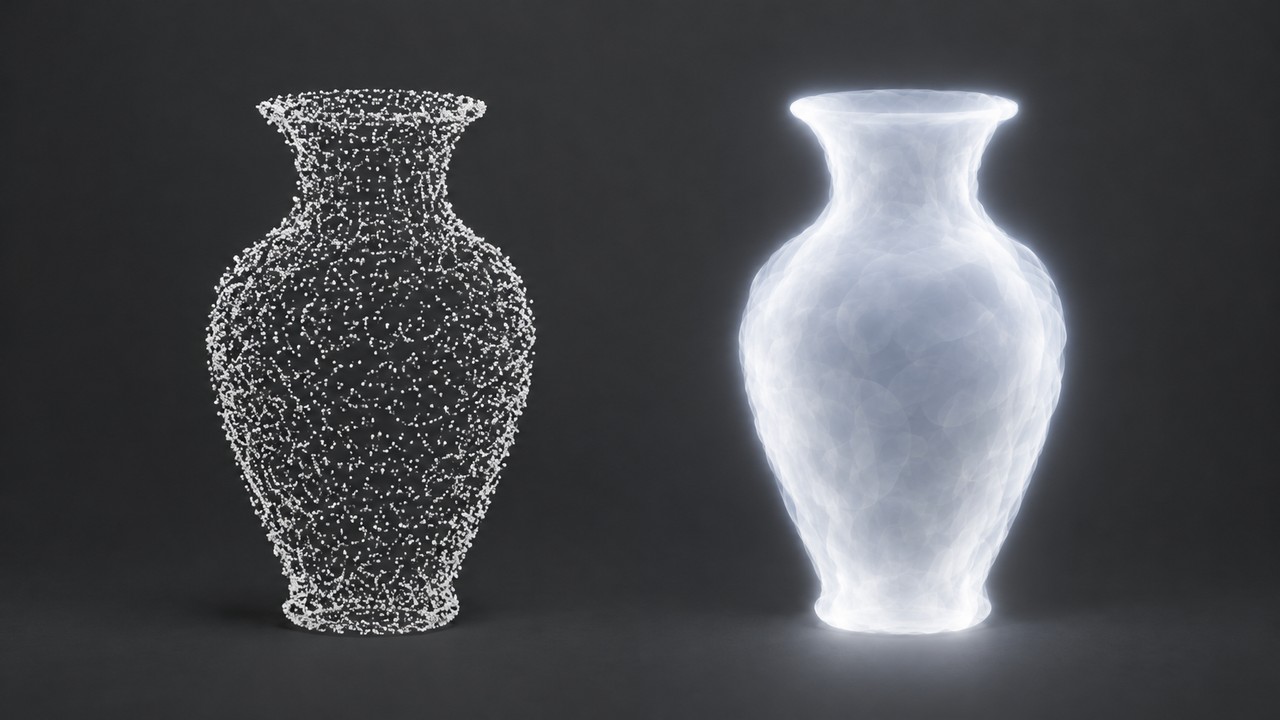
The import lands as a point cloud object. Open the Object Data Properties tab and find the Type setting under Point Cloud Properties. It offers two values: Points, which is the ordinary point cloud behavior, and 3D Gaussian Splat, which renders the cloud using the original Gaussian splat technique. A PLY that contains splat data usually arrives with the second option already selected, but this is the switch to check if your splat looks like a dense scatter of flat dots instead of a soft, continuous surface.
The same setting is reachable from Geometry Nodes. The 5.3 release notes add a Set Point Cloud Type node, which means you can drive the representation procedurally rather than setting it per object by hand.
Step 3: Confirm it renders
Switch the viewport to Material Preview or Rendered. Splats render in Workbench, EEVEE, and Cycles, and they use an emissive shader by default, so no material assignment is required. If the object is visible in wireframe or solid view but disappears when you switch to a rendered view, the type is the first thing to re-check.
The Geometry Nodes importer nodes are worth knowing about if you are building a repeatable pipeline. Import PLY now detects splat data and outputs a point cloud in that case, or a mesh otherwise, which is why its output socket was renamed to Geometry in 5.3. There is a separate Import SPZ node as well.
Method 2: Import Splats with an Addon
You need the addon route in two situations: you are staying on Blender 5.2 or earlier, or you need operations that native support does not cover. Several Gaussian splatting addons existed well before 5.3 and remain maintained, including 3DGS Render, which is distributed through the Blender Extensions platform, and SkySplat. Addons are installed through Edit, Preferences, Add-ons, and the panel they add typically appears in the 3D viewport’s sidebar.
What addons bought you before 5.3 was the entire workflow, since there was no native representation to piggyback on. What they offer now is a superset of import and render, and the specific extras vary by addon. Published coverage of the 3DGS Render addon, which is sponsored by its developer and should be read as vendor material rather than independent testing, describes conversion of meshes into splats, per-object material and color settings, painting, baking, and export of transforms and face edits. That last one is the meaningful difference: native Blender 5.3 has no splat export, and an addon may add one.
Which route to pick
If you are on 5.3, need a splat on screen, and only need to render it, use Method 1. It has no dependencies and fewer moving parts. If you are on an older Blender, or you need to edit splat data, paint it, bake it, or send splats back out of Blender, look at an addon and check that its capabilities are current for your Blender version.

Blender Gaussian Splatting After Import: What You Can and Cannot Do
This is the part that decides whether Blender Gaussian splatting fits your project. The answer depends on the data type you imported, and the distinction is not cosmetic. A splat is a cloud of points with radiance attributes. Virtually everything in Blender’s asset pipeline downstream of modeling expects a surface.
| Task | Native 5.3 | Why |
|---|---|---|
| Import PLY and SPZ | Yes | Both formats supported; SPZ through version 4 |
| Render in Workbench, EEVEE, Cycles | Yes | Emissive shader is applied by default |
| Re-export the splat | No | Release notes state there is currently no export support |
| Edit splat geometry as a mesh | No | The object is a point cloud, not a polygonal mesh |
| Rig and animate | No | Armatures bind to mesh vertices and vertex groups |
| UV unwrap and texture | No | There are no UV coordinates on points |
| Slice for 3D printing | No | Slicers need a closed surface, not a radiance field |
| Relight the scene | Limited | Release notes describe rudimentary support: replace the Emission node with a hard-surface BSDF such as Diffuse BSDF |
Read the export row carefully, because it is the one that most often gets misreported. Blender can export PLY files for meshes and point clouds, and the manual documents that exporter. That is not the same as exporting a Gaussian splat. The 5.3 release notes are explicit that splat export is not supported, so a workflow that depends on splats round-tripping through Blender does not work yet.
There are two more limitations worth knowing before you commit a scene to this, both from the release notes. Performance with splats is described as not ideal, and the rendering has a color-space caveat: splats are assumed to be trained in sRGB space, while Cycles and EEVEE operate in linear space, so areas with low opacity and high radiance will not match the ground truth. Expect that mismatch to show up as splats that read too bright or too flat compared with the same scene in a dedicated splat viewer.
Relighting deserves its own sentence, because the release notes call the support rudimentary. Swapping the Emission node for a Diffuse BSDF will let lighting affect the splats, but this is a workaround rather than a production relighting pipeline. If your scene needs splats to receive studio lighting convincingly, that is still an addon or an external tool job.

Fixing Common Gaussian Splat Import Problems in Blender
Four problems account for most of the trouble people report after a splat import. Each has a specific cause.
Solution 1: The splat is rotated or sunk into the floor
This is an axis convention mismatch, not a broken file. PLY splat data carries no enforced up axis, so a file written by a tool that assumes Y up will arrive lying on its side in Blender, which expects Z up. Rotate the imported object until a known horizontal surface sits level, then confirm against a reference object of known height before you build anything on top of it. Avoid re-exporting from the capture tool unless you have exhausted the rotation fix, since a second export is another chance to introduce the same mismatch.
Solution 2: The splat renders too bright, too flat, or washed out
This is the sRGB and linear space mismatch described in the release notes, and it is most visible in areas of low opacity and high radiance. It is a known limitation of the 5.3 implementation rather than something you configured wrong. Adjust exposure or color management to bring it closer to what you expect, and treat the result as an approximation.
Solution 3: Apply Transform breaks the splat
The release notes list this directly: Apply Transform does not handle the splat scale, rotation, and spherical harmonics attributes. If you apply a transform to a splat object and the result changes shape or shading, that is the cause. Keep transforms unapplied on splat objects, or bake the position at import time using the importer’s Scale and Scene Unit options instead.
Solution 4: The splat looks like scattered flat dots
The point cloud Type is probably still set to Points. Open Point Cloud Properties and switch it to 3D Gaussian Splat. A related cause is an SPZ file whose coordinates did not convert cleanly, which the release notes call out as possible when the source tool does not follow the standard convention.
When a Splat Is Not Enough: Getting an Editable Mesh
Everything above points at the same conclusion. A splat is an excellent way to capture how a place looks, and a poor way to produce an asset you can modify. If your next step involves rigging a character, unwrapping for a texture, editing a silhouette, or sending a model to a slicer, the splat is the wrong starting point and no amount of Blender tooling changes that in 5.3.
The practical alternative is to generate the mesh rather than reconstruct it from points. Neural4D takes a single reference photo or a text prompt and produces a polygonal mesh directly, with the export formats that downstream tools expect, so the asset arrives already editable rather than needing conversion. That is a different route to the same subject: instead of capturing a scene and trying to extract geometry from a radiance field, you describe or photograph the object and get geometry at the start.
For anyone who arrived here holding a splat and a Blender scene, the decision is straightforward. If the deliverable is a rendered view, native 5.3 support is enough and you are done. If the deliverable is an asset, start from a generated mesh instead, and treat the splat as reference material. You can see how that path is positioned against splat pipelines on the Gaussian splatting alternative page, and generate a mesh from a photo with Image to 3D.
This official walkthrough shows the mesh route end to end: one image in, an editable 3D model out.
Skip the reconstruction step
Generate a polygonal mesh directly from a photo or a text prompt, instead of trying to pull geometry out of a splat. Free accounts refill 50 Power credits every week.
Common Questions About Gaussian Splats in Blender
Yes, starting with Blender 5.3. Earlier versions need a third-party addon. Native import accepts PLY and SPZ files, and the imported object renders in Workbench, EEVEE, and Cycles.
Not natively. The 5.3 release notes state that there is currently no export support for splats. Some third-party addons add export capability, so check the specific addon if a round trip matters to your workflow.
Not as a native 5.3 operation. An imported splat is a point cloud data-block, and Blender has no built-in conversion from splats to meshes. If you need an editable mesh, generating one from the source photo or a text prompt is a shorter path than rebuilding it from splat points.
PLY and SPZ. For PLY, the importer detects splat data automatically and expects Z forward with negative Y up. SPZ support covers versions up to and including 4, and the importer converts coordinates to Blender’s convention, though files from tools that ignore that convention may still need manual adjustment.
Splats are assumed to be trained in sRGB space, while Cycles and EEVEE render in linear space. The release notes note that results in areas with low opacity and high radiance will not match the ground truth. It is a known limitation, most visible in bright, thin parts of the scene.
Because Apply Transform does not handle the scale, rotation, and spherical harmonics attributes that splat data introduces. Leave the transform unapplied on splat objects and set scale at import time instead.
Next Steps
If you have a splat in Blender and it renders the way you want, the workflow ends here: set the type, pick your engine, and render. Nothing else in Blender 5.3 will move that asset further down a production pipeline, because there is no export and no mesh underneath.
If the splat was a means to an end and the end is a model you can edit, the next step is to produce that model directly rather than to keep pushing on the splat. From there, these are the guides that pick up the workflow:
- Cleaning up an AI-generated mesh in Blender covers what to do when a generated mesh arrives with geometry problems.
- Blender vs Maya for AI 3D workflows compares where each tool fits once you have an asset to work with.
Need an editable mesh instead of a splat?
Generate a polygonal model from a single photo or a text prompt, ready to rig, unwrap, or print. Free accounts refill 50 Power credits every week.