Neural4D Assets Library: Organize, Control, and Manage Every Asset You Generate
Quick Summary
- The Neural4D Assets Library rebuild replaces the flat Assets list with three type tabs: Models, Images, and Videos.
- Search works inside each type tab, so you find assets from the Models, Images, or Videos view you are in.
- My Favorites keeps the assets you reuse one click away through the heart icon on each card.
- Batch Actions let you multi-select assets to favorite, download as a single zip, or delete in one pass.
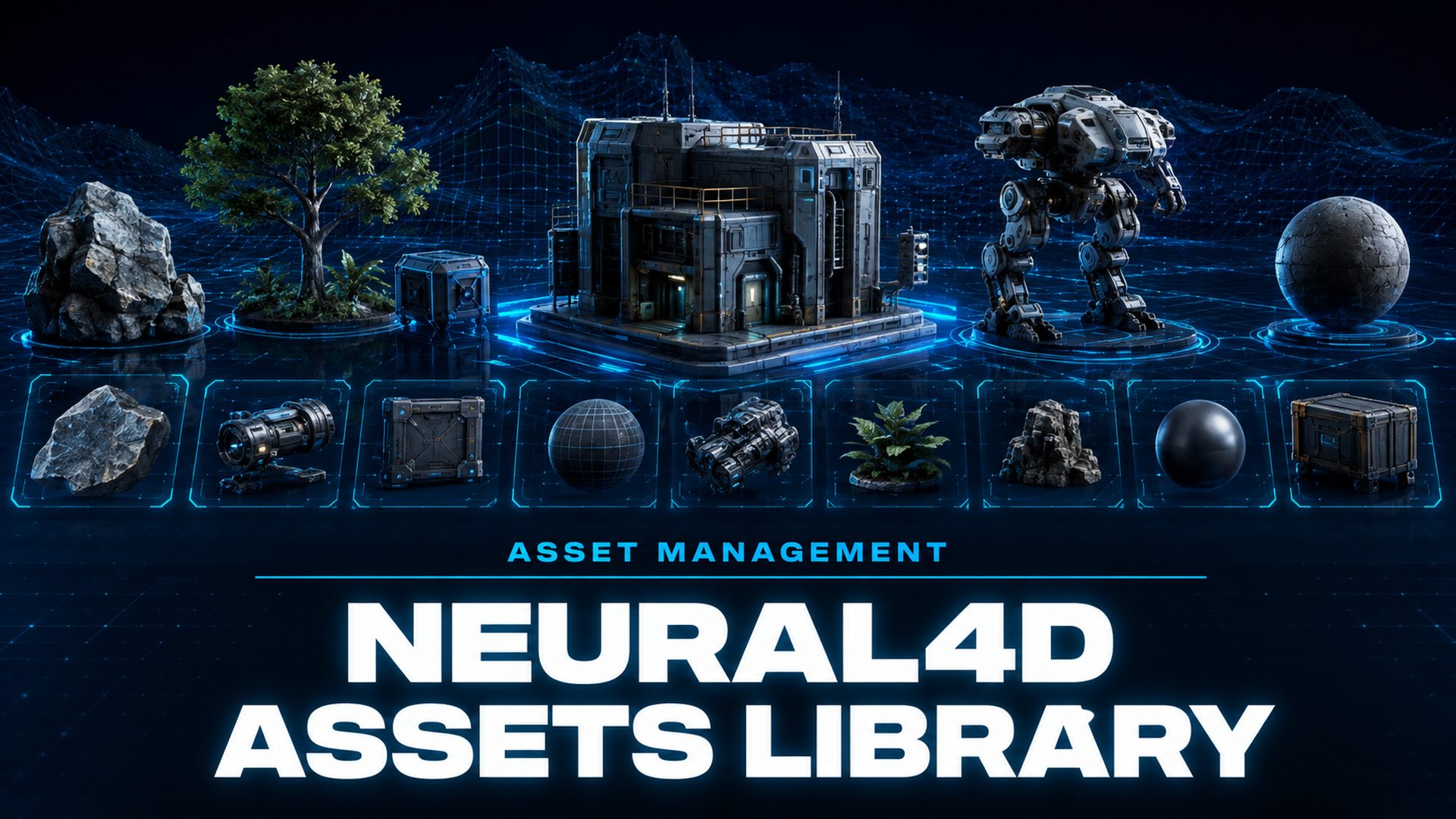
The Neural4D Assets Library is the redesigned home for everything you generate in Studio. It replaces the old Assets section with a type-based layout, adds Search and My Favorites, and gives you Batch Actions for volume work. Your models, images, and videos stop living in one flat stream and start living in a library you can actually control.
Table of Contents
- Part 1: Assets Library Rebuild: Models, Images, and Videos in One Place
- Part 2: Search: Find Assets Fast Inside Each Tab
- Part 3: My Favorites: Keep the Assets You Reuse One Click Away
- Part 4: Batch Actions: Select, Favorite, Download, Delete at ScaleHOT
- Part 5: What the Assets Library Means for Creator Workflows
- Part 6: Common Questions on the Neural4D Assets Library
- Organize Your Generated Assets in One Place
Part 1: Assets Library Rebuild: Models, Images, and Videos in One Place
The Neural4D Assets Library is a full rebuild of the old Assets section. Where the previous version listed every file in one undifferentiated stream, the library separates your catalog by type before you even start looking. The left panel organizes everything into three tabs: Models for 3D assets, Images for generated images, and Videos for generated clips. You can open the Assets Library directly from Studio.
The type-based layout solves a real problem as your library grows. A creator who generates 3D props, product renders, and short video clips in a single week ends up with a mixed list where the asset they need could be anywhere. With three tabs, the model, the image, and the video never compete for the same space, and each tab shows only the output that type of work produces.
Part 2: Search: Find Assets Fast Inside Each Tab
Search sits on the right side of the library and works inside the tab you are viewing. Pick the asset type first, Models, Images, or Videos, then run Search within that tab. Results come back from the type you are looking at, so the list stays relevant instead of mixing formats.
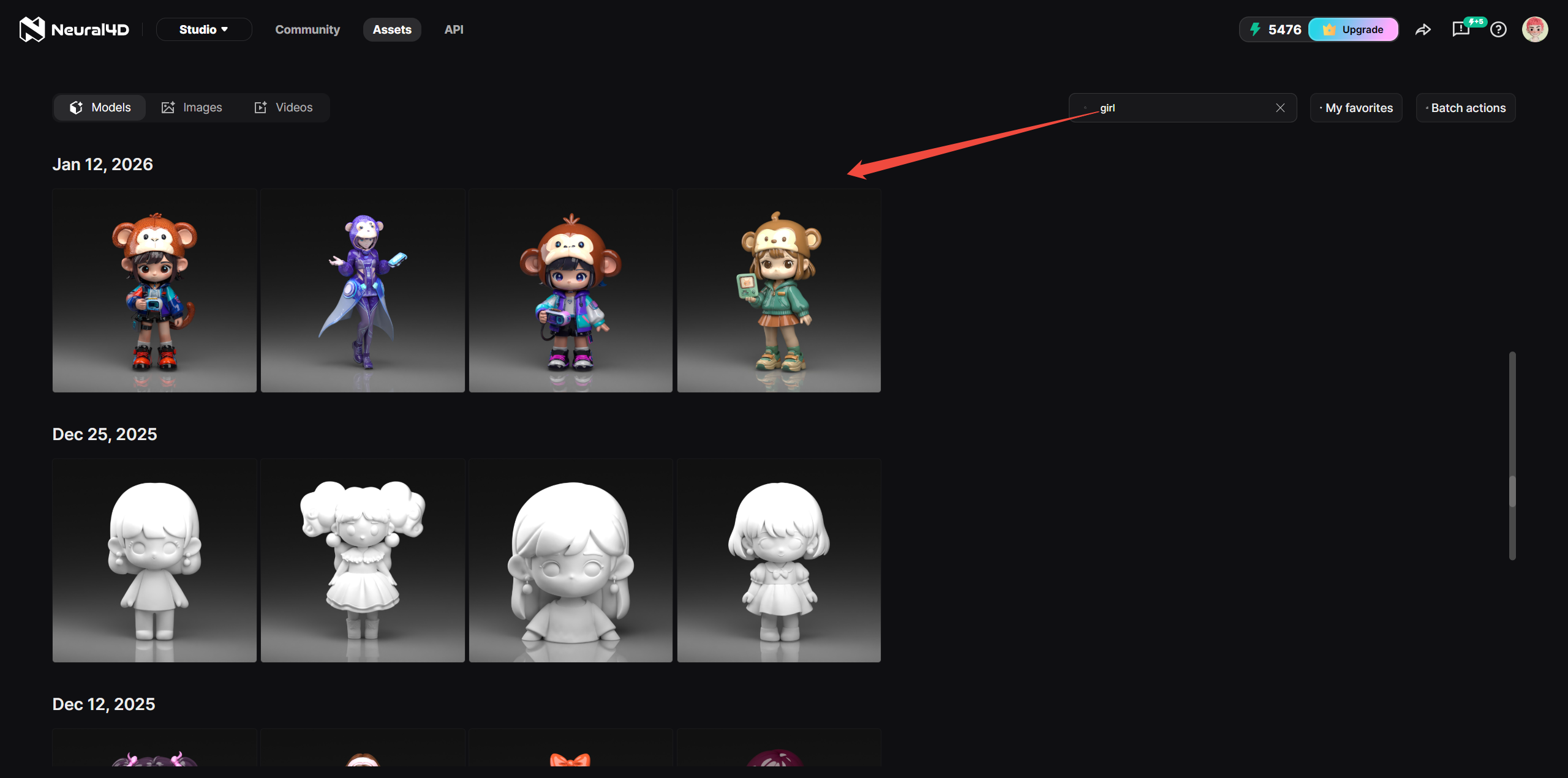
This matters the moment your catalog passes a few dozen items. Scrolling a flat list to find one asset stops being practical, and search gives you a direct path instead. If you know part of a name or a keyword from the original prompt, one query is enough.
Part 3: My Favorites: Keep the Assets You Reuse One Click Away
In the Neural4D Assets Library, every asset card carries a heart icon on its top-right corner. Tap it to add the asset to My Favorites, a dedicated list on the right side of the library. My Favorites keeps the small set of assets you reuse every week from getting lost inside the full catalog, and it is one click away instead of one search away.
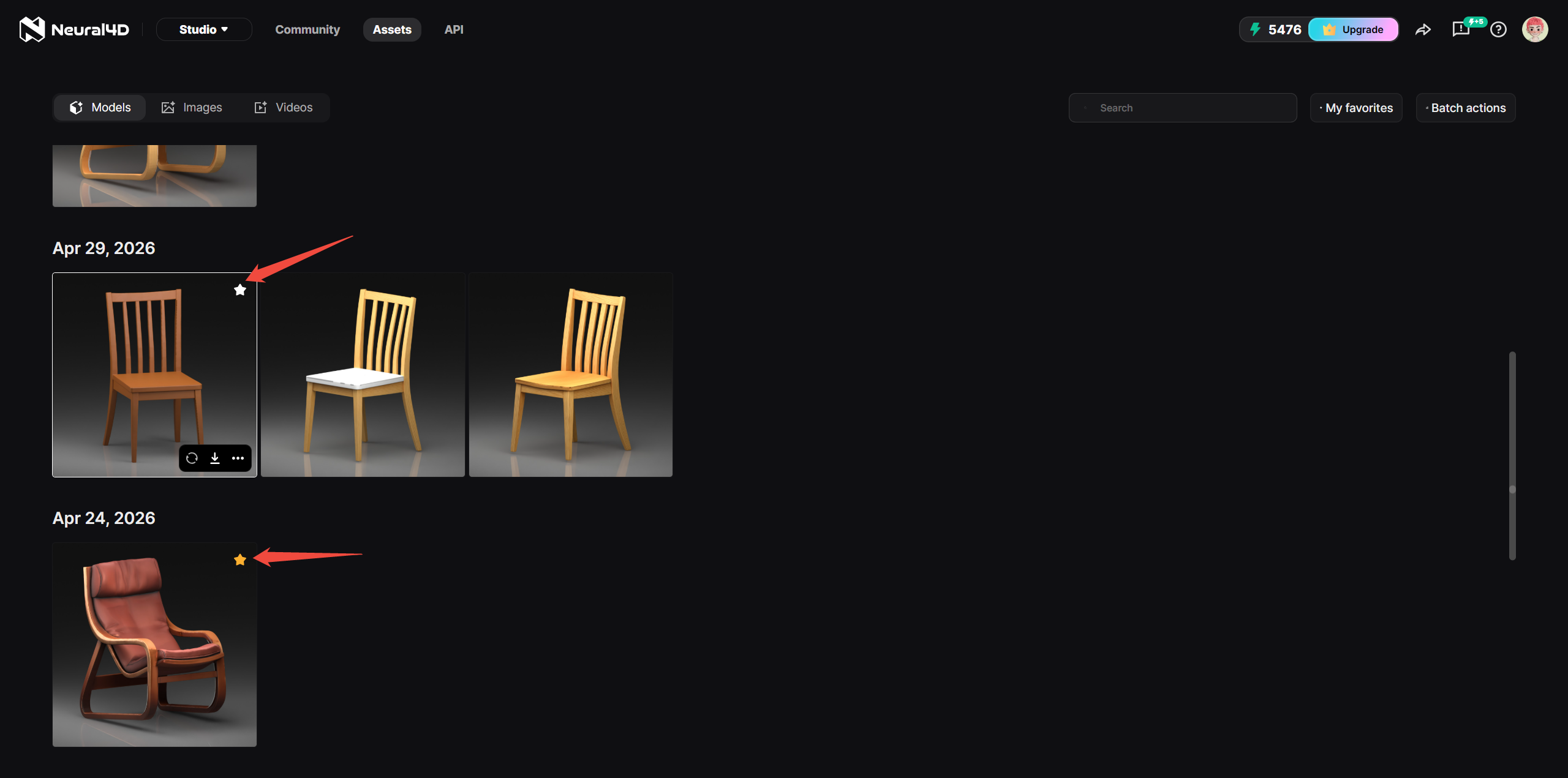
Favoriting is useful at the moment you generate, not just later. When a session produces several keepers and a few near misses, favoriting the keepers as they appear builds the shortlist while the work is still fresh in your mind.
Part 4: Batch Actions: Select, Favorite, Download, Delete at Scale
Batch Actions is where the Neural4D Assets Library pays off for volume work. You multi-select assets, then run one of three operations on the whole group:
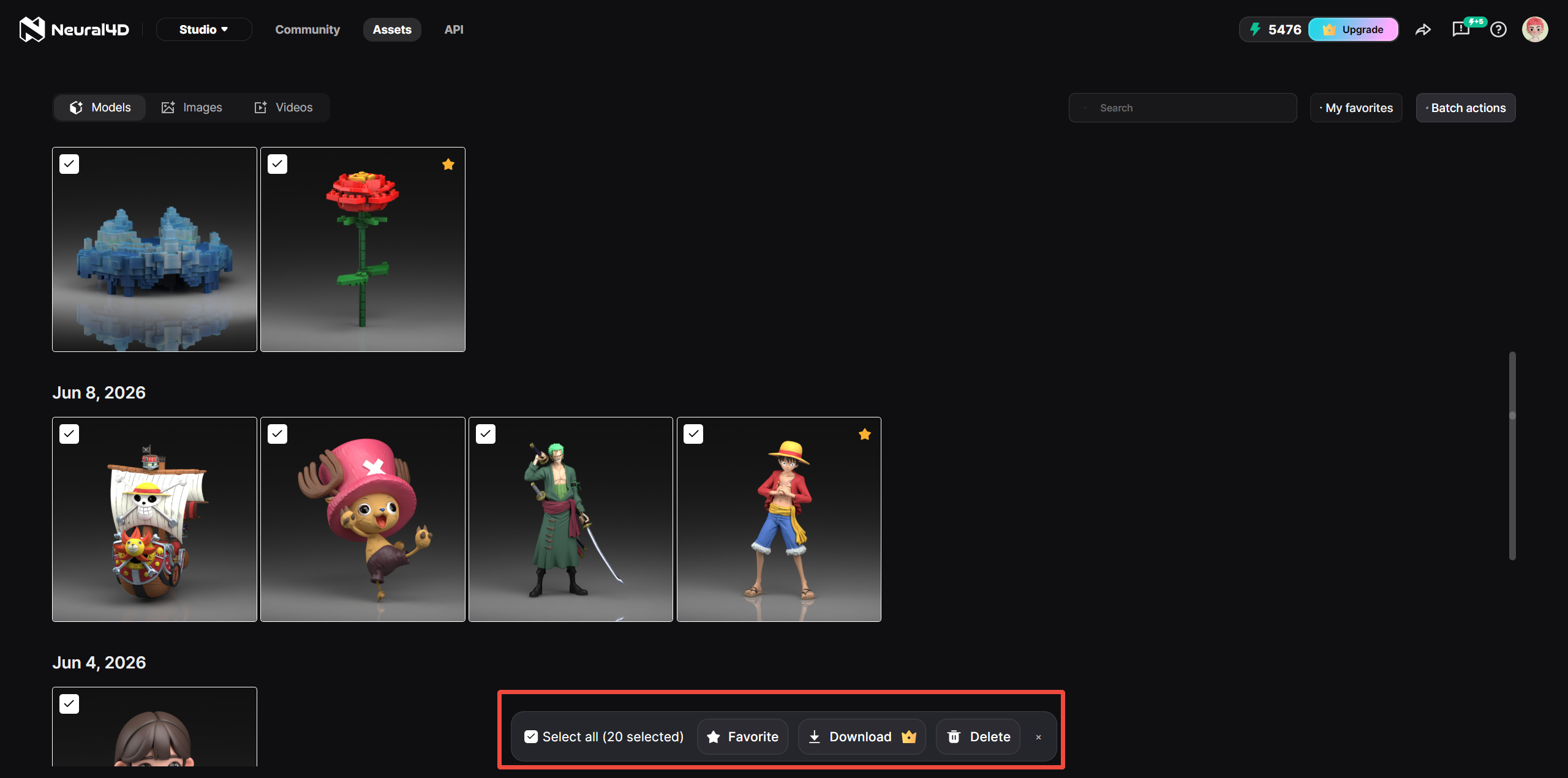
Batch download is the workflow saver for anyone moving work off the platform. Instead of opening each asset and downloading it one by one, you select the whole batch, run one action, and get a single zip with everything inside. Batch favorite is the cleanup companion: after a big generation session, select the keepers and favorite them in one click instead of tapping hearts across a long list.
Batch delete is powerful for a reason, and it is also the action to treat with care. There is no recovery flow, so confirm your selection before you run it. Search and My Favorites both help you check exactly which assets are selected first.
Keep every asset findable and organized.
Search, favorite, and batch-process every model, image, and video from one surface.
Free plan refills 50 Power weekly.
Part 5: What the Assets Library Means for Creator Workflows
Consider a solo creator iterating on a character. They run several versions, keep the ones with the cleanest geometry, and want the rest out of the way. With the library they favorite the keepers as they go, batch-download the final set for the project folder, and batch-delete the failed variants without clicking through each one. What used to be a slow manual pass now happens in the flow of generation.
An e-commerce seller uses the library as a production control. A day of product renders accumulates in Images, the 3D files that go into listings sit in Models, and the whole batch of finished work downloads as one zip for the listing pipeline. For game asset production, where a single session can produce dozens of props, batch operations turn a repetitive download chore into a single action.
The category is moving in the same direction. As AI generation makes content cheaper to produce, the bottleneck shifts from making assets to managing them, and the digital asset management market is growing to absorb that volume. Tools that manage assets next to the generator, rather than in a separate system, cut the transfer step creators feel most.
Where Neural4D fits is the direct line from generation to management. Because the Neural4D Assets Library lives in the same Studio as the generators, a result lands in the library the moment it is created. No export, upload, or syncing step sits between making an asset and managing it. If you share finished work with a team, the guide to publishing and sharing 3D models covers that workflow, and the guide to using generated models commercially covers the rights picture for assets you keep.
Part 6: Common Questions on the Neural4D Assets Library
Q: What is the Neural4D Assets Library?
It is the rebuilt management area for everything you generate in Studio. It replaces the old Assets section with three type tabs, Models, Images, and Videos, and three tools, Search, My Favorites, and Batch Actions, so your whole catalog is organized in one place.
Q: How do I find one specific asset when I have a large library?
Start from the tab for the asset type you need, Models, Images, or Videos, then run Search within that tab. If you reuse the asset often, favorite it with the heart icon and it will appear under My Favorites, a much shorter list than the full library.
Q: What does the heart icon on an asset card do?
The heart icon adds the asset to My Favorites. Open My Favorites to see every favorited asset in one list, so the files you reuse most are one click away instead of buried somewhere in the catalog.
Q: What does batch download do with my selected assets?
Batch download packs every asset you have selected into a single zip file, so one download contains the whole group. This replaces opening each asset and downloading it individually, which is the main time save for volume work.
Q: Is a batch delete recoverable?
No. Batch delete removes every selected asset permanently and there is no recovery flow. Before running it, confirm the selection with Search or My Favorites so you are certain about exactly which assets are included, because the action cannot be undone.
Q: Does the Assets Library change the formats I can download?
No. The library manages your existing assets and keeps the same export formats: .OBJ, .FBX, .GLB, .USDZ, .STL, and .BLEND for 3D models, .PNG for images, and .MP4 for video.
Organize Your Generated Assets in One Place
The Neural4D Assets Library gives your generated work the structure a flat file list never could. Type tabs, search within each tab, one-click favorites, and batch actions cover the daily tasks of asset management. The Neural4D Assets Library turns cleanup from a chore into a natural part of the generation loop.
Organize your generated assets in one place.
Every model, image, and video in the Assets Library, findable and manageable at scale.
Free plan refills 50 Power weekly.
Build your library as you go
Favorite the keepers as you generate, batch-download the final set, and keep your best work in My Favorites.