Generate 3D Models with OpenClaw | 4-Step Neural4D Guide
Quick Summary
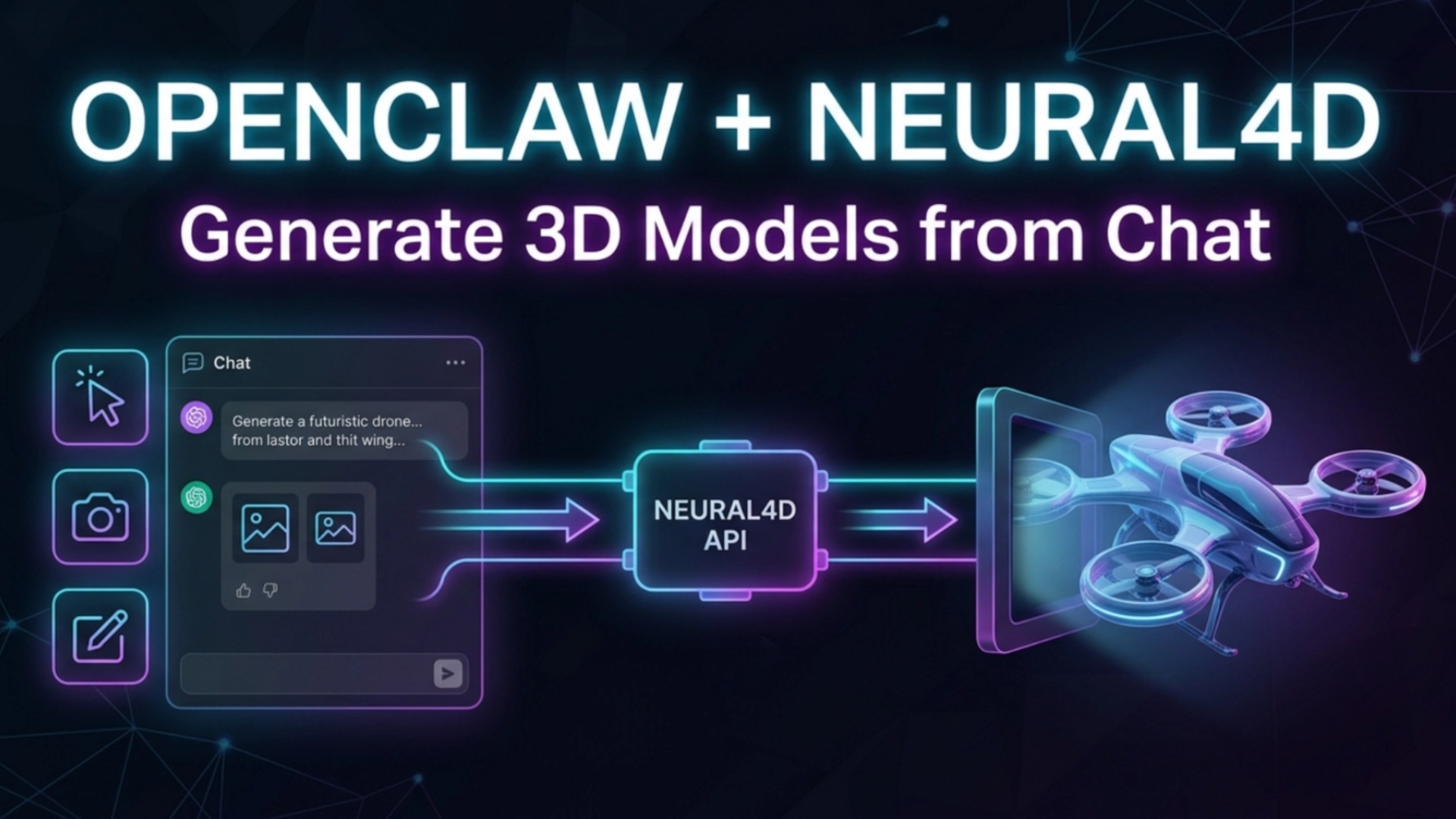
Generating 3D models with OpenClaw connects the open-source OpenClaw assistant to the Neural4D 3D generation API, so a normal chat message becomes an exportable 3D model.
- OpenClaw is the chat and orchestration layer: it loads a 3D skill and configures the parsing tools that route requests.
- Neural4D is the generation engine that turns each request into a previewable, exportable 3D model.
- Text prompts, image uploads, and sketch or blueprint uploads all flow through the same setup.
- Setup takes four steps: create a Neural4D API key, add the 3D skill to OpenClaw, provide the key in chat, and start generating.
Generating 3D models with OpenClaw runs through the Neural4D API. OpenClaw receives requests in chat, loads the required 3D skill, and configures the parsing tools; Neural4D performs the actual model generation and returns a previewable file you can export as .obj, .fbx, .glb, .usdz, .stl, or .blend. API details evolve quickly, so for the latest endpoints, parameters, and usage limits, check the latest Neural4D API documentation at any time.
- Part 1: What OpenClaw and Neural4D Each Do
- Part 2: How to Set Up the Workflow
- Part 3: What Types of 3D Inputs This Workflow Supports
- Part 4: Where Neural4D Fits in the Workflow
- Part 5: Limitations and Setup Tips
- Part 6: Conclusion
- Part 7: Frequently Asked Questions on OpenClaw and 3D Model Generation
Part 1: What OpenClaw and Neural4D Each Do
OpenClaw is the conversational interface and workflow layer in this setup. It is an open-source AI assistant built around skills and plugins, and in this workflow it receives user requests in chat, loads the required 3D skill, coordinates supporting tools, and passes structured requests to the correct backend. On its own, OpenClaw is not the 3D generation engine.
Neural4D is the system that actually generates the 3D model. In this workflow, Neural4D provides the API key, the model generation capability, and the final exportable output. That division matters. If you explain the workflow clearly, users understand that OpenClaw makes the process easier to use, while Neural4D provides the high-quality 3D generation itself.
This combination is useful because it lowers the barrier to creating 3D assets. Instead of juggling separate tools, users can work through a single conversation. They can describe an object, upload a reference image, or send a sketch or blueprint, and OpenClaw can route that request to Neural4D through the configured skill.
In one sentence: OpenClaw is the chat-based workflow layer, and Neural4D is the 3D model generation engine connected through API.
Part 2: How to Set Up the Workflow
The setup is straightforward. You first get access to the Neural4D API, then add the 3D generation skill to OpenClaw, let OpenClaw prepare the required parsing tools, provide the API key, and finally start generating models in chat.
Step 1: Get a Neural4D API Key
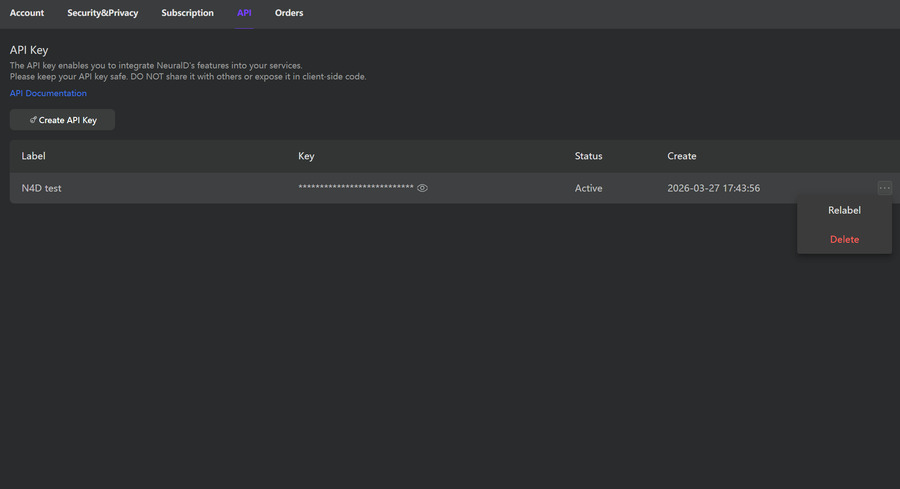
Go to https://www.neural4d.com/api and click “Free to Get API Key →”. After registering, you will enter to the https://www.neural4d.com/account?api=. Click “Create API Key”, add a label for the key, and click “Confirm”.
This gives you the credential OpenClaw needs to send generation requests to Neural4D. Keep the key private and treat it like a password.
Step 2: Add the 3D Skill to OpenClaw and Let It Configure the Required Tools
Download the skill called AI 3D generation from ClawHub. The download is a zip file. After unzipping it, place the extracted files into your local OpenClaw skills/ folder.
Then go to the OpenClaw chat window and type this instruction:
OpenClaw will then begin installing and configuring the required parsing tools. Wait until it shows the completion prompt. If the skill does not run correctly the first time, restart OpenClaw and try again.
Need the API access first?
Step 3: Provide Your Neural4D API Key in Chat
Once the skill and parsing tools are ready, send your API key to OpenClaw in chat using this format:
Replace the placeholder with your real API key. This step connects the local OpenClaw workflow to your Neural4D account so the skill can submit actual 3D generation requests.
Note: Do not share your key in a group chat or any public environment. If you are testing in a shared workspace, use a private conversation.
Step 4: Start Generating 3D Models in Chat
After setup, you can generate 3D models directly from the OpenClaw chat box. This workflow supports text prompts, image uploads, and sketch or blueprint uploads. OpenClaw passes the request to Neural4D, and the final 3D model is returned as a previewable file that can be saved locally. Generation runs asynchronously on the Neural4D API: OpenClaw submits the request, the model is processed on Neural4D’s servers, and the result is delivered back to the chat when it is ready. That is why a single generation can take several minutes instead of returning instantly.
You can also request a target export format if you already know how you want to use the model. Neural4D supports .obj, .fbx, .glb, .usdz, .stl, and .blend. Once the file is exported, you can move it into a game engine or DCC tool; for example, the FBX or GLB path into a real-time scene is covered in our guide to importing 3D models into Unity.
Part 3: What Types of 3D Inputs This Workflow Supports
One of the strongest parts of this setup is that you are not limited to prompt-only generation. The same OpenClaw to Neural4D workflow can support several different input types depending on what you have available.
Text to 3D
If you already know what you want to build, you can describe it directly in chat. For example:
This is useful for concept objects, product ideas, or early-stage visualization. The more specific the description, the closer the output matches your intent.
Read also: 10 Neural4D Prompts You Should Try for Production-Ready 3D Assets
Image to 3D
Upload an image directly into the chat and type:
This is useful when you already have a product photo, reference image, or visual concept. For better reconstruction quality, keep the main subject clear and the background simple.
Read also: How to Convert Image to 3D Model Using AI
Sketch to 3D
The same upload workflow can be used for hand-drawn sketches or technical drawings. This can be especially helpful for ideation, industrial concepts, early product structures, or turning a 2D reference into a more tangible 3D asset.
To improve the output, keep the lines clear and readable. Clean line work produces a more reliable final model than messy or low-contrast drawings.
Supported export formats: .obj, .fbx, .glb, .usdz, .stl, .blend
Read also: How to Convert Sketch to 3D Model
Part 4: Where Neural4D Fits in the Workflow
It is worth making the system boundary explicit. OpenClaw helps users operate the workflow through natural language. It manages the chat interaction, skill invocation, and tool setup. Neural4D is the backend that generates the 3D model itself.
That means Neural4D is where the actual 3D capability lives: text to 3D, image to 3D, sketch-based generation, previewable output, and exportable model formats. OpenClaw makes these capabilities easier to access by turning them into a conversational workflow instead of a manual API-only process. If you want to explore agent-style 3D generation more broadly, see our overview of AI 3D agents.
For teams or solo creators, that matters because it reduces friction. Instead of building an integration from scratch, users can work through a chat interface that feels closer to how they already describe creative tasks.
The exported file does real work downstream. A GLB or FBX asset moves straight into a game or real-time scene, while an STL or watertight OBJ routes to a slicer for 3D printing. To follow that path, see converting an image to a 3D print model for the full print-ready workflow. Whatever the destination, the generation step is the same: one chat message through OpenClaw, one model back from Neural4D.
Generate 3D Models with the Neural4D API
Turn text, images, or sketches into 3D models you can export as GLB, FBX, OBJ, and more.
Try Text to 3D
Try Image to 3D
Free users get 50 credits per week. No credit card required.
Part 5: Limitations and Setup Tips
This workflow is practical, but it is not magic. Output quality still depends heavily on input quality and clear setup.
For image-based generation, simple backgrounds and a clearly separated subject deliver more reliable results than cluttered scenes. For sketch or blueprint conversion, line clarity matters. Fuzzy, incomplete, or low-contrast drawings reduce the reliability of the final model.
Expect generation to take several minutes in some cases. Neural4D prioritizes high-quality output rather than returning the fastest possible result. That tradeoff pays off when the goal is a usable model instead of a rough preview.
Finally, if the skill appears installed but does not work correctly, restarting OpenClaw and trying again is the first troubleshooting step that resolves most failures.
Part 6: Conclusion
Generating 3D models with OpenClaw through the Neural4D API is a clean integration story. OpenClaw gives users a natural chat interface and handles the skill and tool orchestration; Neural4D supplies the model generation engine behind the API. Once the API key and the skill are in place, the workflow repeats cleanly for text prompts, image references, and sketch-based 3D generation. Each generation consumes credits from your Neural4D balance, and the free tier renews 50 credits every week, so you can test the full flow before committing to a paid plan.
Start with a single object. Write a specific text prompt, upload a clear reference image, or send a clean sketch, then export the result in the format your project needs. From there, the model is ready for a game engine, a DCC tool, or a 3D printer.
Part 7: Frequently Asked Questions on OpenClaw and 3D Model Generation
Does OpenClaw generate the 3D model by itself?
No. OpenClaw is the conversational and workflow layer. Neural4D is the system that actually generates the 3D model through API.
What kinds of input can I use?
You can use text prompts, uploaded images, and sketches or blueprints uploaded through the chat interface.
What file formats can I export?
This workflow supports .obj, .fbx, .glb, .usdz, .stl, and .blend, depending on what you request for the final output.
How long does generation take?
It may take several minutes. Neural4D is designed to prioritize output quality, so it may respond more slowly than lower-quality instant generators.
What should I do if the skill fails?
A practical first step is to restart OpenClaw and try again. If needed, confirm that the skill files were correctly placed in the local skills folder.
Generate 3D Models with OpenClaw
Connect your Neural4D API key and start turning text, images, and sketches into exportable 3D files.
Free users get 50 credits per week. No credit card required.