Best AI Video Generator for Animation: 8 Tools for Stylized Motion
Quick Summary
- Compare models in one workspace: Neural4D Video Generation lets you generate video from a prompt and an optional reference image, with a choice of five models.
- Plan a sequence: consider Kling 3.0 for multi-shot controls, Vidu Q3 for clips with native audio, or Seedance 2.5 for a longer single generation. These features depend on the platform you use.
- Start with the look: test a short clip using an approved illustration or character image before committing to a full sequence.
The best AI video generator for animation depends on what you want to make: an anime scene, a cartoon reaction, a moving illustration, or an animated social video. A useful tool must preserve the look while producing readable movement. Resolution alone does not tell you whether a face, an outline, or a costume will remain consistent.
This guide compares eight tools for generating animation-style video from text and reference images. Start with the comparison below, then choose a tool based on your shot, reference needs, and editing workflow.
Quick Comparison
Editorial basis: this is a comparison of published capabilities and potential uses, not a controlled hands-on ranking. Recommendations are starting points for testing. Third-party specifications were checked on September 21, 2026. A model’s own website, API, and an integrating platform can expose different features.
| Tool | Consider it for | Duration or output detail | Key limitation to check |
|---|---|---|---|
| Neural4D Video Generation | Trying several supported models in one workspace | Model-dependent settings; MP4 downloads | Its controls differ from each model’s own platform |
| Kling 3.0 | Dialogue and planned multi-shot scenes | Up to 15 seconds on Kling | Multi-shot controls depend on the entry point |
| Runway Gen-4.5 | Prompted camera movement and image to video | 2 to 10 seconds; 720p generation | Upscaling and performance tools are separate capabilities |
| Google Veo 3.1 | Shots combining movement and generated sound | 4, 6, or 8 seconds in Gemini API; 1080p and 4K require 8 seconds | Extension is separate from single-generation duration |
| Seedance 2.5 | Longer scenes with multimodal references | Up to 30 seconds per generation | Access and controls vary by platform |
| Vidu Q3 | Animation-style scenes with native audio | Up to 16 seconds per generation | Check the selected Q3 variant and input mode |
| PixVerse V6 | Short social videos and transitions | Up to 15 seconds; 1080p | Effects and controls vary by workflow |
| Pika 2.5 | Short creative experiments | Check the selected model and feature | Check commercial licensing separately from watermark removal |
Compare costs on the same basis. A monthly subscription, API price per second, and free credit allowance are different measures. Compare the cost of a clip at your chosen duration, resolution, and audio setting, then include retries. The entries below link to relevant official information instead of presenting an unsupported cheapest-to-most-expensive ranking.
The 8 AI Video Generators to Consider
1. Neural4D Video Generation: For comparing supported models in one workspace
Neural4D Video Generation is a standalone video creation feature. Enter a text prompt, optionally attach a reference image, and generate a downloadable MP4. For animation-style content, your reference could be an illustration, a character portrait, or an approved still.
The available model selection includes Veo 3.1, Kling 3.0, Seedance 2.0, Seedance 2.0 Fast, and Grok Imagine. A shared credit balance makes it practical to try the same shot with different supported models. This is a convenience advantage, not evidence that Neural4D’s output beats every dedicated tool.
What to check: a text prompt is required even when you attach an image. Duration, resolution, audio options, and credit cost depend on your selection. Use the controls and cost shown before generation. Neural4D does not expose Kling’s dedicated storyboard mode, so plan longer sequences as separate clips. Seedance 2.5, Vidu Q3, and PixVerse V6 are not part of the model selection listed here.
Free accounts receive 50 credits weekly. The number of clips this covers depends on the chosen settings; it is not a promise of a free generation at every quality level.
2. Kling 3.0: For dialogue and planned multi-shot scenes
Kling 3.0 is worth considering when a scene needs coordinated speech, subject consistency, and shot changes. Its official model guide describes native audiovisual generation, improved element consistency, and clips up to 15 seconds. Kling’s own multi-shot workflow provides controls for structuring a sequence.
For an animated dialogue scene, test whether the mouth movement and character appearance remain convincing through a turn or expression change. Published consistency features do not guarantee an unchanged drawing style. Use a representative image rather than relying only on a broad label such as “anime.”
What to check: confirm which Kling variant and controls your platform offers. Selecting Kling 3.0 inside Neural4D does not give you the full set of tools on Kling’s own website.
3. Runway Gen-4.5: For camera direction and image to video
Runway Gen-4.5 supports text to video and image to video, making it a candidate when camera movement and the timing of an action are central to the shot. Its official specifications list 2 to 10 seconds, 720p output, and a cost of 12 credits per second. A five-second generation therefore uses 60 credits before any additional processing.
Try a simple camera instruction with a clear subject action, such as a slow push-in while an illustrated character raises one eyebrow. Inspect the moving result for changes to line thickness and facial proportions.
What to check: distinguish Gen-4.5 generation from Runway’s other tools. Act-Two performance transfer and Aleph editing are separate capabilities. Likewise, an upscaled export should not be described as native 4K generation.
4. Google Veo 3.1: For video with generated sound
Veo 3.1 is an option for a scene where dialogue, ambience, or sound effects need to accompany the picture. The Gemini API documentation lists native audio and single-generation durations of 4, 6, or 8 seconds. In that interface, 1080p, 4K, and reference-image generation require an eight-second duration.
For a moving illustration or animated establishing shot, describe the visual treatment and sound separately. For example, specify flat colors and simple shadows, then add wind, footsteps, or a short spoken line. Check both the visual style and the audio timing before accepting the clip.
What to check: video extension and other workflows can create longer material, but those are not the same as a longer initial generation. Neural4D’s available settings should be checked in its own interface.
5. Seedance 2.5: For longer scenes with reference materials
Seedance 2.5 is a candidate when a scene needs more time to develop. ByteDance’s official announcement describes up to 30 seconds per generation, reference inputs of up to 30 images, 10 video clips, and 10 audio clips, plus editing controlled by timestamps.
Those capabilities can help organize a scene around character images, visual references, and motion examples. Supply only references that have a clear purpose: one for the subject, another for the style, and a motion reference if the platform accepts it. More material is not automatically more useful.
What to check: inspect the entire output for continuity rather than assuming a longer duration guarantees a usable sequence. Seedance 2.5 is distinct from the Seedance 2.0 and 2.0 Fast options listed for Neural4D.
6. Vidu Q3: For animation-style scenes with native audio
Vidu Q3 supports native audio and clips up to 16 seconds. It is a candidate to test for an anime conversation, a character reaction, or a short illustrated scene that needs picture and sound together.
Use a reference that makes the intended facial features and color palette clear. Test an expression change or head turn, since those moments can reveal inconsistencies that a mostly static clip hides.
What to check: Q3 variants and input modes have different specifications and rates. Consult Vidu’s API pricing for the exact combination. This guide does not treat a general video leaderboard score as proof that Q3 is the best anime model.
7. PixVerse V6: For short social videos and transitions
PixVerse V6 advertises video creation up to 15 seconds at 1080p, with text to video, image to video, native audio, and multi-shot storytelling. That makes it worth testing for a short animated reveal or a social clip with a clear visual transition.
Keep the action simple enough to judge: a mascot waves, a character reacts, or a scene changes around the same subject. Evaluate the result for readable movement and consistent design rather than accepting an impressive effect with an unstable character.
What to check: do not confuse clip duration with processing time. Generation speed depends on the settings and service conditions. This comparison does not establish PixVerse as the cheapest option.
8. Pika 2.5: For short creative experiments
Pika 2.5 is an option to explore for short visual ideas before planning a full sequence. Pick a specific action, generate a sample, and assess how well it preserves your reference. Pika’s wider platform includes additional video apps and models; their capabilities should not all be attributed to Pika 2.5.
What to check: the current Pika pricing page lists Starter at $10 monthly or $8 per month billed annually. It lists no monthly included credits for Free, and a commercial license is not included with Starter. Confirm the plan and feature you intend to use before budgeting a client project.
Choose a Tool by Shot Type
Use this matrix to decide what to test first. It describes a starting workflow, not guaranteed winners.
| Your shot | Starting point | What to evaluate |
|---|---|---|
| A moving illustration with an approved look | Image to video, including a supported model in Neural4D | Line quality, colors, and facial proportions during motion |
| A dialogue close-up | Kling 3.0, Veo 3.1, or Vidu Q3 with audio enabled where supported | Lip timing, voice, and expression changes |
| A planned sequence with cuts | Kling’s own multi-shot workflow | Subject continuity and whether cuts follow the plan |
| A scene lasting more than 15 seconds in one generation | Seedance 2.5 through a supported platform | Whether later actions and appearances remain consistent |
| A short social reaction or transition | PixVerse V6 or Pika 2.5 | Readable action, design consistency, and usable cost |
When switching models, reuse the same approved reference where supported and keep a short written style specification. Compare adjacent shots together: individually attractive clips can still look mismatched when edited into one video.
Why Animation Style Changes During Generation
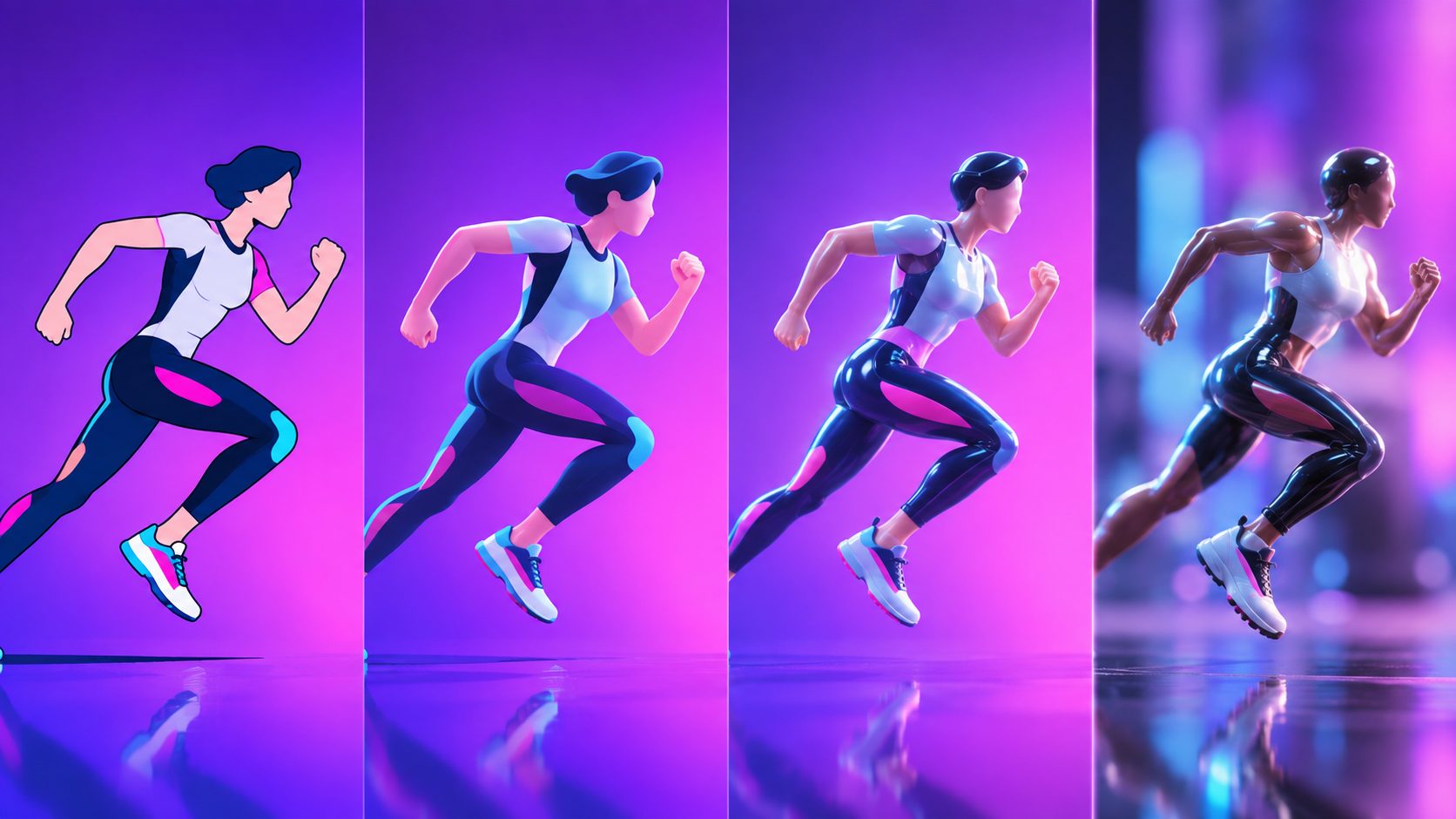
Animation-style video depends on visual choices staying stable over time. Three problems are especially useful to look for when reviewing a sample.
- Style drift: outlines, shading, or texture change as the subject moves.
- Motion inconsistency: limbs distort, actions lose their direction, or movement feels disconnected.
- Character inconsistency: the face, clothing, or proportions change within a clip or across cuts.
Check the beginning, middle, and end of each clip, then watch it at normal speed. A good opening frame is not enough. For a longer project, keep a few approved character images to compare against each new shot. See our guide to keeping characters consistent across shots.
How to Keep a Consistent Animation Style
Start with one clear reference and one action
Choose an illustration or still that shows the desired subject, palette, and texture. If your tool accepts an image, attach it and describe what should move. Begin with a short action such as a head turn or a wave. This makes it easier to identify what needs changing.
Repeat the essential style instructions
Keep a reusable note describing the linework, shading, colors, and motion you want. Put the relevant instructions into each generation prompt. Do not assume the generator remembers an earlier style document or conversation. Use negative-prompt controls only where the chosen tool supports them.
Here is a starting prompt to adapt to your reference image:
Use the attached illustration as the visual reference. A cartoon fox in a blue jacket turns toward the camera and waves once. Preserve the bold outlines, flat colors, jacket design, and simple cel shading. Keep the camera fixed and the background still. End with the fox holding the wave. Use a short duration available in the selected model.
This prompt is an example, not a guarantee of exact drawing preservation. If the result drifts, simplify the action or revise the reference before adding more instructions. For additional examples, see cinematic AI video prompts.
Change one variable at a time
Keep the same reference while adjusting the action, or keep the prompt while trying another model. Avoid changing the style, camera, duration, and subject at once. Save the settings that produced usable clips so you can repeat the approach.
Budget from your own acceptance rate
Run a small sample before estimating a whole project. If you accept five clips out of 20 attempts, your acceptance rate is 25 percent, equivalent to four attempts per usable clip. At that rate, 20 usable clips would require roughly 80 attempts. This is a planning example, not an industry average or a guaranteed outcome.
For equal-cost attempts, divide the total generation cost by the number of accepted clips to estimate cost per usable clip. Allow additional time for trimming, matching color, sound editing, and assembling the sequence.
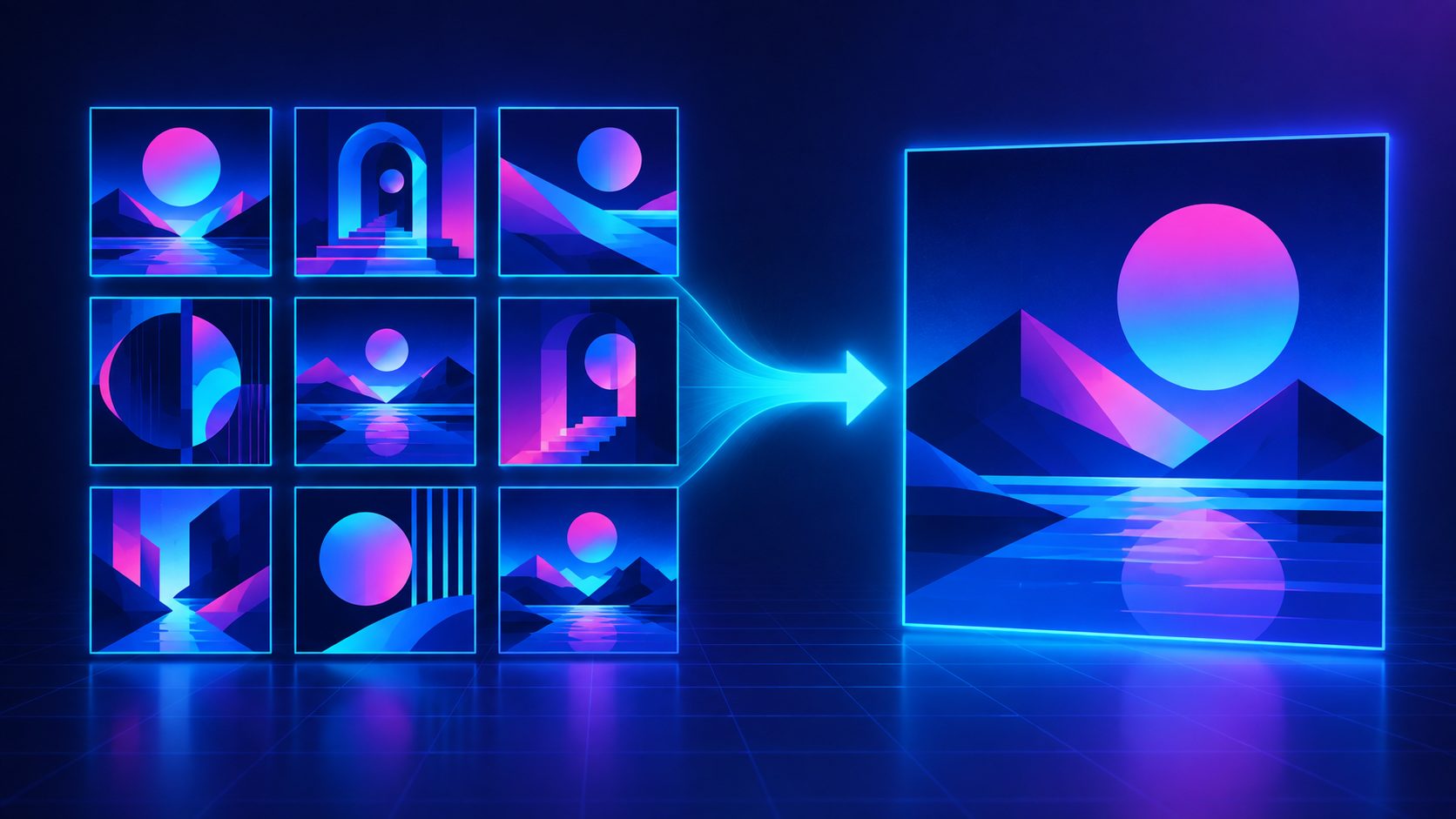
Lock the look before you spend on retries
Compare the supported models in one workspace and keep the same reference across them.
Free accounts refill 50 credits every week
How to Generate a Video in Neural4D
Neural4D Video Generation works as an independent text and image to video feature. You can begin directly with a written idea and an optional reference picture.
- Open Video Generation. Choose a supported model in the video workspace.
- Write the shot prompt. Describe the subject, movement, visual style, and camera behavior. Attach a reference image if you have an approved look.
- Review the available settings and cost. Select the duration, aspect ratio, resolution, and audio option where available for that model.
- Generate and review the full clip. Look for consistent appearance, clear action, and usable sound. Adjust the prompt or replace the reference image and regenerate if needed.
- Download the MP4. For a longer video, assemble accepted clips in your preferred video editor.
The practical advantage is being able to compare supported models within the same workspace. Choose based on the result of your own sample shot, and use a dedicated vendor workflow when you need controls that Neural4D does not offer.
Frequently Asked Questions
Which AI video generator should I try for animation?
Start with a tool that accepts your reference image and supports the movement you need. Neural4D offers several models in one workspace. Kling has dedicated multi-shot controls on its own platform, while Seedance 2.5 supports longer single generations. Test a representative shot before committing to a full video.
Can I animate a still image in Neural4D?
Yes. Attach a reference image and enter a text prompt describing the intended movement. A prompt is required. Neural4D Video Generation creates a downloadable MP4, and you can adjust the prompt or reference image and regenerate to refine the result.
Which tool should I test for anime-style videos?
Vidu Q3, Seedance, and image to video workflows in the other tools are candidates to compare. Use the same approved anime reference and a short expression change or action. Judge the moving result for line quality, facial proportions, and timing; this guide does not establish a universal anime winner.
Why does my generated animation look like a slideshow?
The requested action may be too complex or the generated movement may not connect convincingly. Try one clear action, a shorter duration, a fixed camera, and a suitable reference image. Change one variable at a time. If the movement still fails, test another model rather than assuming a longer prompt will solve it.
Can I use these videos commercially?
Check the current terms for the platform, plan, and model used to generate the video. A paid plan or watermark-free download does not automatically include a commercial license. For example, the Pika pricing page checked for this article excludes a commercial license from Starter. Also check that you have permission to use your reference images and audio.
Will image to video preserve my drawing exactly?
It can use your drawing as a visual reference, but exact preservation of every line and frame is not guaranteed. Review the full clip for changes to faces, clothing, and outlines. If exact frame-level artwork control is essential, use an animation editing workflow that lets you inspect and adjust individual frames.
Which Tool Should You Start With?
Start with your most representative shot. If you already have an illustration, use it as a reference and test a simple movement. Compare character appearance, style consistency, and cost per accepted clip before generating the rest of the video. The best AI video generator for animation is the one that holds your look through motion at a cost you can repeat, so judge it on a finished clip rather than a promise.
Neural4D is a practical starting point for trying its supported models in one workspace. Consider Kling’s dedicated controls for a planned multi-shot scene, Seedance 2.5 for a longer generation, or the other tools above when their specific workflows fit your brief. The best choice is the one that produces usable footage for your project.
Turn your idea into an animated video
Write a prompt, add a reference image if you have one, and try a supported video model in Neural4D.
Free accounts receive 50 credits weekly. Generation cost varies by model and settings.