React Three Fiber Load GLB Model: The Complete Guide for Developers
Quick Summary
- React Three Fiber lets you load and display GLB 3D models in React apps using the
useGLTFhook from@react-three/drei. - The standard pattern wraps your model component in
<Suspense>inside a<Canvas>so the model renders without blocking the rest of the page. - For production, preload models with
useGLTF.preload(), track progress withuseProgress, and handle Draco-compressed files with the built-in decoder support. - Neural4D generates production-ready GLB models with clean topology and PBR textures that drop directly into any React Three Fiber project.
When you need to display a 3D model in a React application, the most direct path is to react three fiber load GLB model assets using the hooks provided by the ecosystem. The GLB format packs geometry, textures, and animations into a single binary file, and R3F gives you a declarative React interface to render it in the browser. This guide covers react three fiber load GLB model from a blank project setup to a production-ready 3D viewer.
Table of Contents
- Part 1: Setting Up Your React Three Fiber Project
- Part 2: Loading a GLB Model with useGLTF
- Part 3: Adding Controls, Lighting, and Environment
- Part 4: Loading States and Preloading for Production
- Part 5: Common GLB Loading Errors and How to Fix Them
- Part 6: Common Questions on Loading GLB Models in React Three Fiber
- Build Interactive 3D Experiences with Neural4D and R3F
Part 1: Setting Up Your React Three Fiber Project
Start with a fresh React project. If you are using Vite (the recommended setup for R3F in 2026), create it with:
npm create vite@latest my-3d-viewer -- --template react
cd my-3d-viewer
Then install the three core packages:
npm install three @react-three/fiber @react-three/dreithree is the underlying WebGL library. @react-three/fiber is the React renderer that maps JSX to Three.js scene graph nodes. @react-three/drei is the official helper library that provides useGLTF, OrbitControls, useProgress, and dozens of other utilities you will use in every R3F project. If you are new to react three fiber load GLB model workflows, these three packages are all you need to get started.
Place your .glb file inside the public/ directory. For a typical project, public/models/ keeps things organized. The browser will fetch this file at runtime, so the path in your code is relative to public/. If you need to convert an image or design into a GLB file first, check out the guide on converting images to GLB format for 3D printing and web use.
💡 Where to put GLB files
Files in public/models/ are served as static assets. Reference them as /models/your-model.glb in your useGLTF call. Do not import GLB files like JavaScript modules unless your bundler has a loader configured for binary formats.
Part 2: Loading a GLB Model with useGLTF
The useGLTF hook from @react-three/drei is the standard way to react three fiber load GLB model files. It wraps Three.js’s GLTFLoader with React Suspense integration so the component suspends rendering until the file is fully loaded. Mastering react three fiber load GLB model begins with understanding this one hook.
Here is the minimal working example:
import { Canvas } from '@react-three/fiber'
import { useGLTF } from '@react-three/drei'
import { Suspense } from 'react'

function Model() {
  const { scene } = useGLTF('/models/your-model.glb')
  return <primitive object={scene} />
}

export default function Viewer() {
  return (
    <div style={{ width: '100vw', height: '100vh' }}>
      <Canvas camera={{ position: [0, 0, 5], fov: 50 }}>
        <ambientLight intensity={0.5} />
        <Suspense fallback={null}>
          <Model />
        </Suspense>
      </Canvas>
    </div>
  )
}
Three things are happening here. First, useGLTF fetches and parses the GLB file. It caches the result internally so loading the same file again is instant. Second, <Suspense> catches the suspended render and shows the fallback (null means nothing visible while loading). Third, <primitive> injects the raw Three.js scene object into R3F’s JSX tree.
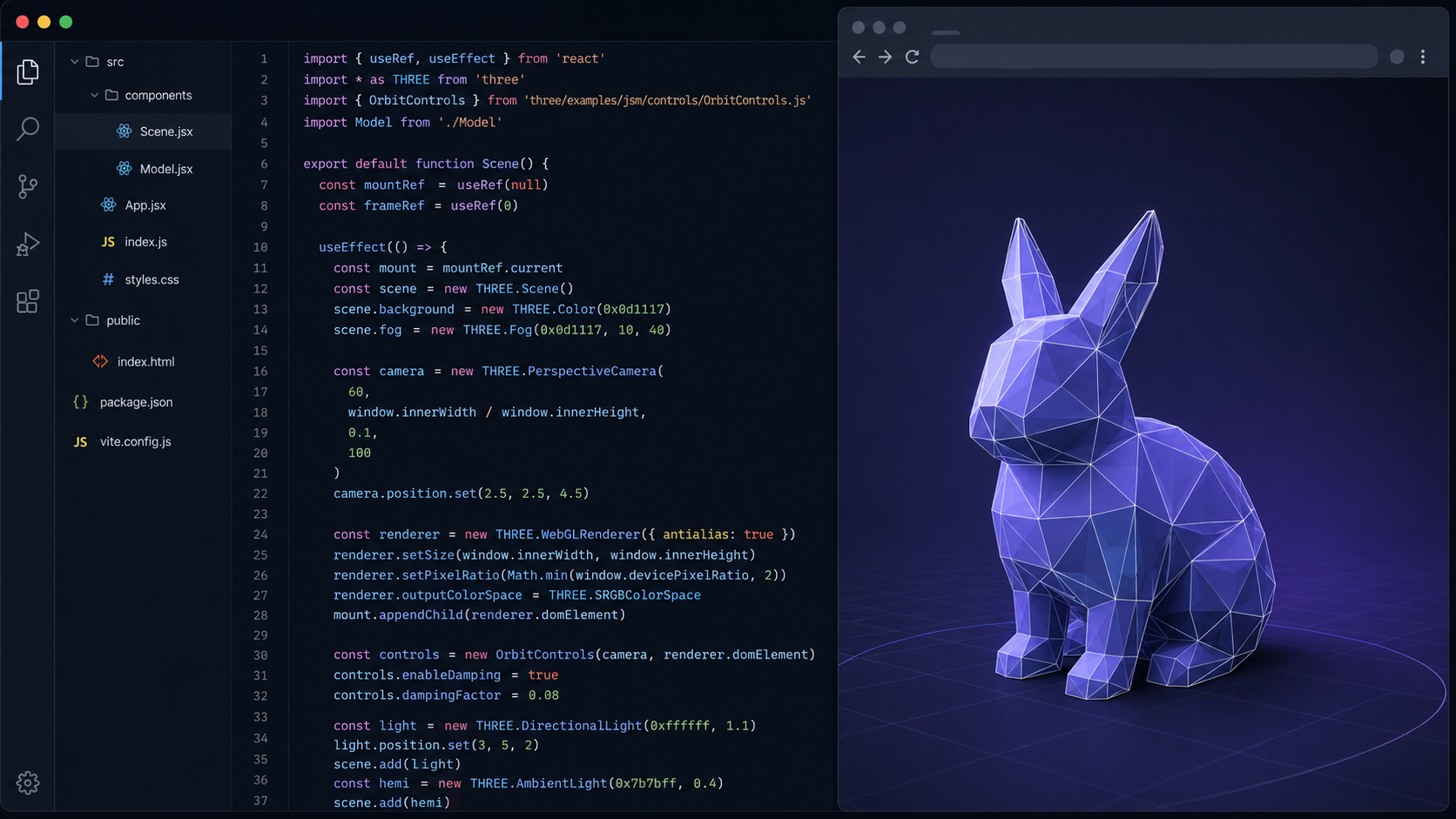
If your model has multiple named meshes, you can access them individually through the nodes and materials properties:
function DetailedModel() {
  const { nodes, materials } = useGLTF('/models/character.glb')
  return (
    <group dispose={null}>
      <mesh geometry={nodes.Body.geometry} material={materials.BodyMat} />
      <mesh geometry={nodes.Head.geometry} material={materials.HeadMat} />
    </group>
  )
}
This pattern gives you full control over individual parts of the model. You can swap materials, apply transforms to specific meshes, or attach event handlers to a single part.
Part 3: Adding Controls, Lighting, and Environment
A model with no controls and no lighting appears as a flat silhouette. The drei library provides drop-in components that fix both problems in a few lines.
import { Canvas } from '@react-three/fiber'
import { useGLTF, OrbitControls, Environment } from '@react-three/drei'
import { Suspense } from 'react'

function Model() {
  const { scene } = useGLTF('/models/product.glb')
  return <primitive object={scene} scale={1.2} />
}

export default function Viewer() {
  return (
    <div style={{ width: '100vw', height: '100vh' }}>
      <Canvas camera={{ position: [3, 2, 3], fov: 45 }}>
        <ambientLight intensity={0.4} />
        <directionalLight position={[5, 5, 5]} intensity={1} />
        <directionalLight position={[-5, -2, -3]} intensity={0.3} />
        <Suspense fallback={null}>
          <Model />
          <OrbitControls enableDamping />
          <Environment preset="studio" />
        </Suspense>
      </Canvas>
    </div>
  )
}
OrbitControls adds mouse-driven rotate, pan, and zoom. The enableDamping prop smooths the motion. Environment applies an HDR environment map that produces realistic reflections and lighting on PBR materials. Without it, even a well-textured GLB model can look flat. For tips on optimizing 3D models for WebGL performance, see the dedicated guide on polygon reduction and texture atlasing.
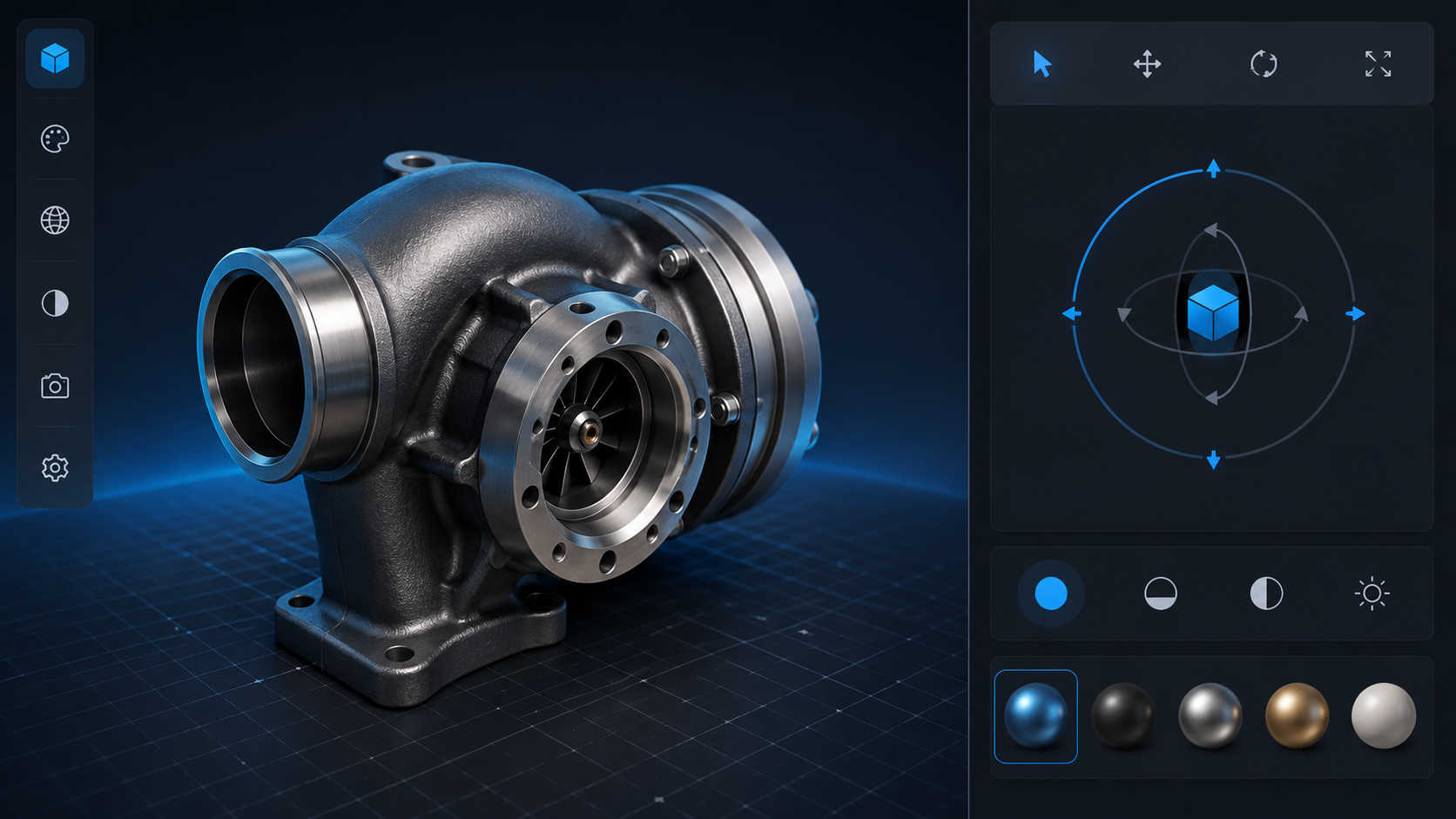
For e-commerce or product presentation, add a ContactShadows component beneath the model to ground it visually with a soft drop shadow.
⚡ Quick lighting template
Start with one ambientLight at 0.4 intensity and one directionalLight at position [5, 5, 5]. Add a second directionalLight from the opposite side at 0.3 for fill. Swap to Environment preset="studio" when you need production-quality reflections. This combination works for 90% of GLB models.
Generate 3D Models for Your R3F Projects
Neural4D creates production-ready GLB models with clean topology and PBR textures. Upload an image or describe what you need, then drop the GLB directly into your React Three Fiber viewer.
No credit card required • 50 free generations per week
Part 4: Loading States and Preloading for Production
Shipping a 3D viewer to production means handling the time between “user opens the page” and “the model appears on screen.” Without explicit loading states, the user stares at a blank canvas.
drei provides useProgress to report the loading status of all assets inside the Suspense boundary:
import { Html, useProgress } from '@react-three/drei'

function Loader() {
  const { progress } = useProgress()
  return (
    <Html center>
      <div style={{ color: '#fff', fontSize: '1.2em' }}>
        {progress.toFixed(0)}% loaded
      </div>
    </Html>
  )
}

// Use it as the Suspense fallback:
<Suspense fallback={<Loader />}>
  <Model />
</Suspense>
In production, react three fiber load GLB model assets should be preloaded before the user navigates to the 3D view. This eliminates the loading delay entirely:
import { useGLTF } from '@react-three/drei'

// Call once at the app or route level
useGLTF.preload('/models/product.glb')

// For multiple models
['/model-a.glb', '/model-b.glb', '/model-c.glb']
  .forEach(useGLTF.preload)
When you need to switch between multiple models at runtime (a product configurator or character selector), combine startTransition with dynamic model URLs. This keeps the current model visible while the next one loads behind the scenes:
import { useTransition, useState } from 'react'

function ModelSwitcher({ url }) {
  const [isPending, startTransition] = useTransition()
  const [modelUrl, setModelUrl] = useState('/default.glb')

  function switchModel(newUrl) {
    startTransition(() => setModelUrl(newUrl))
  }

  return (
    <Suspense fallback={<Loader />}>
      {isPending ? null : <Model url={modelUrl} />}
    </Suspense>
  )
}
For Draco-compressed GLB files, useGLTF handles decompression automatically. The decoder JS file is fetched from Google’s CDN the first time you load a Draco file. If you are deploying to a restricted network, point the decoder to your own hosted copy using the dracoDecoderPath option.
Part 5: Common GLB Loading Errors and How to Fix Them
Most problems when you react three fiber load GLB model files fall into a handful of predictable categories. Here is what to check first when the model does not appear. Even experienced developers run into issues the first time they react three fiber load GLB model assets, so this troubleshooting list covers the most common pitfalls.
| Symptom | Most Likely Cause | Fix |
|---|---|---|
| Blank white canvas | No lighting in the scene | Add <ambientLight> and at least one <directionalLight> |
| Console 404 error | GLB file path is wrong | Place files in public/ and reference them as /filename.glb |
| Canvas is 300×150 pixels | Parent container has no height | Set explicit height on the parent div or use 100vh |
| Model looks grey or flat | PBR textures need an environment map | Add <Environment preset="studio" /> |
| Model loads but is tiny or huge | Scale mismatch | Adjust the scale prop on <primitive> |
| Draco-compressed model fails to load | Decoder CDN is blocked | Host the Draco decoder locally and set dracoDecoderPath |
The most subtle issue is the <Suspense> placement. If you react three fiber load GLB model assets with useGLTF called outside of <Canvas>, React’s Suspense boundary at the top level of your app catches the loading state. This causes the entire page to suspend, not just the 3D viewer. Always place <Suspense> inside <Canvas> so only the 3D content waits for the model.
Part 6: Common Questions on Loading GLB Models in React Three Fiber
Q: Why is my GLB model not showing up in React Three Fiber?
Three issues account for roughly 90% of invisible-model cases: missing lighting (add ambientLight and directionalLight), incorrect file path (the path must be relative to public/, not to your source file), and forgetting to wrap the model in <primitive object={scene} />. If the canvas is 300×150 pixels, the container div has no explicit height.
Q: What is the difference between useGLTF and useLoader for loading GLB files?
useGLTF is a convenience wrapper from @react-three/drei that internally calls useLoader(GLTFLoader, url). The main difference is that useGLTF automatically enables Draco decompression and caches results more aggressively. For most projects, useGLTF is the right choice. useLoader gives you raw access to the loader instance if you need custom extensions or an onProgress callback.
Q: How do I load multiple GLB models in the same scene?
Call useGLTF once per model file in the same component. Each call returns its own scene object. Render them side by side inside a <group> and adjust each model’s position with the position prop on <primitive>. R3F’s caching ensures that loading the same file twice is a no-op after the first fetch.
Q: Can I load GLB models from an external URL instead of local files?
Yes. Pass any publicly accessible URL to useGLTF. The hook uses fetch internally and works with any URL that returns a valid GLB binary. Keep in mind that CORS headers must allow cross-origin access when the model is hosted on a different domain. For production, self-hosting your GLB files is generally faster and more reliable than depending on a third-party CDN.
Q: How do I handle Draco-compressed GLB files in R3F?
useGLTF includes automatic Draco decompression support. On the first Draco-compressed file it encounters, it fetches the decoder from Google’s CDN. If your deployment is air-gapped or runs on a restricted network, you can host the decoder files yourself and pass the path via useGLTF.setDecoderPath('/draco/') before any model loads.
Q: Should I use useGLTF.preload() for every model?
Preload models that the user will see shortly after page load without explicit interaction. For models behind a button click or a tab switch, lazy loading (letting Suspense handle the fetch) is often better to avoid wasting bandwidth. A good rule: preload the hero or first-visible model, lazy-load everything else.
Build Interactive 3D Experiences with Neural4D and R3F
React three fiber load GLB model is a straightforward process once you understand the component structure: Canvas wraps the scene, Suspense handles the async load, useGLTF fetches the file, and <primitive> places it in the 3D world. The drei helper library fills in the gaps with OrbitControls, Environment maps, and loading progress tracking. Whether you are building a product viewer or a game, knowing how to react three fiber load GLB model files is an essential skill for modern web development.
The other half of the equation is where the GLB model comes from. Neural4D’s Image to 3D and Text to 3D features produce production-ready GLB files with clean topology and full PBR material maps including Normal, Roughness, and Metallic channels. The base mesh (untextured geometry only) generates in about 90 seconds. When you select standard textures or full PBR maps, the system computes everything in a single pass and the total generation time is 2 minutes or more. The output drops directly into your React Three Fiber project without conversion steps.
Ready to Build? Start with a 3D Model
Generate a GLB model from a single image or text description with Neural4D, then load it into your React Three Fiber project with the code from this guide. No 3D modeling experience needed.
50 free generations per week • Full commercial rights on paid plans