3D Product Rendering for Ecommerce: How Amazon Sellers Use GLB Files to Win More Sales in 2026
Quick Summary
- Amazon’s 3D product viewer accepts GLB/GLTF files from brand-registered sellers in home, furniture, electronics, footwear, and eyewear categories.
- Technical requirements: max 5MB file size, up to 200K polygons, PBR textures (BaseColor, Metallic, Roughness maps), textures up to 4K resolution.
- Listings with 3D product content average 94% higher conversion rates and up to 40% fewer returns compared to static photos.
- With Neural4D, selecting PBR before generation produces mesh and textures in a single pass: untextured base mesh takes approximately 90 seconds; full PBR output takes 2 minutes or more.
- The full workflow is: photograph product, select PBR option, generate 3D model via AI, export GLB, validate specs, upload to Seller Central Image Manager.
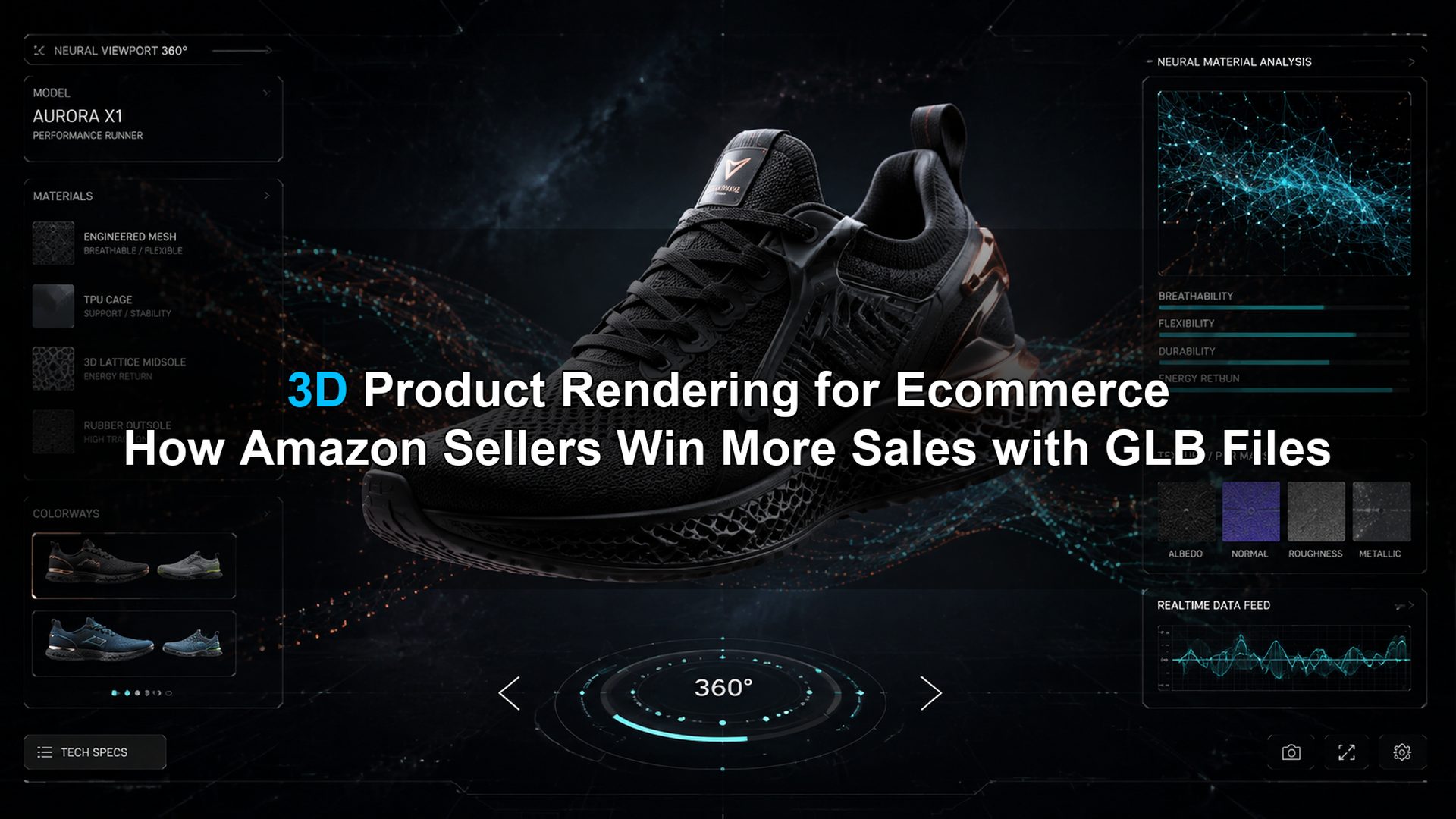
Amazon sellers who add a compliant GLB file to their listing gain access to the platform’s interactive 3D product rendering for ecommerce viewer, letting shoppers rotate, zoom, and inspect the item from any angle before buying. This feature is currently available to brand-registered sellers in specific categories, and the technical bar to qualify is lower than most sellers expect. The main obstacle is producing a GLB that meets Amazon’s polygon, texture, and material requirements without paying hundreds of dollars per SKU to a 3D modeling agency.
Table of Contents
- Part 1: What Amazon’s 3D Product Viewer Actually Is
- Part 2: Amazon GLB File Technical Requirements
- Part 3: Why Static Photos Can No Longer Compete
- Part 4: How to Generate a GLB File Using AI
- Part 5: Uploading Your 3D Model to Seller Central
- Part 6: Common Questions on 3D Product Rendering for Ecommerce
- Build Your First Amazon GLB Now
Part 1: What Amazon’s 3D Product Viewer Actually Is
Amazon rolled out interactive 3D product viewing as part of its broader push into augmented reality retail. When a seller uploads a valid GLB file, shoppers on desktop and mobile see a “View in 3D” button on the product detail page. Clicking it launches an in-browser renderer where the product can be freely rotated, pinched, and zoomed. On supported iOS and Android devices, the same file powers the “View in Your Room” AR feature, placing the product in the customer’s physical space via the camera.
The feature is open to brand-registered sellers. Eligibility is not universal: currently supported product categories include home goods, furniture, consumer electronics, footwear, and eyewear. If your ASIN falls outside these categories, the 3D upload option will not appear in your Image Manager. Amazon continues expanding eligible categories, so checking your Seller Central account directly is the only way to confirm current eligibility.
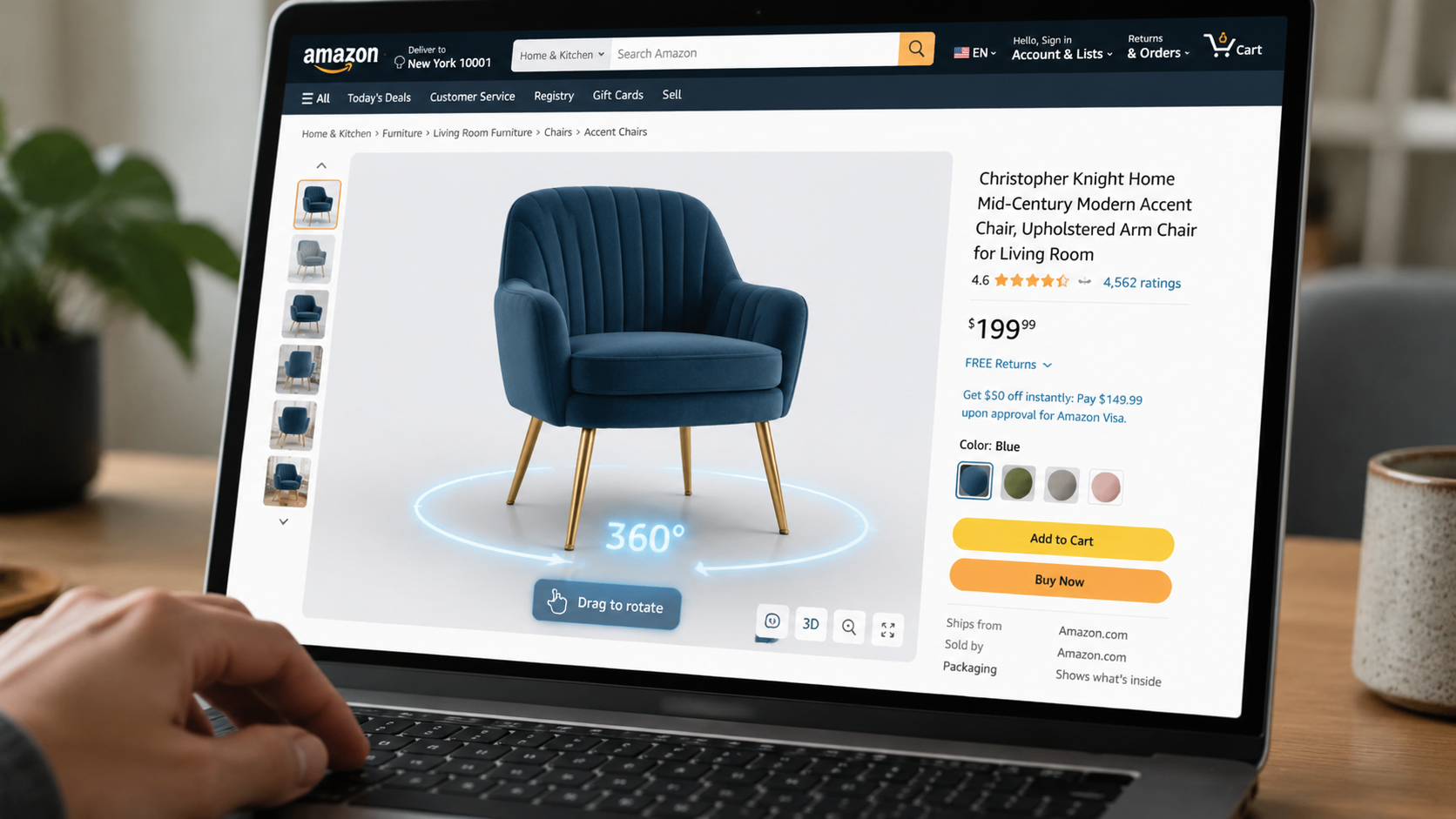
📊 Market data: Products with 3D and AR content see an average 94% higher conversion rate than listings with static images only, per Shopify’s published analysis of platform data. A separate analysis from London Dynamics found brands using interactive 3D reported up to a 40% reduction in product return rates, driven by shoppers having accurate size and material expectations before purchase.
The global 3D product visualization platform market was valued at $0.34 billion in 2024 and is projected to reach $2.33 billion by 2032, a signal that this is no longer a premium differentiator but a baseline expectation for category leaders.
Part 2: Amazon GLB File Technical Requirements
Amazon’s Seller Central publishes specific technical constraints for 3D model uploads. Meeting these exactly determines whether your file renders cleanly or throws a validation error. The requirements below are drawn directly from Amazon’s 3D model technical requirements page.
| Parameter | Requirement |
|---|---|
| File format | GLB or GLTF |
| File size | 5MB maximum |
| Polygon count | Up to 200,000 triangles |
| Texture resolution | 2K minimum, 4K maximum (1024×1024 px to 4096×4096 px) |
| Texture format | PNG or JPEG, embedded in GLB |
| Material type | PBR (Physically Based Rendering) |
| Required texture maps | BaseColor (RGB), Metallic (grayscale), Roughness (grayscale) |
| UV layout | Single texture atlas, UVs within 0–1 space |
| Animations | Not supported |
Why PBR materials are non-negotiable
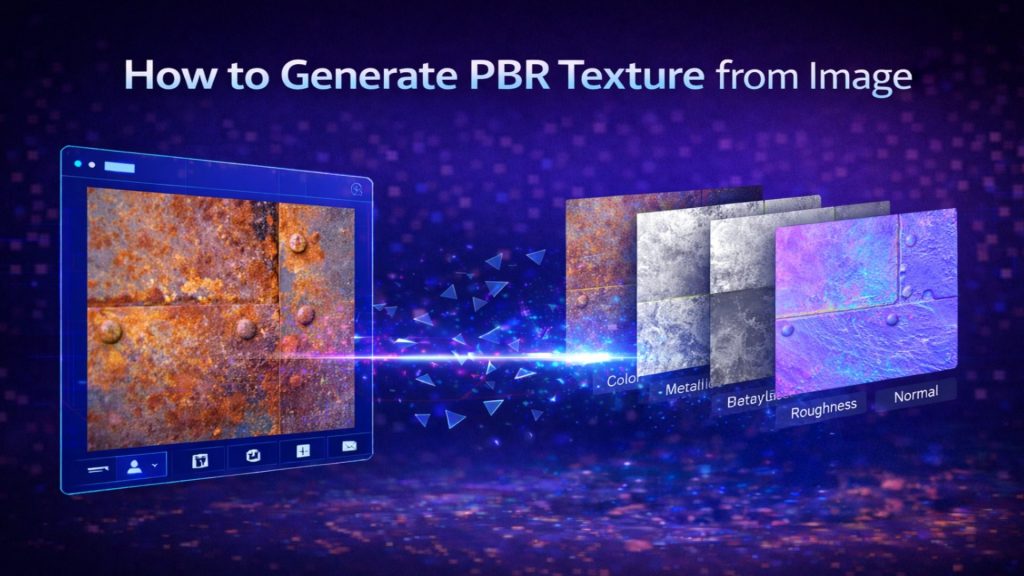
PBR (Physically Based Rendering) is the industry standard for realistic material simulation in real-time viewers. The BaseColor map defines the surface color without any lighting baked in, the Metallic map tells the renderer which surfaces are metal vs. non-metal, and the Roughness map controls specular reflection sharpness. Without all three maps correctly embedded in the GLB, Amazon’s viewer will either reject the file or render the product as a flat, textureless white mesh. This is where most first-time sellers run into problems, because traditional product photography workflows produce JPEGs, not PBR map sets.
For ecommerce use, the watertight geometry requirement matters too. A mesh with holes, non-manifold edges, or flipped normals will cause visual artifacts in the viewer. This is a known weakness in geometry produced by low-quality AI generators: they output what experienced 3D artists call “triangle soup” — dense polygon counts with inconsistent normals and broken edge loops. A clean, watertight mesh is a hard technical requirement, not an aesthetic preference.
Part 3: Why Static Photos Can No Longer Compete
Amazon’s top-performing sellers in eligible categories are already using 3D product content. The conversion gap is not small: a 94% lift means that for every 100 sessions your listing receives, you’re leaving roughly half the potential conversions on the table with static-only images. The mechanism is straightforward: a shopper who can rotate a shoe to inspect the sole, or verify the exact depth of a cabinet, has fewer unanswered questions at the point of purchase. Fewer unanswered questions means higher intent to buy and lower post-purchase disappointment.
The return rate reduction is the less-cited benefit. Returns on Amazon carry direct costs: return shipping, restocking, review damage. When a customer can accurately assess size and material finish in 3D before ordering, the likelihood of “this looks different in person” returns drops sharply. For furniture and home goods sellers in particular, where size mismatches drive a disproportionate share of returns, this is a measurable inventory cost benefit.
⚡ Competitive positioning: Sellers in the home and furniture category who add 3D content to their listings are currently in the minority. The majority of competitors are still relying entirely on 2D photography. Establishing a 3D presence now, while adoption is low in most subcategories, creates a listing-quality gap that is difficult for slower-moving competitors to close quickly.
Amazon is not the only ecommerce platform accepting 3D product assets. Shopify also supports GLB and USDZ formats natively. Understanding the broader image to GLB conversion workflow positions you to serve multiple platforms from the same asset pipeline.
Turn a Product Photo Into a GLB File in Minutes
Neural4D generates a production-ready, Amazon-compliant 3D model with full PBR textures from a single product image.
Generate Your 3D Product Model
No 3D modeling experience required. Export GLB, OBJ, or FBX directly.
Part 4: How to Generate a GLB File Using AI
The traditional route to a GLB file involved hiring a 3D modeling agency: $150 to $400 per product, a 3 to 7 day turnaround, and extensive back-and-forth to get dimensions right. AI-based generation has collapsed that workflow. The current pipeline for most sellers looks like this:
Step 1: Photograph the product correctly
Capture 10 to 15 reference photos from multiple angles: front, back, both sides, top, and 45-degree corners. Use a clean, neutral background (white or light gray). Consistent lighting with no harsh shadows gives the AI system cleaner surface data to work with. Include one image with a ruler or known-size object in frame to establish real-world scale for dimension verification later.
Step 2: Configure and generate
Upload the reference photos to an AI image to 3D model tool. Before clicking Generate, select whether to include textures: Neural4D offers standard textures or a full PBR map set (BaseColor, Metallic, Roughness). With PBR enabled, the base mesh and all texture maps are produced in a single generation pass. The Direct3D-S2 architecture processes the full volumetric structure from the reference images, not just the visible surface, producing watertight geometry rather than the broken-normal, open-mesh output common from depth-estimation-only generators. An untextured base mesh takes approximately 90 seconds; with PBR maps enabled, the total is 2 minutes or more — plan around this figure for catalog operations.
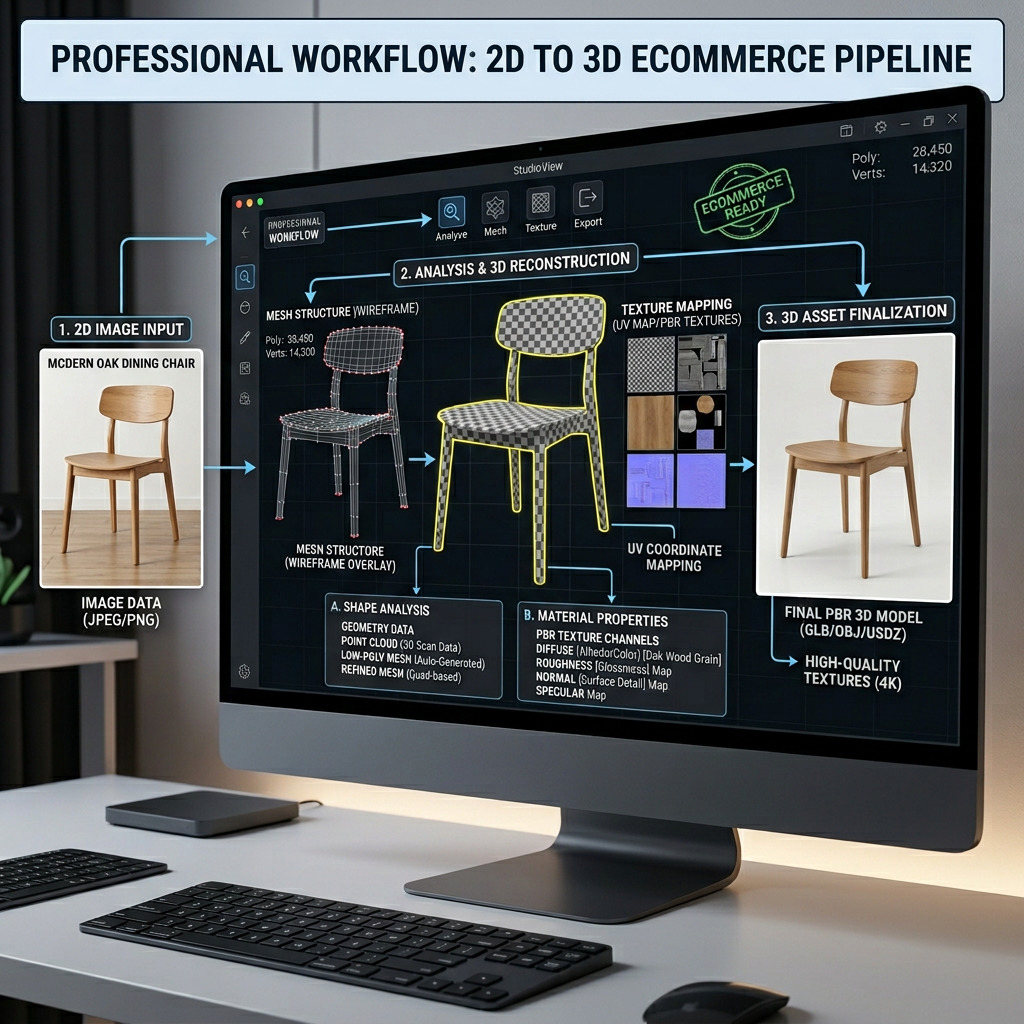
Step 3: Review and refine
Once generation is complete, inspect the model in Neural4D’s workspace using pan, zoom, and rotate controls. If proportions or surface details need adjustment, Neural4D-2.5 supports conversational refinement: describe the change in natural language and the model updates accordingly, without restarting the generation from scratch.
The Spatial Sparse Attention (SSA) mechanism separates material properties at inference time, outputting a pure albedo map without any lighting baked in. Baked-in lighting on the BaseColor texture is a frequent rejection cause when submitting GLBs to Amazon, because the viewer applies its own real-time lighting: a model with shadows baked into the texture will look wrong under any lighting angle other than the one it was captured in.
Step 4: Export and validate
Export from Neural4D using the GLB preset. The export bundles geometry and all PBR texture maps into a single self-contained GLB file. Before uploading to Amazon, verify the file against the spec table above: check file size (must clear 5MB), inspect the polygon count in the export settings, and confirm all three PBR maps are embedded. Most GLB validators and free tools like the Khronos glTF Validator can confirm map embedding and UV integrity in under a minute.
Sellers managing large catalogs can access Neural4D’s enterprise API to batch-generate models from product image sets, integrating the generation step directly into existing product data pipelines. This is where the per-SKU cost drops to a fraction of agency pricing. For a look at how the broader text to 3D workflow compares for products where photography is not yet available, Neural4D supports generation from text descriptions as well.
Neural4D vs. Meshy and Tripo for ecommerce GLB
The ecommerce GLB use case has specific demands that reveal weaknesses in competing tools. Meshy and Tripo both produce 3D models, but their geometry quality for hard-surface consumer products (boxed electronics, furniture with clean edges, footwear) is inconsistent. The most common problem is broken geometry on back-facing surfaces and edges, producing models that look acceptable in a front-facing screenshot but fail Amazon’s viewer validation or render with visible holes when rotated. Neural4D’s watertight mesh output is a direct response to this. For sellers comparing alternatives to Meshy for ecommerce 3D output, the validation pass rate on Amazon is the most relevant benchmark, not visual quality in still previews.
Part 5: Uploading Your 3D Model to Seller Central
Once you have a validated GLB file, the upload process in Amazon Seller Central is straightforward. Navigate to Catalog, select Upload Images, then click the Image Manager tab. Search for your product by ASIN or SKU. You will see an option to upload a 3D model if your ASIN is eligible. Select the GLB file and submit.
What to do when the upload fails
Amazon’s Image Manager returns error codes for spec violations. The two most common are polygon count exceeded (reduce triangles in export settings, targeting 150K to stay clear of the 200K ceiling) and file size over limit (compress textures to JPEG at 85% quality within the GLB bundle). The texture resolution conflict between sources (some cite 1024×1024 as the cap, others 4K) reflects updates Amazon has made over time: the current spec allows up to 4K, but at 4K texture resolution the 5MB file size ceiling becomes the binding constraint for most products. Targeting 2K textures keeps both parameters in compliance.
Adding accurate product dimensions
Amazon recommends supplying 2 to 10 reference photographs alongside your 3D model submission, plus accurate real-world dimensions. The viewer uses these to scale the model correctly in the AR “View in Your Room” experience. A model generated without verified dimensions may render at the wrong scale in AR, which defeats the return-reduction benefit entirely. Input exact length, width, and height in the submission form. If your AI-generated model was built from reference photos without explicit scale data, use Neural4D’s Neural4D-2.5 conversational refinement to adjust proportions before exporting.
After successful upload, allow 24 to 72 hours for Amazon to process and activate the 3D viewer on the product detail page. The “View in 3D” button appearance confirms the upload was accepted and the model passed Amazon’s internal validation.
Part 6: Common Questions on 3D Product Rendering for Ecommerce
What file format does Amazon require for 3D product models?
Amazon requires GLB or GLTF format. GLB is the binary container version of GLTF and is the preferred format because it packages geometry and textures into a single file, making the upload simpler and reducing the chance of missing texture errors.
How many polygons can an Amazon 3D product model have?
Amazon’s current specification allows up to 200,000 triangles. For most consumer products, a clean, well-optimized model can represent all surface details within 50,000 to 100,000 triangles. Staying under 150K gives you a working buffer and makes it easier to stay within the 5MB file size limit after textures are embedded.
Who can upload 3D models on Amazon?
Brand-registered sellers who are listed as the registered brand owner for the product can upload 3D models. Standard seller accounts without brand registry cannot access the 3D model upload option in Image Manager.
How long does it take to generate a 3D product model with AI?
With Neural4D, you select the texture option (standard or full PBR maps) before clicking Generate. The base mesh and PBR texture set are produced in a single pass. An untextured mesh takes approximately 90 seconds; with PBR maps enabled, total generation time is 2 minutes or more. That time reflects the high-polygon, high-fidelity output required to pass Amazon’s validation.
Does Amazon’s 3D product viewer improve conversion rates?
Yes. Shopify’s published platform data shows products with 3D and AR content average 94% higher conversion rates compared to listings with static images only. Amazon sellers in furniture and home goods categories additionally report significant return rate reductions, since shoppers can accurately assess size and material before purchasing.
What product categories support 3D models on Amazon?
Currently supported categories include home goods, furniture, consumer electronics, footwear, and eyewear. Amazon continues to expand the list. If your ASIN falls outside these categories, the 3D upload option will not appear in Image Manager. Check your specific ASIN directly in Seller Central to confirm current eligibility.
Can I use the same GLB file for Amazon and Shopify?
Yes, with minor caveats. Both platforms accept GLB format with PBR materials. Amazon requires the file to stay under 5MB and 200K triangles. Shopify’s limits are more permissive. A model optimized to meet Amazon’s spec will work on Shopify without modification. For Apple AR (USDZ format) on Shopify, a separate export step is needed, but the source 3D model is the same.
Build Your First Amazon GLB Now
The gap between sellers using 3D product content and those still relying on flat photography is widening. In eligible categories, the 94% conversion lift is not a theoretical projection: it reflects real shopper behavior when an interactive 3D viewer is available on a listing. The technical requirements are clear and achievable without a 3D modeling background. What was previously an agency-dependent, per-SKU cost is now a two-minute AI generation workflow.
Upload a product photo to Neural4D’s 3D product rendering for ecommerce pipeline, get a watertight GLB with full PBR textures, validate against Amazon’s spec table, and upload directly to Seller Central. The first model takes under 10 minutes from photo to upload-ready file.
Start Generating Amazon-Ready 3D Models
Watertight GLB files with PBR textures. Optimized for Amazon’s 5MB and 200K polygon limits.
50 free Power credits weekly. No credit card required to start.