
How to Import 3D Models into Unity 6: FBX, GLB, Textures, and Materials
Quick Summary
- FBX and OBJ import directly when placed in the Unity project’s Assets folder.
- GLB and glTF require an importer such as Unity’s glTFast package in a standard Unity 6 project.
- Textured assets must preserve texture files, material mappings, and render-pipeline-compatible shaders.
- Scale, normals, rigs, and animations are configured in the model Import Settings after the asset appears in the Project window.
- Neural4D exports FBX and GLB assets that can be prepared for Unity workflows.
To import 3D models into Unity 6, place FBX or OBJ files in the Assets folder, then configure the model in the Inspector. For GLB or glTF files, install glTFast first, import the asset, and verify its materials, textures, scale, normals, and animation data before using it in a scene.
Table of Contents
- Part 1: Choose FBX, GLB, or OBJ for Unity 6
- Part 2: Import FBX, OBJ, and GLB into Unity 6
- Part 3: Key Import Settings to Configure
- Part 4: Common Import Problems and How to Fix Them
- Part 5: Using AI to Generate Unity-Ready 3D Models
- Part 6: Common Questions on Importing 3D Models into Unity
- Start Importing Faster
Part 1: Choose FBX, GLB, or OBJ for Unity 6
Unity 6 imports FBX, DAE, DXF, and OBJ as standard model formats. GLB and glTF use a scripted importer such as Unity glTFast documentation. This distinction matters because dragging a GLB into an unconfigured project does not provide a reliable import workflow.
| Format | Import Path | Best For | Main Consideration |
|---|---|---|---|
| FBX | Directly into Assets | Rigged characters, animation, production assets | Textures and shaders may need extraction or remapping |
| GLB / glTF | Install glTFast, then import | Self-contained textured assets, web and real-time pipelines | Material appearance depends on render-pipeline support |
| OBJ | Directly into Assets | Static meshes and simple props | No rig or animation data; materials rely on MTL and texture files |
| DAE / DXF | Directly into Assets | Exchange workflows | FBX is usually the more predictable production format |
| BLEND / MA / MB / MAX | Converted through installed DCC software | Local iteration | Creates a software dependency for every project contributor |
Unity’s Unity 6 model file format documentation recommends FBX for production exchange. Choose GLB when embedded textures and glTF interoperability matter, but install and test the importer before committing the asset pipeline.
Part 2: Import FBX, OBJ, and GLB into Unity 6
Import FBX or OBJ Directly
- Open the Unity 6 project and create a dedicated folder under Assets.
- Drag the FBX or OBJ file into the Project window, or copy it into that folder on disk.
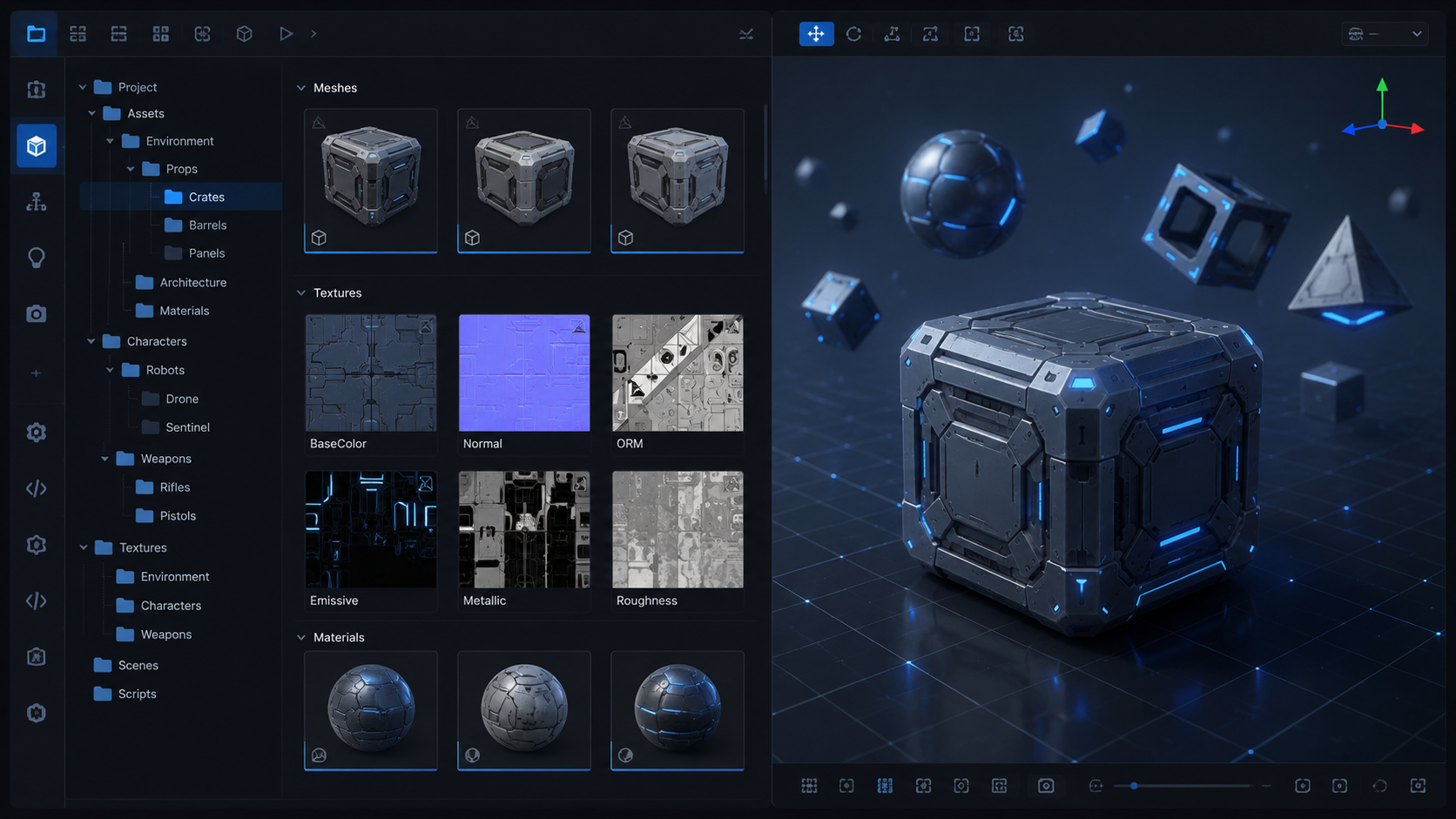
- Select the imported model and review the Model, Rig, Animation, and Materials tabs in the Inspector.
- Click Apply, drag the model into the Scene, and compare it with Unity’s one-meter cube.
Install glTFast for GLB and glTF
- Open Window > Package Management > Package Manager.
- Choose Install package by name.
- Enter
com.unity.cloud.gltfastand install the package. - After installation, add the GLB or glTF asset to the project and allow the scripted importer to process it.
- Place the imported object in the Scene and verify textures, transparency, normals, scale, and animation clips.
A .gltf file can reference separate .bin and texture files, so move the complete asset set together. A .glb usually stores those resources in one binary file.
Official Unity tutorial: Unity’s glTFast Editor Import guide explains how GLB and glTF files are copied into Assets, converted into native prefabs, inspected for warnings, and expanded into scenes, meshes, materials, animation clips, and textures.
Part 3: Key Import Settings to Configure
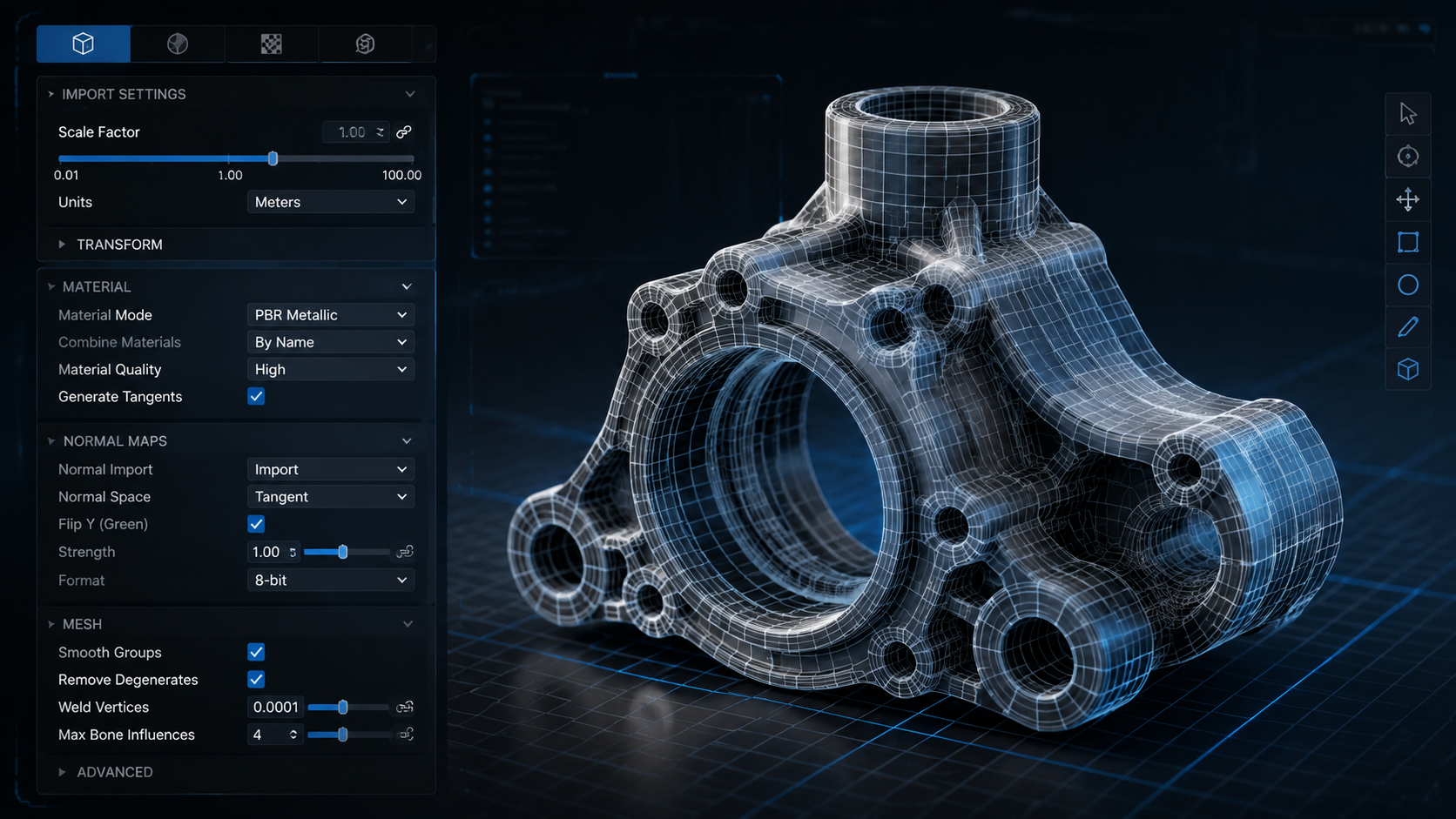
After dropping a model in, click the asset in the Project window and check the Inspector. The FBX Importer panel has three tabs: Model, Rig, and Animation. These settings determine whether what you get matches what you built.
Scale Factor
Unity treats 1 unit as 1 metre for physics calculations. Most 3D software does not. The correct Scale Factor depends on your source application:
- Maya / Cinema 4D: leave at 1.0
- 3ds Max / Modo: set to 0.01
- Blender: export with “Apply Transform” checked, Scale Factor 1.0
Getting this wrong produces objects that are 100x too large or too small in the scene, which cascades into broken physics and lighting.
Material Creation Mode
Under the Materials tab, the “Material Creation Mode” dropdown controls how Unity handles embedded materials. For FBX files exported from AI tools with PBR maps already embedded, set this to Import via MaterialDescription to preserve the Diffuse, Roughness, Metallic, and Normal maps automatically.
Normals and Tangents
If the model displays black patches or inverted surfaces, the normals were calculated incorrectly during export. Under the Model tab, set Normals to “Calculate” and Smoothing Angle to 60 degrees as a baseline. Adjust upward for organic shapes, downward for hard-surface industrial assets.
Texture Dimensions
Unity supports non-power-of-two textures. Power-of-two dimensions such as 1024, 2048, and 4096 are still preferred for efficient compression, mipmapping, memory use, and cross-platform behavior. Review the Non Power of 2 setting instead of assuming Unity always rescales the source image. See Unity’s TextureImporter NPOT documentation.
Part 4: Common Import Problems and How to Fix Them
Textures Not Appearing
The most common cause is a broken texture path. Unity’s auto-detection only works if your textures are in a folder named Textures at the same directory level as the model file or one level up. If the model still appears grey, manually drag the texture files to Assets/Textures, then re-import the model (right-click > Reimport).
Model Appears as a Black Silhouette
Flipped normals render surfaces as invisible from the outside. Re-export from your source application with “Flip Normals” disabled, or set the Unity import Normals to “Calculate” with a smoothing angle of 60. Alternatively, create a new material with a double-sided shader and apply it in the Editor.
Scale Mismatch
A character that towers over the default Unity cube (1m cube) or shrinks to a speck usually has a Scale Factor problem. Find the correct value for your source application in the table above and apply it in the Inspector, then click Apply to trigger a reimport.
Missing Animations After FBX Import
FBX animation data only comes through if the file was exported with “Bake Animation” enabled in the source application. In Unity, switch to the Animation tab in the Inspector and confirm animation clips appear in the list. If the list is empty, re-export from source with animation baking enabled.
Skip the Manual Modeling Step
Generate Unity-ready 3D models from a single image or text prompt. Watertight mesh, full PBR maps, FBX and GLB export in one pass.
Free users get 50 credits per week. No credit card required.
Part 5: Using AI to Generate Unity-Ready 3D Models
The import problems in Part 4 share a root cause: the model was not built to game-engine tolerances. Fixing normals, repairing non-manifold geometry, and resizing textures to power-of-two are all downstream symptoms of assets that started their lives in general-purpose 3D software without Unity in mind.
AI 3D generators that output engine-ready geometry sidestep most of these issues. Neural4D is built on the Direct3D-S2 architecture (published at NeurIPS 2025), which generates watertight, manifold meshes by processing the full object volume rather than estimating surface depth. The resulting geometry is designed to reduce the retopology and hole-patching work required before engine import.
Neural4D Export Formats for Unity
Neural4D exports to FBX, OBJ, GLB, USDZ, and STL. For Unity 6 workflows, the practical choice is:
- FBX for rigged characters or props that will be animated inside Unity
- GLB for static environment props, hero objects, and anything destined for web or AR builds alongside the Unity project
Workflow: Image to Unity in Four Steps
Open the Image to 3D studio, upload a reference photo, and select your texture quality before clicking Generate. The untextured base mesh generates in approximately 90 seconds. If you select PBR texture output (Diffuse, Roughness, Metallic, and Normal maps), total generation time is 2 minutes or more as both mesh and textures are computed in a single pass. You can also use the image to 3D model guide for a detailed walkthrough of the input settings.
Once generated, export as GLB. Confirm that glTFast is installed before adding the file to the Unity 6 project. Embedded textures travel with GLB, but the resulting materials still need to be checked against the project render pipeline. For characters that need animation, export as FBX and configure the Rig tab to match your skeleton hierarchy.
For more on building production game assets this way, the AI 3D game assets guide covers batch generation and LOD strategies for larger scenes.
Neural4D is co-developed by researchers from Nanjing University, DreamTech, Oxford University, and Fudan University. The Direct3D-S2 model was presented at NeurIPS 2025 and uses Spatial Sparse Attention (SSA) to achieve approximately 12x faster inference than standard diffusion-based 3D generation.
Part 6: Common Questions on Importing 3D Models into Unity
Does Unity 6 support GLB natively?
A standard Unity 6 project does not treat GLB as one of its built-in model formats. Install a scripted importer such as Unity glTFast, then add the GLB file and verify its materials, textures, and animation data.
How do I import a textured AI 3D asset into Unity?
Export the asset as FBX with its texture files or as GLB with embedded resources. Import FBX directly, or install glTFast before importing GLB. Then remap materials to shaders compatible with the Built-in, URP, or HDRP render pipeline.
What is the best 3D file format for Unity?
FBX is the most predictable production format for rigged and animated assets. GLB is useful for self-contained textured assets after a glTF importer is installed. OBJ is suitable for static geometry that does not need rigs or animation clips.
Why is my imported model grey or missing textures?
The texture files may be missing, the material references may be broken, or the shaders may not match the project’s render pipeline. Extract or copy the textures into Assets, assign the correct shader, reconnect the maps, and reimport the model.
Why is my imported 3D model the wrong size?
Unity treats one world unit as one meter. Check the source application’s unit settings, apply transforms before export, compare the model against a one-meter cube, and adjust Scale Factor in the Inspector only when the export units require it.
Why are animations missing after FBX import?
The FBX may not contain baked animation clips, or the clip range may not be configured. Re-export with animation baking enabled, then inspect the Rig and Animation tabs and click Apply.
Start Importing Faster
Importing 3D models into Unity is a solved problem once you standardize on FBX or GLB, configure Scale Factor and material import settings correctly, and feed the importer geometry that was built to engine tolerances from the start. The common errors (wrong scale, missing textures, flipped normals) are largely preventable at the asset creation stage rather than fixable after the fact.
If you want to reduce the number of import corrections you make per asset, start with a tool that outputs engine-ready geometry by default. The Neural4D AI image to 3D conversion pipeline produces watertight meshes with full PBR texture maps that land cleanly in Unity 6 without topology repair or normal recalculation. Upload an image, export FBX or GLB, and drag it in.
Generate Unity-Ready 3D Assets in Minutes
Upload a photo. Get a watertight FBX or GLB with PBR maps. Import directly into Unity 6 with less downstream cleanup.
Free users get 50 credits per week. No credit card required.