OBJ vs STL: Which 3D Printing File Format Should You Use in 2026?
Quick Summary
- STL stores triangle geometry only, with no color, texture, or material data, which is why it is the universal slicer standard.
- OBJ stores polygons plus UV maps, vertex colors, and material references through a companion .mtl file.
- Use STL for single-color FDM and resin prints; use OBJ when color, texture, or material data must survive.
- Converting OBJ to STL always drops color and texture data, so keep your original OBJ files for re-editing.
- Neural4D exports watertight OBJ and STL models from one image, so AI-generated parts slice without manual repair.
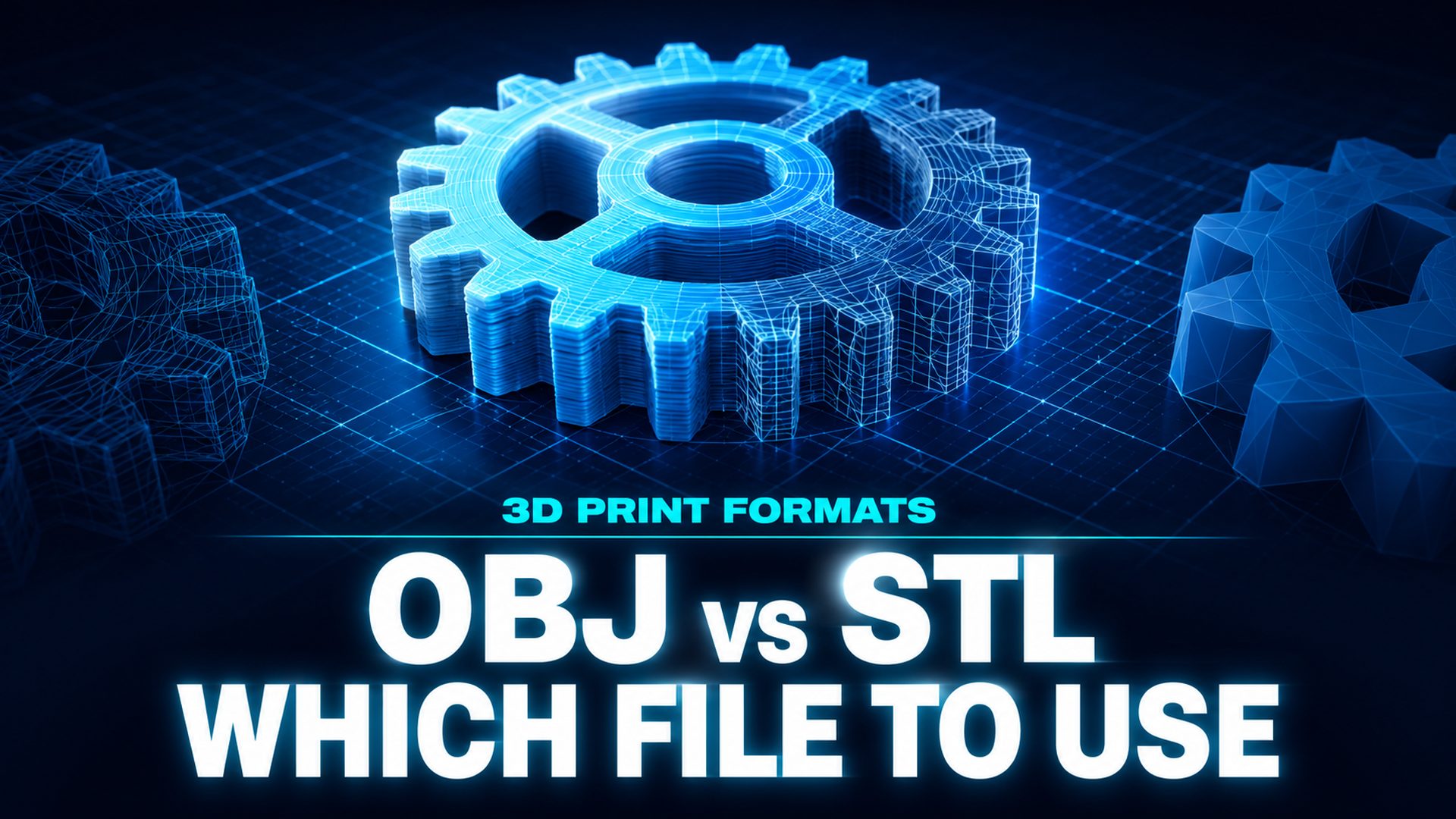
OBJ vs STL is the most common format decision a 3D printing maker faces, because both formats encode the same shape in different ways. STL stores only triangle geometry, while OBJ adds UV maps, vertex colors, and material references, so the right export depends on the printer and the part. Here is how the two formats differ on file size, mesh quality, and color support, and which one to export for each print job.
Table of Contents
- Part 1: What Is an STL File?
- Part 2: What Is an OBJ File?
- Part 3: OBJ vs STL: Key Differences at a Glance
- Part 4: Which Format Should You Choose? (Use-Case Matrix)
- Part 5: How to Convert Between OBJ and STL
- Part 6: Where Neural4D Fits in Your OBJ vs STL WorkflowHOT
- Part 7: Common Questions on OBJ and STL Files
- The Verdict: When to Export OBJ vs STL
Part 1: What Is an STL File?
STL, short for stereolithography, was created by 3D Systems in 1987 for the first commercial 3D printer. It describes a model as a mesh of connected triangles, with each facet defined by three vertices and a surface normal. That triangle-only structure is both its strength and its limit.
An STL file carries geometry and nothing else. There is no color, no texture map, no material assignment, and not even a unit definition. A part that is 10 millimeters and a part that is 10 inches are stored identically, which is why scale is a real-world gotcha when you switch slicers.
Despite that simplicity, STL became the de facto standard for additive manufacturing. Every slicer from Cura and PrusaSlicer to Bambu Studio accepts it, and every process from FDM and resin to SLS reads it. Oak Ridge National Laboratory’s additive manufacturing research on geometry data storage documents how triangle mesh formats like STL carry redundant vertex data and no material information, which is why newer formats such as 3MF were built to replace it.
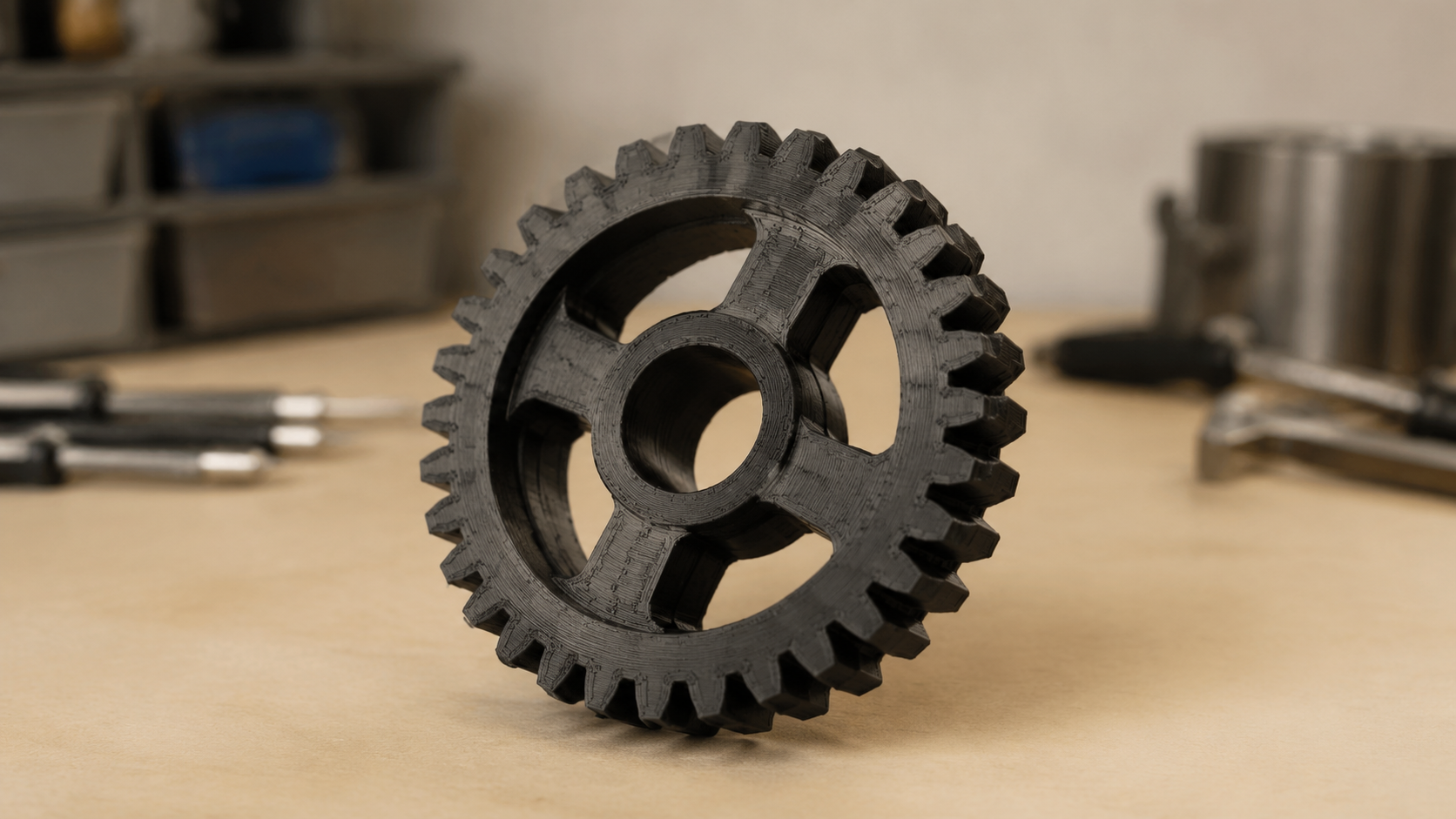
✅ STL strengths
- Universal slicer and printer support
- Small file sizes in binary form
- Simple, fast, and predictable to slice
❌ STL limits
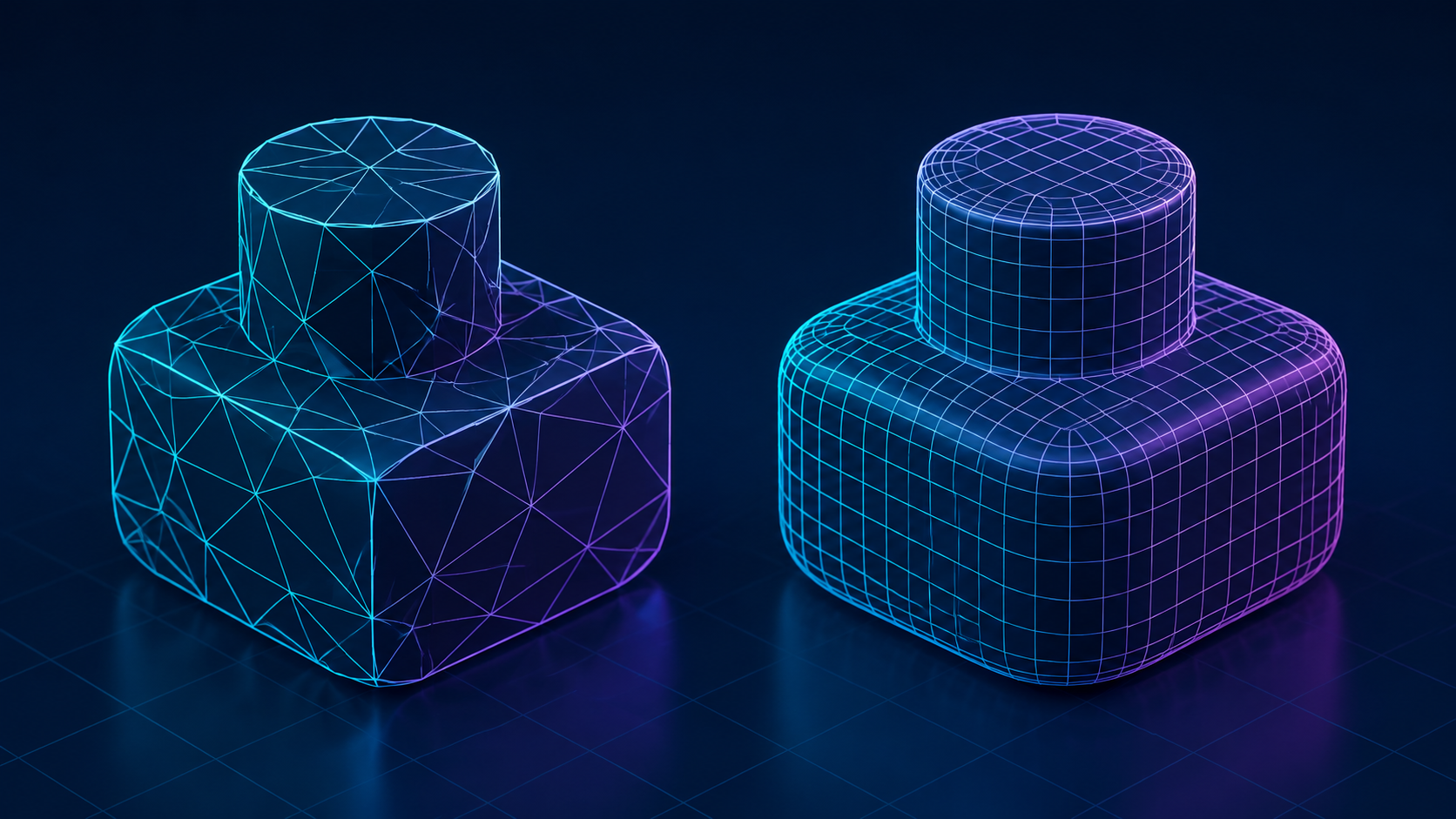
- Triangles only, no quads or curves
- No color, texture, or material data
- Loses geometric precision at high detail
- Hard to edit without a source file
Part 2: What Is an OBJ File?
OBJ comes from Wavefront Technologies and dates back to the 1980s. It stores polygon geometry as points, edges, and faces, so it can carry triangles, quads, and n-gons rather than being forced into triangles. That makes it the format of choice for animation, games, VFX, and 3D scanning pipelines.
The bigger difference is visual data. An OBJ stores UV texture coordinates and vertex normals, and it references a companion .mtl file that defines material colors, roughness, and the paths to external texture images. The three files, the .obj, the .mtl, and the textures, must stay together or the appearance is lost.
For printing, this matters in one specific case: full-color and multi-material parts. A ColorJet or PolyJet machine can read an OBJ and reproduce the color and material assignment, something an STL cannot carry at all.
✅ OBJ strengths
- Color, texture, and material support
- Keeps quads and editing-friendly topology
- Standard interchange in Blender, Maya, ZBrush
❌ OBJ limits
- Text based, larger and slower to parse
- Multi-file dependency with .mtl and textures
- Slicers often ignore the visual data anyway
Part 3: OBJ vs STL: Key Differences at a Glance
Both formats can describe the same physical part, but they store different information. This OBJ vs STL comparison table shows where the formats diverge.
| Feature | STL | OBJ |
|---|---|---|
| Geometry | Triangles only | Triangles, quads, and polygons |
| Color | None | Vertex colors and texture maps |
| Materials | None | Via .mtl file and texture images |
| UV texture coordinates | None | Yes |
| File format | ASCII or binary | Text based, often multi-file |
| Slicer compatibility | Universal | Supported, textures ignored |
| Full-color printing | Not possible | Yes, on color-aware machines |
| Best for | Single-color FDM and resin | Textured, game, and color prints |
Part 4: Which Format Should You Choose? (Use-Case Matrix)
The OBJ vs STL decision collapses into one question: does the print need color, texture, or material data that the machine can actually use? The matrix below maps common jobs to the right export format.
| Your use case | Export format | Why |
|---|---|---|
| Single-color FDM functional part | STL | Universal slicer support and predictable slicing |
| Single-color resin miniature | STL | Smallest reliable input for any slicer |
| Full-color or multi-material print | OBJ | Carries the color and material data the machine needs |
| Textured game or VR asset | OBJ | UVs and materials survive for rendering engines |
| Editable file in Blender or Maya | OBJ | Keeps quads and topology for retopology work |
| Simple part where appearance does not matter | STL | Smallest, fastest, most compatible |
Part 5: How to Convert Between OBJ and STL
The most common conversion direction is OBJ to STL, because makers design or download an asset and then need a slicer-ready file. The conversion is one-way in terms of data: only geometry survives, and color, texture, UVs, and materials are dropped. A model that relied on a texture map will still print fine, but the visual data is gone from the file.
In Blender, import the OBJ, check the scene scale, then export as STL. In PrusaSlicer, you can often import the OBJ directly and let the slicer handle the mesh. The reverse direction, STL to OBJ, only converts triangles into OBJ polygons, and it cannot recover color or material data that was never there.
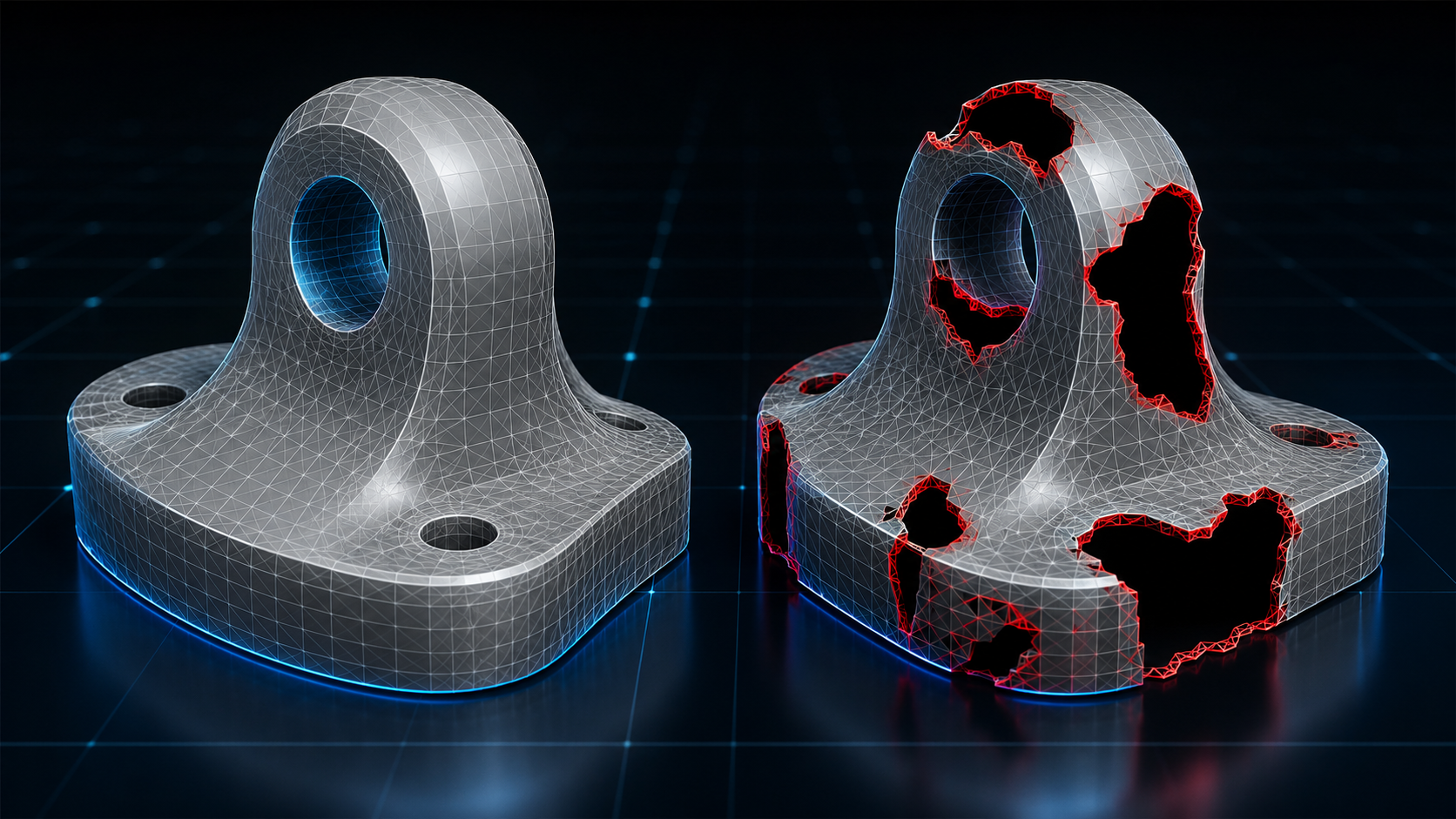
Before you convert or slice, check the mesh. Non-manifold edges and open holes cause slicer failures and print artifacts, and they are common in downloaded or generated models. If the mesh is broken, run it through repair tooling first; the steps are covered in our guide on how to repair STL files.
Part 6: Where Neural4D Fits in Your OBJ vs STL Workflow
Format quality starts at generation. If you build a model in a traditional tool, you control the topology. If you generate it with AI, the generator decides whether the mesh is watertight, manifold, and ready to print.
Neural4D’s Image to 3D pipeline outputs watertight geometry, so a generated model exports cleanly to either format without manual hole patching. The image to OBJ export keeps the mesh ready for color workflows, while the image to STL path feeds a slicer directly, and text to STL covers prompt-driven parts. For the complete list, see the 3D file formats Neural4D supports.
An untextured base mesh generates in about 90 seconds, and enabling textures adds computation time on top of that. The result is a clean triangular mesh that fits any AI for 3D printing workflow, so the OBJ vs STL choice stays a printing decision rather than a repair decision.
Turn One Photo Into a Printable OBJ or STL
Neural4D Image to 3D generates watertight, manifold-clean models that export to OBJ or STL and slice without repair.
Free plan includes 50 Power every week. No credit card required.
Part 7: Common Questions on OBJ and STL Files
Q: Does converting from OBJ to STL always lose color and texture data?
Yes. STL has no channels for color, texture, UV coordinates, or materials, so the conversion keeps only triangle geometry. Save a copy of the original OBJ, the .mtl file, and the texture images if you may need to re-export the visual data later.
Q: Why is there a .mtl file next to my OBJ and do I need it to print?
The .mtl file is the Material Template Library. It defines material colors, shininess, and the paths to external texture images for the OBJ geometry. Slicers import the geometry and mostly ignore the material data, so a missing .mtl does not block a print. It only matters when a color-aware tool opens the file and tries to read the appearance.
Q: Can slicers like Cura and PrusaSlicer import OBJ files directly?
Yes, both import OBJ geometry. On standard single-color FDM machines they use the triangles only, and texture and material data are ignored. If your goal is a physical single-color part, an STL input is the more predictable choice, but OBJ imports without extra steps.
Q: Which format keeps quad geometry intact, OBJ or STL?
OBJ. It stores polygon faces as-is, so quads and n-gons survive the round trip. STL tessellates every surface into triangles, so a quad-based OBJ converted to STL grows in face count and loses the edit-friendly topology a modeling tool relies on.
Q: Is OBJ outdated compared to STL?
Neither format is going away. OBJ remains the default interchange format across Blender, Maya, and game pipelines, and STL is still the safe default for printing. For color and material fidelity, 3MF is the newer alternative that modern slicers and printers increasingly accept.
Q: How do I check whether my mesh is watertight before printing?
Use the built-in diagnostics in Cura and PrusaSlicer, or a mesh tool like MeshLab. Look for open edges, holes, and non-manifold edges, and repair those before slicing. If you generated the model with an AI tool that outputs watertight geometry, this check is usually a formality.
The Verdict: When to Export OBJ vs STL
Export STL when your machine prints a single color and you want the most compatible, predictable input. Export OBJ when color, texture, or material data must survive into the printer, the game engine, or the next tool in the pipeline. Keep the original OBJ files either way, because a triangle mesh cannot re-create visual data. OBJ vs STL is not a battle between a good format and a bad one; it is a question of what the print job needs.
Start with a watertight model and the format decision becomes easy. Generate the base geometry with Neural4D, export OBJ or STL to match the job, and keep the mesh repair tools for the models that actually need them.
Skip the Mesh Repair. Print Clean Geometry.
Upload a photo, get a watertight model, and export the exact format each print needs, OBJ or STL.
50 free Power credits every week. Works in your browser.