How to Generate 3D Models, Images, and Videos in One Place with Neural4D AI 3D Agent
Quick Summary
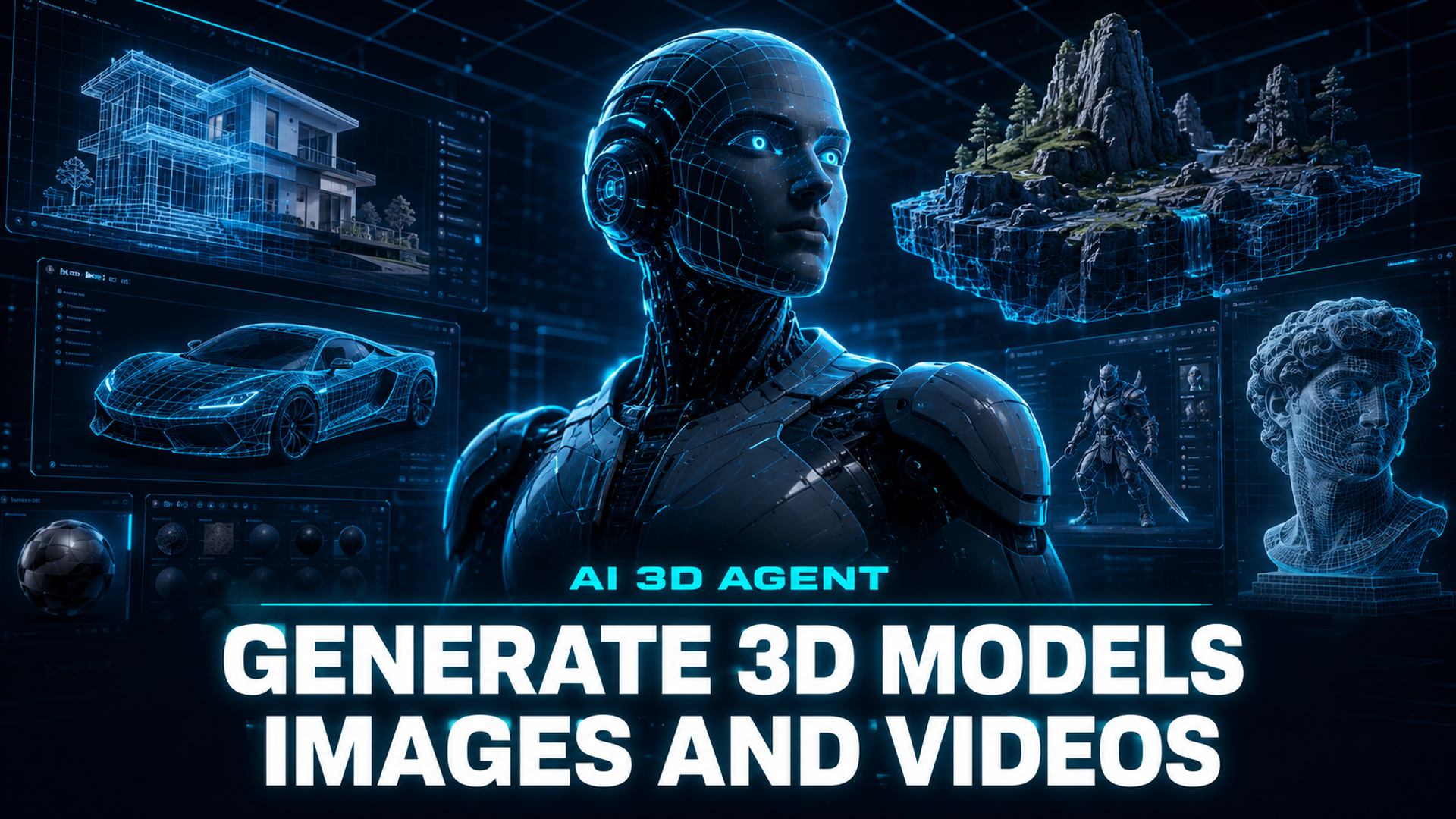
- The Neural4D AI 3D Agent is a unified generation panel in Neural4D Studio that accepts text prompts or reference images and routes each request to the correct workspace automatically.
- Three modes, Generate 3D, Generate Image, and Generate Video, each offer adjustable parameters such as mesh quality, resolution, aspect ratio, and variation count.
- Reference images and @asset references let you anchor new generations to uploaded photos or previously created models without leaving the panel.
- The agent removes workspace-selection friction so first-time users can start generating without learning the platform structure first.
The Neural4D AI 3D Agent solves a problem every new AI creator hits within the first 30 seconds: which workspace do I open? Instead of choosing between text to 3D, image to 3D, text to image, and text to video before typing anything, you describe what you need and the agent routes your request to the right pipeline automatically.
Table of Contents
- Part 1: Why Choosing a Workspace Slows You Down
- Part 2: What Is the Neural4D AI 3D Agent
- Part 3: Generate 3D Models from Text or ImagesHOT
- Part 4: Create Images and Videos from Text Prompts
- Part 5: Advanced Inputs : Reference Images and @Asset References
- Part 6: Common Questions on Neural4D AI 3D Agent
- Conclusion: Start Creating Without the Friction
Part 1: Why Choosing a Workspace Slows You Down
Most AI 3D platforms present you with a list of specialized workspaces the moment you log in. Text to 3D goes here, Image to 3D goes there, the AI video generator is around the corner. If you already know exactly what you want and which tool produces it, the layout works fine. If you are experimenting or just starting out, that same layout becomes a wall of options that stops you before you start.
This is not a small problem. Decision fatigue at the entry point is the biggest reason new users bounce from creative tools. Every extra click before the first generation is a chance to second-guess and leave. The traditional approach asks you to answer five questions : which format, which workspace, what settings, what style, what output : before you have asked yourself the only one that matters: what do I want to make?
The Neural4D Studio still gives you direct access to every workspace through its top navigation bar. But the Studio now offers a faster path that skips the questions entirely.
Part 2: What Is the Neural4D AI 3D Agent
The AI 3D Agent is a unified generation panel pinned to the bottom of the Neural4D Studio interface. As you scroll past the first screen, the panel slides up and stays fixed for the rest of your session : always visible, always ready, no extra clicks to reach it.
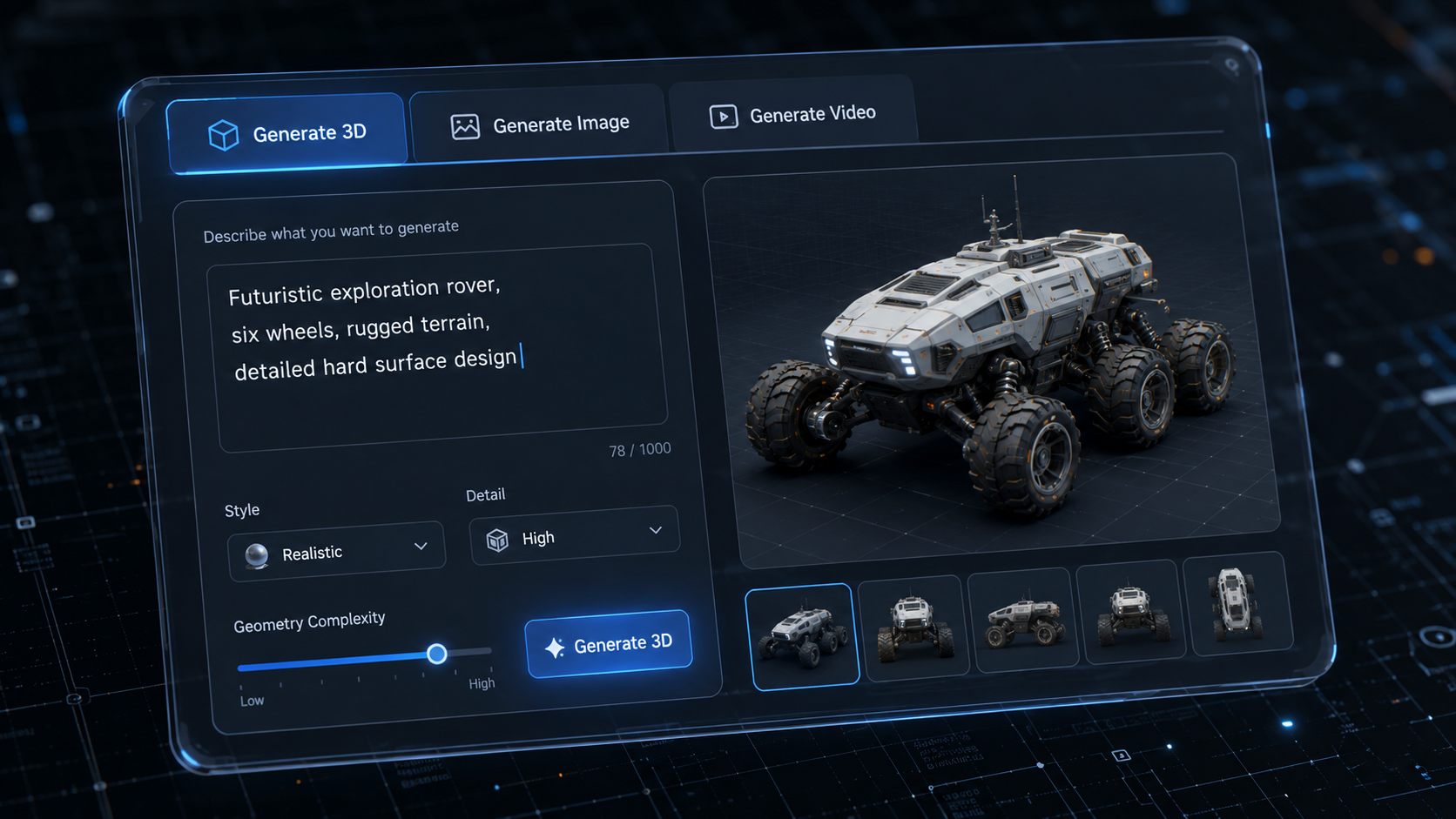
The panel presents three categories: Generate 3D, Generate Image, and Generate Video. Pick a tab, type a natural-language description or upload a reference image, and the system generates the asset and redirects you to the corresponding workspace with the result ready for review, editing, or export. For a full walkthrough of what each workspace offers, see the AI 3D Agent feature page.
Feihu, CEO of Neural4D, described the thinking behind the design: “The hardest part of creating is not the generation itself. It is the moment before you start.” The agent panel is built so that every session begins from momentum rather than hesitation.
Part 3: Generate 3D Models from Text or Images
The Generate 3D tab gives you access to Neural4D’s core 3D generation pipeline : the same text to 3D and image to 3D engines that power the dedicated workspaces : without requiring you to choose between them upfront.
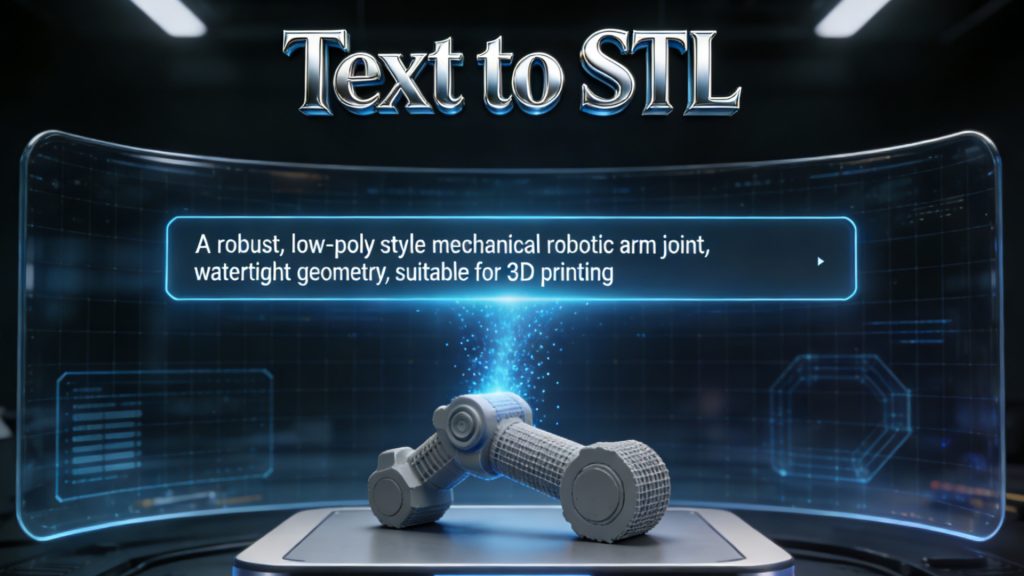
Type a description like “cyberpunk motorcycle with metallic body panels” or upload a reference photo of an existing object. The agent handles the routing and opens the right workspace with the result loaded. You then have the full set of parameter controls at your disposal:
- Texture and PBR : toggle surface fidelity independently. Untextured base mesh generates faster; full PBR maps add Normal, Roughness, and Metallic channels.
- Mesh quality : Standard, High, or Extra High presets. Extra High pushes the Direct3D-S2 engine to its full 2048³ native resolution.
- Face count : adjustable from 500,000 to 2,000,000 polygons, sufficient for game-engine and VFX pipeline use without separate retopology passes.
- Variations : generate 1 to 4 outputs per prompt so you can compare compositions before committing.
On timing: an untextured base mesh typically returns in about 90 seconds. When the request requires PBR textures or a fully production-ready GLB, the system continues into a second pass and the total comes to 2 minutes or more. These are the same generation speeds as the dedicated workspaces : the agent changes how fast you reach the button, not how fast the model builds.
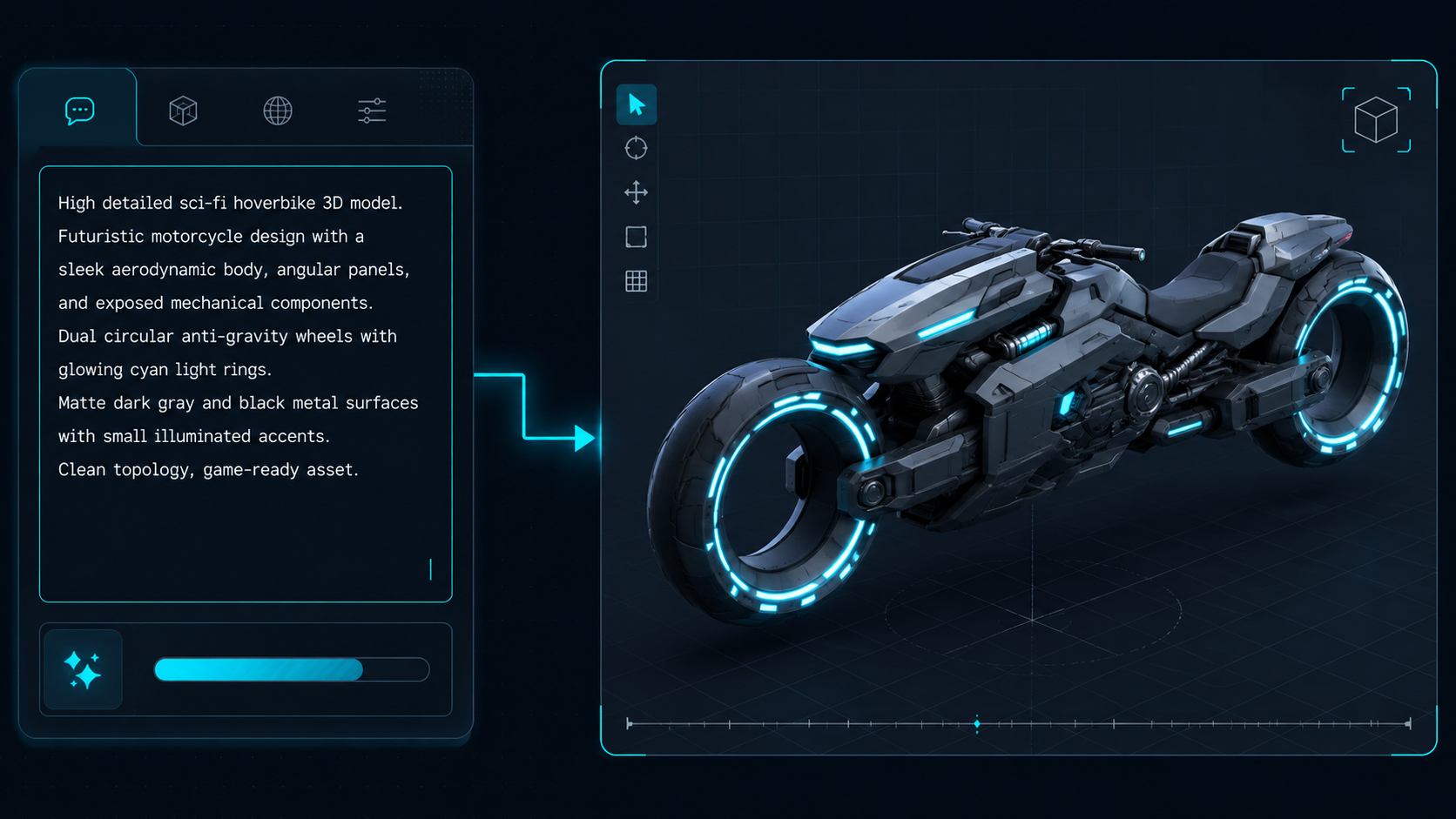
Try it yourself : no workspace selection needed.
Open Neural4D Studio, scroll to the AI 3D Agent panel, and describe the 3D model you want. Untextured base mesh in about 90 seconds; PBR textures in 2 minutes or more.
Free plan refills 50 Power weekly. Upgrade to Pro for faster generation throughput.
Part 4: Create Images and Videos from Text Prompts
Switch to the Generate Image or Generate Video tab and the same simple input field routes your prompt to Neural4D’s image and video generation models. No need to open a separate workspace or learn a second interface.
Generate Image draws on two models: GPT Image 2 and Nano Banana Pro. Choose from five aspect ratios : 1:1, 16:9, 9:16, 4:3, and 3:4 : and generate up to 4 variations per prompt. Upload a local image to direct the visual style or composition. For a deeper look, visit the AI image generator page.
Generate Video uses the Seedance 2.0 model and supports output resolutions from 480p to 1080p, clip durations from 4 to 15 seconds, and up to 4 distinct takes per prompt. You can also upload a local image to define the opening frame or set the visual tone. See the AI video generator page for the full specification.
The key point is structural, not just convenient. A creator who came to make a 3D model can switch to an image or video without leaving the panel or navigating to a different URL. The agent absorbs the workspace-switching cost so the creative flow stays uninterrupted.
Part 5: Advanced Inputs : Reference Images and @Asset References
Beyond plain text, the AI 3D Agent accepts two richer input types that significantly improve output relevance.
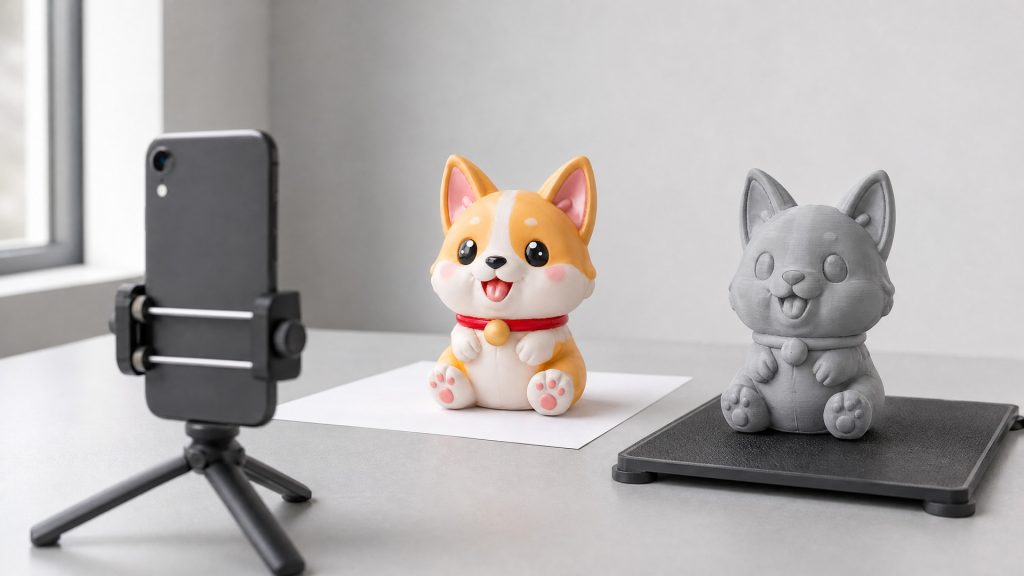
Reference images let you upload a local photo as conditioning input for any generation type. In Generate 3D mode, a reference image functions like the Image to 3D workspace : the engine reconstructs geometry from the visual input. In Generate Image mode, the reference steers style and composition. In Generate Video mode, it can define the opening frame. This means one panel replaces the workflow of finding, opening, and configuring a separate workspace every time you have a visual reference available.
@Asset references let you type @ followed by a model name to pull in a previously generated asset as context for a new generation. You can reference a 3D model you created yesterday and ask the agent to generate a video based on it, or use an earlier image as the style reference for a new 3D creation : all from the same input field.
For a complete walkthrough of getting started with the platform, including account setup and workspace navigation, check the how to use Neural4D guide.
Part 6: Common Questions on Neural4D AI 3D Agent
The AI 3D Agent is a unified input panel inside Neural4D Studio that accepts text descriptions, reference images, and @asset references to generate 3D models, images, or videos. It automatically routes each request to the correct generation workspace so you never have to choose between tools before starting.
The agent panel itself is free to access inside Neural4D Studio. Each generation consumes Power credits from your account balance. The free plan refills 50 Power every week, which covers multiple generations. Paid plans offer higher concurrency, faster generation speeds, and volume discounts on additional Power top-ups.
Each tab routes your prompt to a different generation engine. Generate 3D uses Neural4D’s Direct3D-S2 pipeline (Text to 3D and Image to 3D) and exposes controls for mesh quality, face count, and PBR textures. Generate Image uses GPT Image 2 and Nano Banana Pro with multiple aspect ratios. Generate Video uses Seedance 2.0 with resolution and duration controls. The input format : text description with optional reference image : is the same across all three.
Yes. All three generation modes accept uploaded reference images. In Generate 3D mode the image acts as a structural reference for geometry reconstruction. In Generate Image mode it steers style and composition. In Generate Video mode it can define the opening frame of the clip. You can also use @asset references to pull in previously generated models as context for new generations.
Generate 3D offers three mesh quality presets: Standard, High, and Extra High. At the Extra High setting, the Direct3D-S2 engine produces watertight, manifold geometry at up to 2048³ native resolution with adjustable face counts from 500K to 2M polygons. You can toggle PBR texture generation independently : untextured base mesh in about 90 seconds, full PBR maps in 2 minutes or more.
Conclusion: Start Creating Without the Friction
The Neural4D AI 3D Agent reframes the starting point of AI-powered creation. Instead of asking which workspace, which format, and which settings before you have a clear idea, you describe what you want and the platform handles the routing. The result is a creative session that starts from momentum rather than setup.
Whether you are generating a 3D model for a game prototype, producing product images for an e-commerce listing, or creating short video clips for social media, the agent panel gives you one consistent entry point to all of Neural4D’s generation capabilities.
Start with one description.
Create 3D models, images, and videos from a single panel. No workspace selection needed.
Free plan: 50 Power weekly. No credit card required.