
Neural4D vs Meshy T2: Which Models Are Easier to Edit?
Quick Summary
Meshy T2 changes this comparison. Its Smart Topology mode generates compact triangle meshes with a target face count and native part separation. Neural4D lets you choose Quad or Triangle before Text to 3D or Image to 3D generation. If you plan to reshape individual parts, deform a character, or add PBR materials, compare the selected modes and exported files rather than treating either brand as a single output type.
If you are comparing Neural4D vs Meshy T2 for editable 3D models, start with the edit you need to make. T2 offers directly generated, part-separated triangle geometry with a controlled face budget. Neural4D offers a pre-generation Quad option for workflows that benefit from quad-based editing, while Triangle remains its default. Neither setting alone guarantees a finished asset: inspect the actual mesh, materials, and export in your target tool.
In This Guide
- Part 1: What Changed with Meshy T2?
- Part 2: What Does Generation Speed Actually Measure?
- Part 3: Which Topology Is Easier to Edit?
- Part 4: Can You Edit Materials After Generation?
- Part 5: Neural4D vs Meshy Comparison Table
- Part 6: When Should You Choose Meshy T2 or Neural4D?
- Part 7: Frequently Asked Questions
Part 1: What Changed with Meshy T2?
Meshy now offers distinct generation paths. Its Smart Topology mode uses the Meshy T2 model to generate a mesh directly at a target face count, with naturally separated parts. The Standard path, including Meshy 7.1, aims at higher detail and has different geometry settings. A claim about one path should not be applied to the other. See Meshy’s Text to 3D API documentation and its T2 research overview.
Neural4D’s Text to 3D and Image to 3D workflows ask you to choose topology before generation. Triangle is selected by default; choose Quad when that layout better suits later geometry editing or deformation. This makes the selected output mode, rather than a broad brand label, the useful unit of comparison. Neural4D’s Quad mesh guide shows the setup and export steps.
Both tools can produce assets worth testing in a real pipeline. The questions below focus on face structure, part selection, materials, and the work still required after export.
Part 2: What Does Generation Speed Actually Measure?
Meshy’s T2 research reports a median time for its image-to-mesh test. Neural4D’s guide describes about 90 seconds for an untextured base mesh, with Texture and PBR adding processing time. Those figures describe different tasks and test conditions, so they do not establish which service delivers a usable textured asset faster. See the Meshy T2 research article and Neural4D’s Text to 3D guide.
For your workflow, measure from input to the first export that passes your checks. Record the input, model or mode, topology setting, target face count, material options, export format, and any cleanup. A fast geometry preview and a finished, relightable model are different milestones.
Part 3: Which Topology Is Easier to Edit?
Triangle and Quad describe face shapes, not a pass or fail grade. Triangle meshes are common in real-time rendering. Quad layouts can be easier to reshape, subdivide, or prepare for deformation when their edge flow supports the intended edit. Check the exported geometry rather than assuming its face type tells the whole story.
Neural4D: Choose Quad or Triangle Before Generation
In Neural4D Text to 3D and Image to 3D, select Quad before submitting if you want quad-based output. Its documented Quad target range is 1,000 to 100,000 faces; Triangle is the default. You can inspect the base mesh before choosing the optional Texture and PBR steps. Quad output is downloadable, with OBJ selected by default in the download dialog. These controls are described in the Neural4D Quad mesh guide.
Meshy T2: Direct Triangle Meshes and Separated Parts
Meshy T2’s Smart Topology API produces triangle output. Its Text to 3D target face count accepts 100 to 15,000, with 4,000 as the documented default; the actual count may differ from the target. T2 generates at that budget without a separate remesh phase and can separate connected parts natively. Meshy’s Standard mode has other topology options, so T2’s triangle-only rule does not describe every Meshy model. See Meshy’s model-specific API settings.
A Reproducible Editing Check
Use the same clear reference image of a multi-part object, such as a chair with a separate seat and legs. Record the chosen modes and requested face counts. In Blender, inspect the wireframe and disconnected components, select one part, move it, then undo the edit. Check whether adjacent surfaces remain intact and whether the model still suits its intended use. For an animated character, inspect joint edge flow and test deformation only after a comparable rigging setup. This is a test procedure, not a claim that either output has already passed it.
For the underlying Neural4D geometry approach, see the Direct3D-S2 technical breakdown.
Part 4: Can You Edit Materials After Generation?
Geometry editing and material editing are separate questions. In Neural4D, Texture and PBR are optional steps after base mesh generation. When you need relightable materials, select the relevant options and inspect the downloaded maps. Meshy also offers PBR map generation and a Remove Lighting control through its texturing workflow. Check the settings used for the specific output before comparing materials. See the Neural4D generation guide and Meshy AI Texturing guide.
What to Check in a PBR Export
Open the exported asset in your renderer. Confirm that the expected maps are present, inspect UV placement, and relight the model from a different angle. If shadows remain painted into the base color, test a lighting removal or texture correction step before deciding the asset is ready. A viewer preview alone does not establish how the material behaves under new lighting.
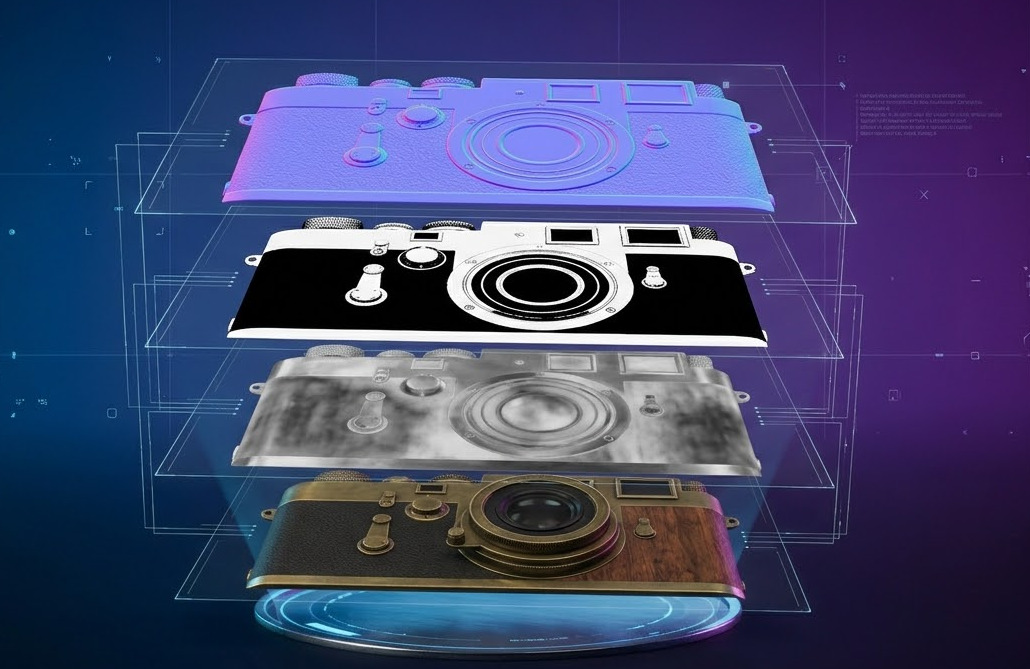
For an explanation of the map types, read our PBR texturing guide. The illustration above explains the workflow; it is not a test result for Meshy T2.
Try a Quad Mesh in Your Own Workflow
Choose Quad before generating in Neural4D, set a target face count, then inspect the downloaded mesh in your editing tool.
Part 5: Neural4D vs Meshy Comparison Table
This table compares Neural4D’s current Text to 3D and Image to 3D controls with Meshy T2 Smart Topology. Meshy 7.1 Standard is a separate mode with different settings.
| Decision point | Neural4D | Meshy T2 Smart Topology |
|---|---|---|
| Inputs | Text or image in separate generation tools | Text or image through T2 paths |
| Topology selection | Choose Quad or Triangle before generation; Triangle is default | Triangle output in T2 Smart Topology |
| Documented target faces | Quad: 1,000 to 100,000 | 100 to 15,000 in Text to 3D; actual count may vary |
| Part handling | Inspect the exported mesh for your required part structure | Natively separated connected parts |
| Materials | Texture and PBR are optional additions | PBR maps are available through texturing settings |
| Editability check | Choose Quad when useful, then inspect edge flow and export | Inspect part selection, triangle flow, and export |
Model scope: Meshy 7.1 Ultra 4K is a high-detail Standard path, not a T2 topology setting. For its release history, see our Meshy 7 update guide. Source settings for this table: Meshy API, Neural4D Quad guide.
Part 6: When Should You Choose Meshy T2 or Neural4D?
Choose Meshy T2 When Part Selection and a Compact Triangle Mesh Fit the Job
If your main task is a lightweight prop, real-time asset, or object with components you want to select separately, T2’s documented face budget and native part separation are worth testing. Check the actual export before assuming a particular asset needs no cleanup.
Choose Neural4D When You Want to Request Quad Output Before Generation
For a shape you expect to reshape or prepare for deformation, Neural4D lets you request Quad in Text to 3D or Image to 3D and set a target face count before generating. Inspect edge flow around the area you will edit. For printing, check scale, wall thickness, and slicer behavior even when the generated mesh is watertight.
Compare the Files Against the Same Task
Export both results to the tool where the asset will be used. Record the time spent selecting parts, changing geometry, checking materials, and fixing any defects. An output that works for a static render may need different checks from one intended for deformation or fabrication.
Check the Neural4D Export Yourself
Generate from a reference image, select the topology that suits your task, and inspect the downloaded model in your own software.
Part 7: Frequently Asked Questions
Does Meshy T2 output Quad meshes?
No. Meshy’s T2 Smart Topology API specifies triangle output. Other Meshy generation paths can have different topology settings, so select the exact mode before comparing.
Can Neural4D generate a Quad mesh from an image?
Yes. In Image to 3D, select Quad before generation. Triangle is the default. The documented Quad target range is 1,000 to 100,000 faces. See the Quad mesh guide.
Does Smart Topology mean a T2 model needs no editing?
No general guarantee follows from the mode name. T2 offers directly generated triangle geometry and native part separation. Inspect the exported mesh for the edits, deformation, or fabrication checks your project requires.
Can Neural4D-2o edit a regular Text to 3D or Image to 3D result?
No. Neural4D-2o can refine models generated inside the same 2o session. Results from the separate Text to 3D and Image to 3D tools cannot be transferred into it for conversational editing. See the Studio guide.
Do both tools support PBR materials?
Both offer PBR workflows, but the selected settings determine what is generated. Neural4D’s Texture and PBR steps are optional. In Meshy, check the texturing options and inspect the exported maps before judging relighting or editability.
Which output is better for 3D printing?
Check the actual exported file in a slicer. A watertight mesh is helpful, but dimensions, wall thickness, supports, and the geometry of the specific model still need inspection.
Meshy T2 makes compact, part-separated triangle generation a serious option for editable assets. Neural4D gives you a different control point: request Quad or Triangle before generation, then inspect the result and add materials when needed. Choose by the next edit your model must survive, and verify that edit in the exported file.