Cura vs PrusaSlicer for AI-Generated STL: Best Slicer for 3D Printing in 2026
Quick Summary
- Cura and PrusaSlicer are both free, open-source FDM slicers that produce nearly identical print quality on standard models with properly tuned profiles.
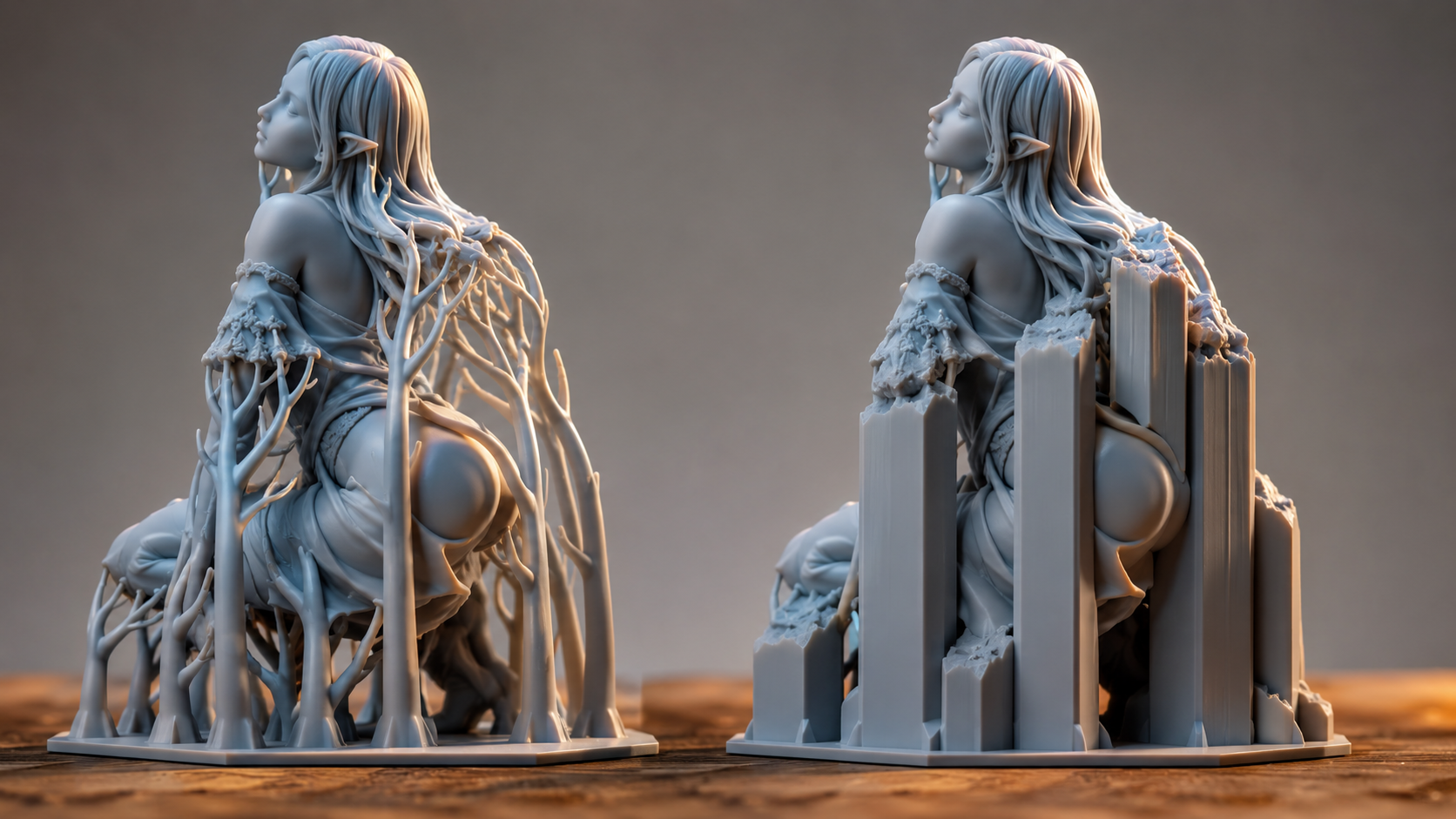
- PrusaSlicer organic supports use up to 38% less filament and leave visibly cleaner contact surfaces, making it the better choice for complex AI-generated figurines and organic sculpts.
- Cura ships with pre-built profiles for over 400 printers and has a gentler learning curve, ideal for beginners using budget machines from Creality, Anycubic, or Elegoo.
- PrusaSlicer handles non-manifold geometry and thin-wall features more reliably during slicing, while Cura tolerates non-watertight meshes better on the import stage.
- Neural4D generates watertight, manifold-ready STL files that load cleanly in both slicers without manual mesh repair, eliminating the most common failure point in AI-to-print workflows.
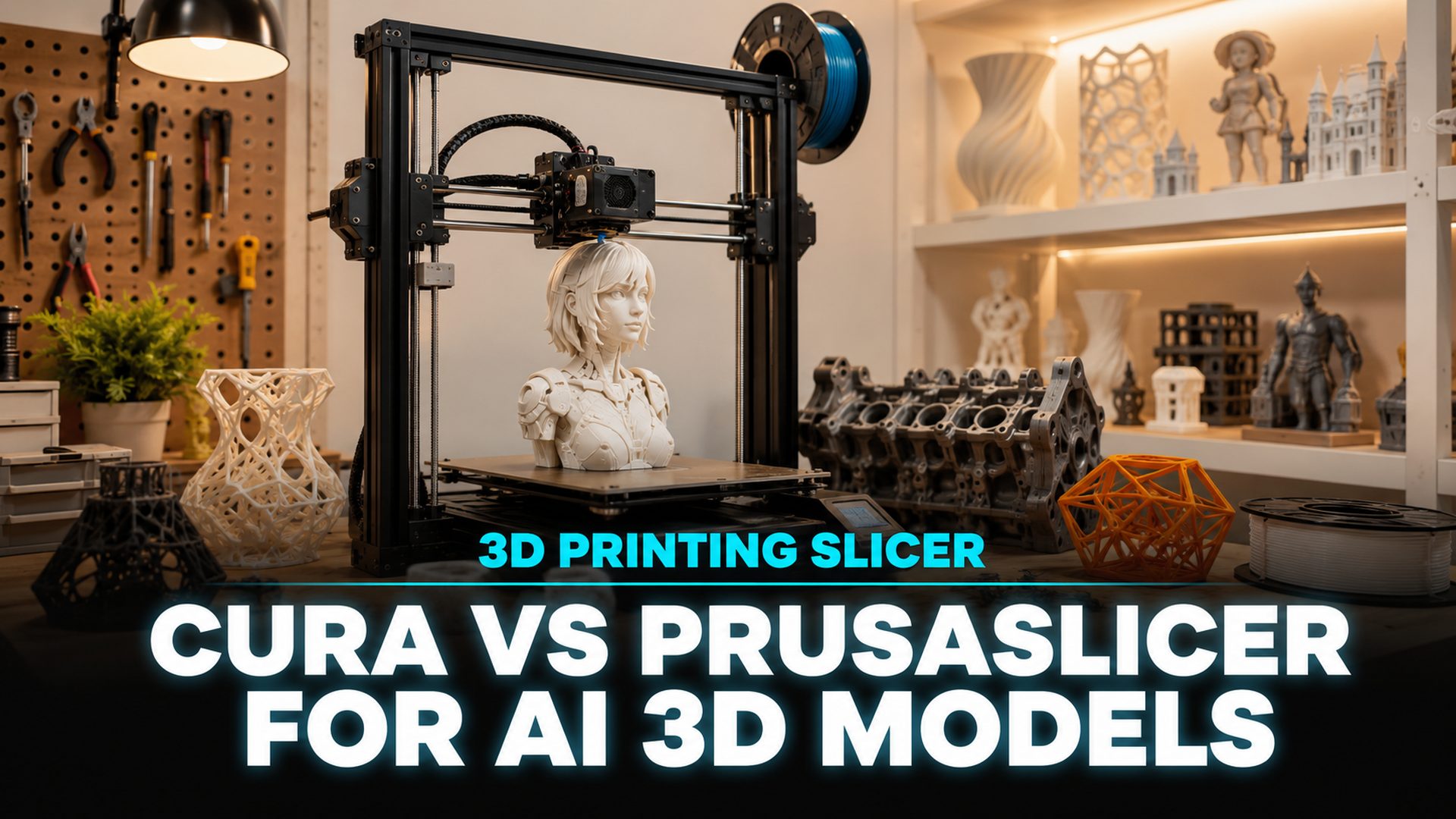
Choosing between Cura vs PrusaSlicer for AI-generated STL files is not about which slicer wins a general feature comparison. Both produce excellent prints out of the box. The real difference emerges when you load AI-generated geometry into each tool. Non-manifold edges, thin walls, and floating geometry are common in neural network output, and each slicer handles these defects differently. This article compares both slicers specifically on how they deal with AI-generated 3D models, so you can pick the right tool for your specific workflow and avoid failed prints at hour seven.
Table of Contents
- Part 1: Cura and PrusaSlicer at a Glance
- Part 2: Key Differences in Interface and Workflow
- Part 3: Slicing AI-Generated STL Files: Mesh Repair and Tolerance
- Part 4: Support Generation for Organic AI Models
- Part 5: Choosing the Right Slicer for Your AI 3D Printing WorkflowHOT
- Part 6: Common Questions on Slicing AI-Generated 3D Models
- Conclusion: Generate Clean AI Models for Better 3D Prints
Part 1: Cura and PrusaSlicer at a Glance
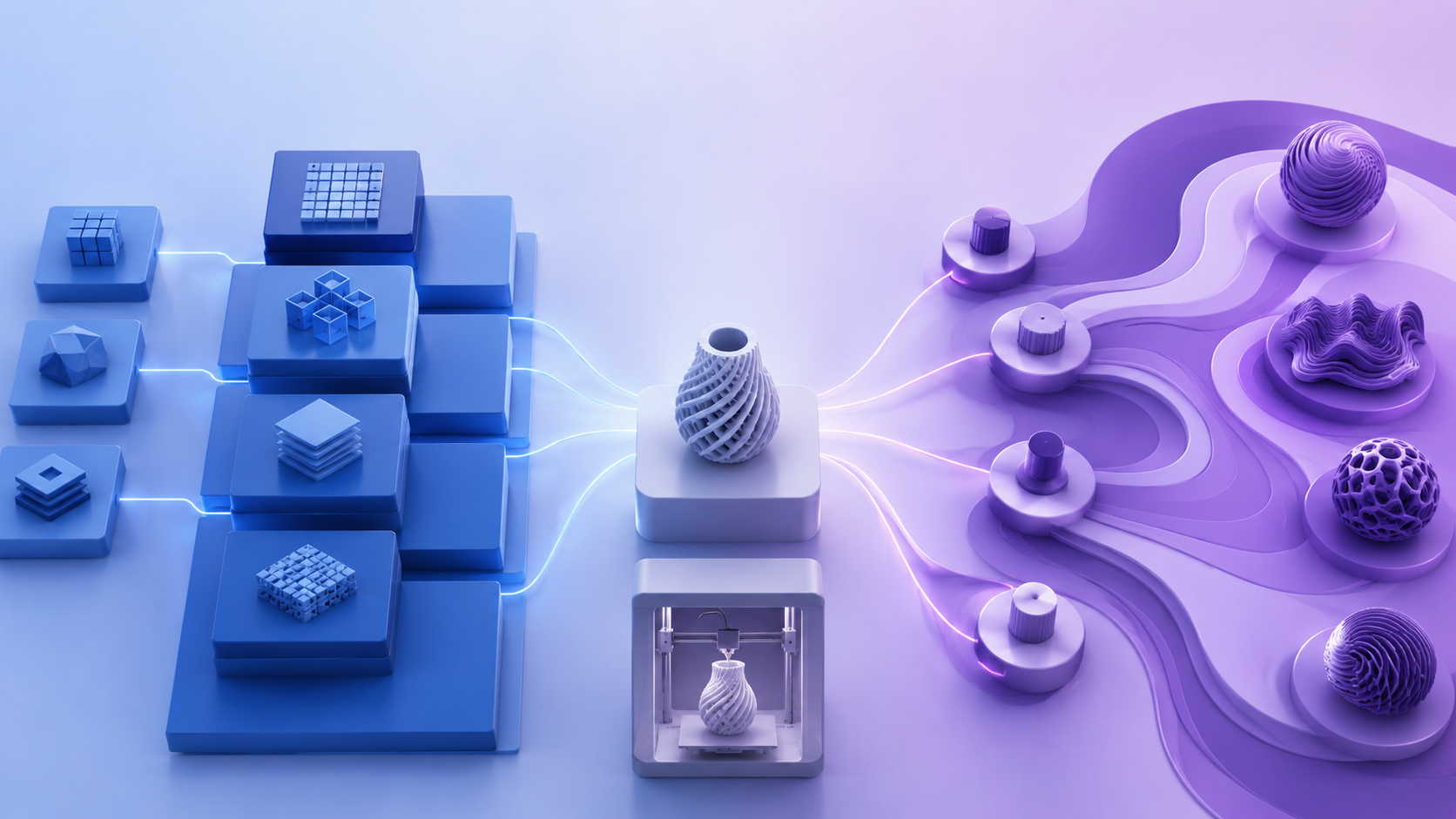
When comparing Cura vs PrusaSlicer for AI-generated STL workflows, it helps to understand each slicer’s origin and design philosophy. Cura, developed by UltiMaker, is the most widely used open-source slicer in the consumer 3D printing space. It supports over 400 printer profiles out of the box and has the largest plugin ecosystem of any slicer, with more than 200 community extensions available through its Marketplace. Its default profile set covers everything from Creality Ender 3 to high-end UltiMaker S-series machines.
PrusaSlicer, developed by Prusa Research, started as a fork of Slic3r and has evolved into a precision tool known for excellent default profiles. While it officially supports Prusa machines (MK4, Mini, XL), its community-maintained printer definitions cover a growing range of third-party hardware. It also supports SLA resin printers alongside FDM, which Cura does not.
Part 2: Key Differences in Interface and Workflow
Learning Curve and Usability
Cura is the clear winner for beginners when it comes to Cura vs PrusaSlicer for AI-generated STL workflows. Its Recommended mode hides all but five essential settings: layer height, infill density, support type, build plate adhesion, and a quality-versus-speed slider. A user who has never touched a slicer can load an STL, adjust these five values, and hit slice within minutes. PrusaSlicer shows more settings even in its Simple mode, though its three-tier system (Simple, Advanced, Expert) and tab-based layout (Print, Filament, Printer) become intuitive once you understand the organization.
Printer Compatibility
Cura ships with pre-configured profiles for over 400 printers. If you own a budget or less common machine, Cura almost certainly has a tested profile ready. PrusaSlicer officially targets Prusa hardware, and its stock profiles for MK4, Mini, and XL are tuned by the engineers who built those printers. For a Prusa owner, this is unmatched. For a non-Prusa user, community profiles exist but may require calibration. If you own a Creality, Anycubic, Elegoo, or Sovol printer, Cura is the safer default.
Slicing Speed
PrusaSlicer slices significantly faster. On a complex AI-generated model at 0.16 mm layer height, PrusaSlicer completes in roughly 8 seconds while Cura takes around 22 seconds. On very large models with millions of triangles, the gap widens: PrusaSlicer finishes in 15 seconds while Cura exceeds one minute. For workflows involving rapid iteration across multiple settings, this speed difference adds up.
| Feature | Cura | PrusaSlicer |
|---|---|---|
| Learning curve | Beginner-friendly, Recommended mode with 5 settings | Steeper, three-tier system (Simple/Advanced/Expert) |
| Pre-built printer profiles | 400+ (Ender, Anycubic, Elegoo, Sovol, etc.) | Official Prusa profiles; community profiles for others |
| Plugin ecosystem | 200+ plugins via Marketplace | No native plugin system |
| Slice speed (complex model) | ~22 seconds | ~8 seconds |
| Mesh repair on import | Less aggressive, tolerates non-watertight meshes | Built-in repair, handles non-manifold geometry |
| Paint-on supports | Plugin required | Built-in |
| Multi-material support | Limited | Full MMU/XL support |
| Resin/SLA support | No | Yes |
Part 3: Slicing AI-Generated STL Files: Mesh Repair and Tolerance
AI-generated 3D models differ fundamentally from CAD-designed files. Neural networks optimize for visual plausibility, not topological correctness. The result is STL files that look correct in a viewer but contain defects that slicers must handle. In the Cura vs PrusaSlicer for AI-generated STL comparison, how each tool processes these defects is the single most important differentiator.
Non-Manifold Geometry Handling
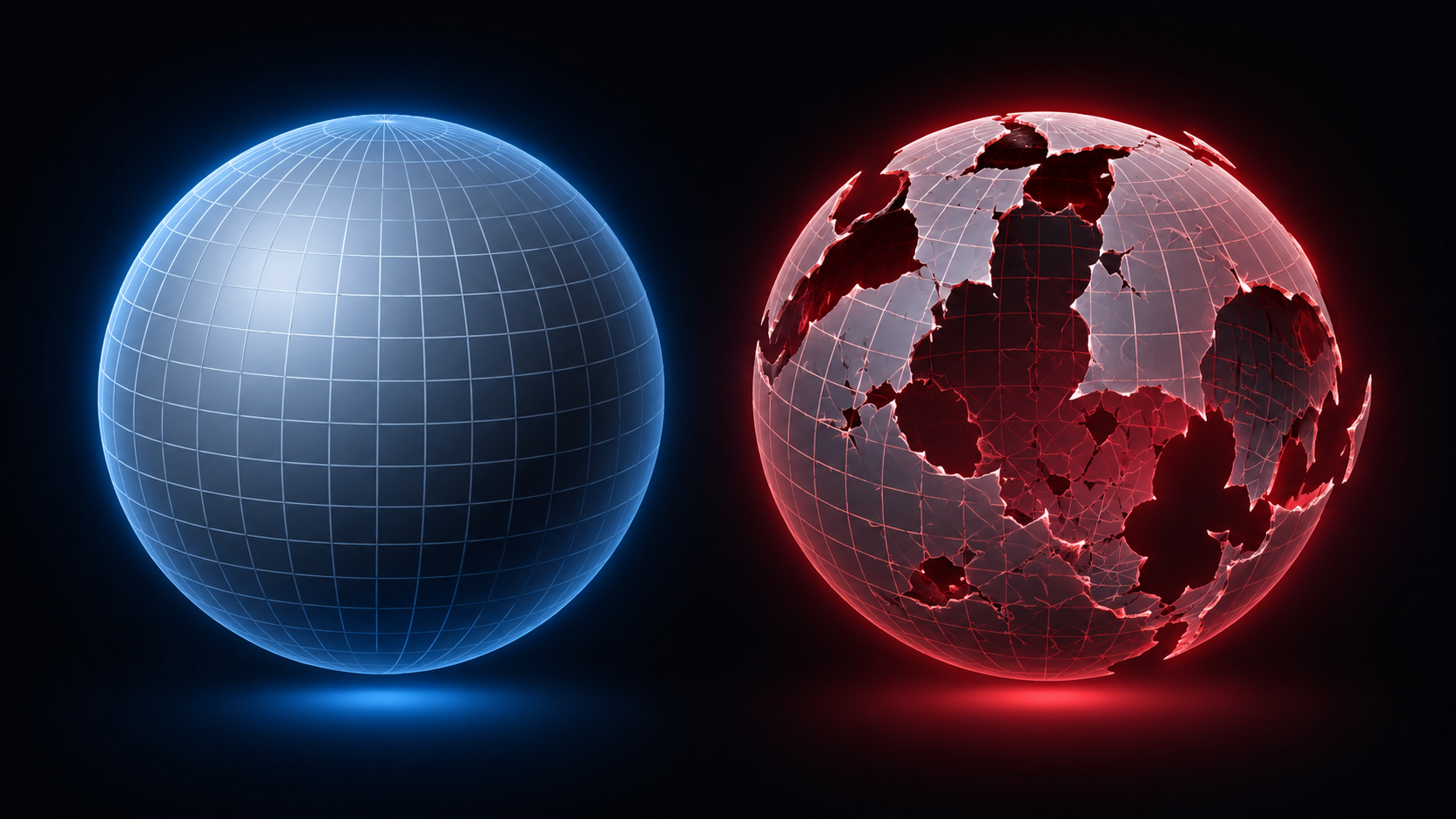
Non-manifold edges are the single most common cause of slicing failure with AI models. They occur when an edge belongs to more than two faces (T-junctions) or only one face (open boundary). Academic testing across 21 defective models published on arXiv showed that Cura handles non-watertight models better, successfully generating G-code for 14 models where PrusaSlicer failed on one entirely. However, PrusaSlicer handles flipped normals better, processing 4 out of 5 flipped-normal models more reliably.
Small Feature Preservation
AI-generated models often include fine details that challenge slicers. PrusaSlicer significantly outperforms Cura on small-feature models. In tests across 12 models with thin walls, sharp edges, and micro-details, PrusaSlicer produced correct toolpaths for 7 models while Cura struggled with wall dropout and missing perimeters. Its Arachne perimeter engine dynamically adjusts line width to preserve thin walls, a capability Cura only added in recent versions.
What This Means for Your Workflow
The practical takeaway: there is no single winner for AI-generated model handling. If your AI tool produces non-watertight meshes with open boundaries, Cura will tolerate the import with fewer errors. If your models are watertight but contain flipped normals or fine surface details, PrusaSlicer will slice them more accurately. The safest approach is to start with watertight, manifold-clean geometry. Tools like Neural4D generate STL files that are mathematically watertight from the start, eliminating the most common repair bottleneck before it reaches your slicer.
Part 4: Support Generation for Organic AI Models
AI-generated 3D models tend toward organic shapes: figurines, characters, creatures, and sculptural forms. These almost always require supports, and in the Cura vs PrusaSlicer for AI-generated STL comparison, this is where the two slicers diverge most dramatically in user experience.
PrusaSlicer Organic Supports
PrusaSlicer organic (tree) supports are widely considered the best implementation of any free slicer. They use up to 38% less filament than Cura default supports, produce visibly cleaner contact surfaces, and are far easier to remove. The paint-on support feature is built directly into the interface and does not require any plugin. You brush support enforcers and blockers onto the model in 3D view, and the slicer generates supports exactly where you specify.
Cura Tree Supports
Cura tree supports improved significantly in version 5.x, but they still use roughly 15 to 20% more material than PrusaSlicer organic supports. Their main advantage is better bed adhesion due to wider trunk contact. Cura tree supports also handle multiple disconnected islands better than PrusaSlicer in some cases. The paint-on support feature requires a separate plugin, which adds friction to the workflow.
Practical Guidance
For AI-generated figurines, character models, and organic sculpts, PrusaSlicer organic supports produce better results with less post-processing time. The combination of built-in paint-on supports and cleaner surface finish makes it the default choice for this category. For mechanical or functional AI-generated parts where support adhesion matters more than surface finish, Cura tree supports may be the safer pick due to their wider trunk contact.
Part 5: Choosing the Right Slicer for Your AI 3D Printing Workflow
Instead of declaring a single winner for Cura vs PrusaSlicer for AI-generated STL workflows, the practical approach is matching each slicer’s strengths to your specific AI printing needs. Here is a decision framework based on what you print and how you work.
📖 Choose Cura When
- You are new to 3D printing and want guided defaults
- You own a Creality, Anycubic, Elegoo, or other budget printer
- Your AI models frequently have non-watertight mesh issues
- You rely on OctoPrint or Klipper integration
- You want the largest plugin ecosystem for specialized workflows
⚙️ Choose PrusaSlicer When
- You own a Prusa MK4, Mini, or XL
- You print organic AI figurines needing clean support removal
- You need multi-material or multi-color printing
- Your AI models have fine surface details and thin features
- You want paint-on supports without installing plugins
The honest answer for many users evaluating Cura vs PrusaSlicer for AI-generated STL: install both. Both are free, and they share the same input formats (STL, 3MF, OBJ). Many experienced users run Cura for quick prints where defaults suffice and switch to PrusaSlicer for complex models needing careful support control. Your 3D printer reads G-code, not slicer metadata. It does not care which tool produced the file.
Generate AI 3D Models Ready for Any Slicer
Neural4D exports watertight STL files with clean topology. No mesh repair. No non-manifold errors. Just load, slice, and print.
50 free Power credits every week. Pro plans start at $6.9/week. No credit card required.
Part 6: Common Questions on Slicing AI-Generated 3D Models
Q: Does Cura or PrusaSlicer handle non-manifold geometry better?
It depends on the defect type. In the Cura vs PrusaSlicer for AI-generated STL comparison, Cura is more tolerant of non-watertight meshes (open boundaries and holes), successfully slicing models that PrusaSlicer rejects entirely. PrusaSlicer handles flipped normals and internal face orientation better. For AI models with mixed defect types, the safest path is to use the mesh repair tools in Blender 3D Print Toolbox or an AI generation platform that outputs watertight geometry from the start.
Q: Can I use AI-generated STL files directly in PrusaSlicer without repair?
It depends on the AI tool that generated the model. Platforms that prioritize topological correctness, such as Neural4D with its Direct3D-S2 architecture, produce watertight STL files that load into PrusaSlicer without errors. Tools that generate visually plausible meshes without topological constraints often produce non-manifold geometry that triggers PrusaSlicer fix warnings. If you see an orange or red warning badge on import, running the built-in repair or using a dedicated mesh repair tool before slicing is recommended. For more details, see the guide on best AI tools for 3D printing.
Q: Which slicer has better tree supports for organic AI figurines?
PrusaSlicer organic supports produce cleaner surface finish with up to 38% less filament usage compared to Cura tree supports. The built-in paint-on support brush lets you precisely control where supports attach, which is critical for preserving facial features and fine details on AI-generated character models. Cura tree supports have better bed adhesion due to wider trunk contact, which can be useful for tall, narrow figurines that tend to tip during printing.
Q: Is PrusaSlicer faster than Cura for slicing complex AI models?
Yes, significantly. PrusaSlicer slices complex AI-generated models with millions of triangles in roughly 8 to 15 seconds, while Cura takes up to a minute for the same model. The difference is most noticeable when iterating through multiple settings to find the optimal configuration for a difficult AI model. Cura also has a longer cold start time of about 12 seconds compared to roughly 4 seconds for PrusaSlicer.
Q: Should I repair AI-generated STL files before or after importing into a slicer?
Before. Repair at the mesh level before importing into any slicer. Both Cura and PrusaSlicer have built-in repair functions, but these are designed for minor fixes and may degrade geometry quality on heavily defective models. The recommended sequence is: repair in Blender using the 3D Print Toolbox (Merge by Distance, Fill Holes, Recalculate Normals), validate with the Make Manifold check, then import the clean STL into your chosen slicer. This approach preserves geometric fidelity and avoids cascading issues where the slicer auto-repair deletes thin features you needed.
Q: Does Cura support multi-color printing for AI-generated models?
Basic multi-material support exists in Cura through the Mesh Fixes and Extruder settings, but it requires manual configuration and is not designed for complex multi-color AI figurines. PrusaSlicer has full MMU (Multi-Material Unit) support with color painting tools, purge tower management, and per-extruder settings that integrate smoothly with Prusa hardware. For non-Prusa multi-color setups, OrcaSlicer or a dedicated tool like Bambu Studio may offer a better user experience than either Cura or PrusaSlicer.
Conclusion: Generate Clean AI Models for Better 3D Prints
The Cura vs PrusaSlicer debate has no universal winner, because the right choice for Cura vs PrusaSlicer for AI-generated STL files depends on your specific models, hardware, and workflow. Cura offers broader printer compatibility and better tolerance for non-watertight imported meshes. PrusaSlicer delivers superior support control, faster slicing, and more accurate handling of fine details. Both will produce excellent prints when paired with the right model quality.
Cura vs PrusaSlicer for AI-generated STL files ultimately comes down to what your specific model needs. For non-watertight, open-boundary meshes, start with Cura. For organic figurines with fine details and complex overhangs, PrusaSlicer is the better pick. The quality ceiling of both slicers, however, is determined by the quality of the input STL. Starting with a watertight, manifold-ready model eliminates the most common source of slicing failures and gives you the freedom to use either slicer with confidence.
Start with Neural4D to generate production-ready 3D models from images or text. Export clean STL files that load into Cura, PrusaSlicer, or any other slicer without repair steps. Explore how AI for 3D printing works with Neural4D and see the full workflow from concept to physical print.
From AI Model to 3D Print in Minutes
Upload a photo or describe what you want. Neural4D generates a watertight STL ready for your slicer.
Generate Your First Model Free
50 free Power credits weekly. No download required. Works in your browser.