
How to Repair STL Files: Fix Mesh Errors for 3D Printing
Quick Summary
- STL files with non-manifold edges, holes, inverted normals, or intersecting shells will fail to slice and waste hours of print time.
- Microsoft 3D Builder, Meshmixer, and Blender all offer effective ways to repair STL file problems for free.
- Professional tools like Autodesk Netfabb and Materialise Magics handle batch mesh repair for production-scale 3D printing.
- Neural4D generates watertight geometry from a single image or text prompt, which removes the closure errors behind most repairs. Wall thickness, orientation and scale still need a pre-print check.
If your STL file triggers red error markers in your slicer or fails mid-print, the mesh likely contains structural defects that prevent proper toolpath generation. Learning how to repair STL file geometry is an essential skill for any 3D printing workflow. Whether you use free desktop tools or professional suites, the right approach depends on the type and severity of mesh damage you are dealing with.
- Part 1: Common STL File Errors That Ruin Your 3D Prints
- Part 2: How to Repair STL Files with Free Tools
- Part 3: Professional STL Repair Software for Serious Makers
- Part 4: How Neural4D Generates Print-Ready STL FilesHOT
- Part 5: Common Questions on STL File Repair
- Get Clean STL Files from the Start
Part 1: Common STL File Errors That Ruin Your 3D Prints
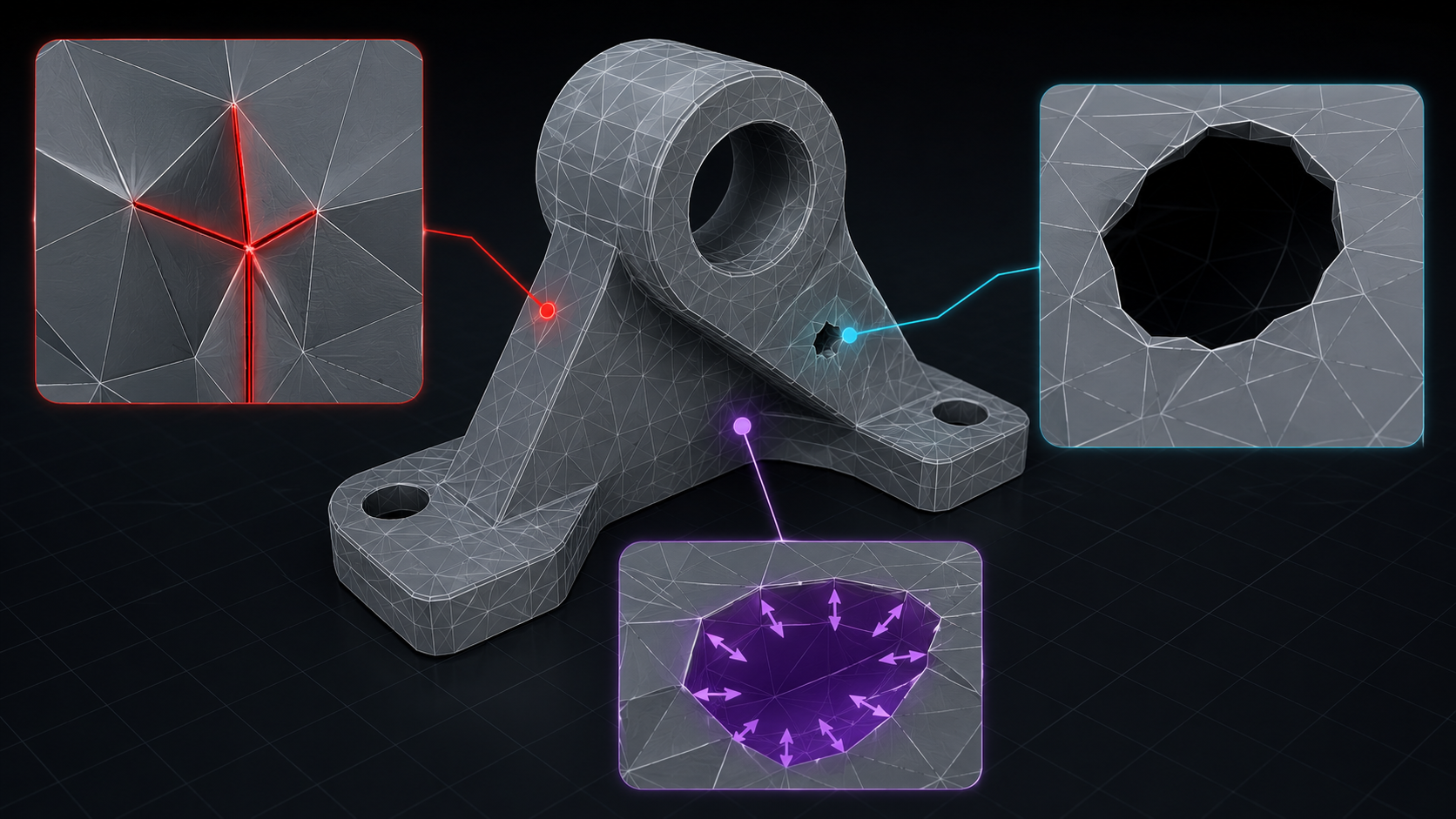
Before you can fix a broken STL, you need to identify what kind of mesh error you are dealing with. Knowing how to repair STL file issues starts with accurate diagnosis. Slicer warnings like “non-manifold edges,” “not watertight,” or “floating shells” each point to a different root cause. Here are the six most common STL file defects and how they affect your print.
| Error Type | What It Looks Like | Slicer Symptom |
|---|---|---|
| Non-manifold edges | An edge shared by more than two faces (T-junctions, internal fins) | “Non-manifold” warning; slicer cannot determine inside vs. outside |
| Holes and gaps | Missing triangles creating open boundaries in the surface | “Not watertight” error; hollow or failed print |
| Inverted normals | Face normals pointing inward instead of outward | Slicer inverts interior and exterior surfaces |
| Intersecting shells | Overlapping or self-intersecting geometry from boolean operations | Missing layers or extrusion problems mid-print |
| Degenerate faces | Zero-area triangles invisible in the viewport | Random layer gaps during printing |
| Floating shells | Disconnected mesh fragments not attached to the main body | Waste material or incorrect toolpath generation |
Many of these errors originate during the CAD-to-STL export process. When you export a model from design software, the tessellation settings determine triangle density and accuracy. Exporting with insufficient resolution creates visible facets; exporting with improperly merged bodies creates intersecting shells. If you work with AI-generated 3D models, you can generate STL files from images with clean topology that avoids the closure errors above.
Beyond Mesh Errors: The Failures No Validity Check Catches
Every error in the table above is a closure error: your slicer reports it during its validity check, before any G-code is written. Those are the failures you get told about. The failures that waste the most material are the ones nothing warns you about, because a validity check only asks whether the surface is closed. It does not ask whether the object can be manufactured at the size you asked for.
| Failure | What It Looks Like | Where It Is Caught | What To Do |
|---|---|---|---|
| Walls thinner than the nozzle can print | Filigree, stems, visor edges and thin armor plates that print as gaps or snap off in your hand | Not by a validity check. Only by a wall-thickness analysis measured against your intended print size | Measure the thinnest feature at final scale and thicken it before you slice |
| Unsupported overhangs and unstable orientation | Surfaces steeper than roughly 45 degrees, or a model with no flat face to sit on the build plate | Not automatically. Support generation and orientation are slicer decisions you make | Re-orient so the largest flat face sits on the plate, then add supports wherever the overhang exceeds what your printer handles |
| Scale and tolerance drift | A part that prints at the wrong size, or two parts that will not fit together | Not automatically. Only a dimensional check at final scale | Measure before printing. Image-based reconstruction recovers shape, not guaranteed dimensions |
| Loss of fine detail | Engraved lettering, brand marks and repeated patterns that arrive blurred, merged or missing | Nothing automatic catches this. It takes a visual comparison against your source | Compare a render at final scale against the original before you commit filament |
The first layer is not a rare edge case. A team at MIT CSAIL, working with Google and Northeastern University, rebuilt well-known printable models from Thingiverse with an open 3D generator (TRELLIS) and reported that nearly 80 percent came back structurally flawed. That number is the reason every repair workflow on this page exists: generated geometry usually needs a check. Their follow-up tool, InstructMesh, is built to let a user mark the bad regions and correct them before printing. The encouraging half of the same study is that newcomers found and fixed the manufacturing-relevant defects about 90 percent of the time under expert review. The MIT writeup puts the core problem plainly: “AI models understand how an object should look, but not how it works.”
The last row of that table is the hardest to catch, because nothing is technically broken. A 2026 technical report on object-specific 3D generation (Hi3D 3.0, arXiv:2610.11685) frames the problem as one of identity rather than shape: inscriptions, brand marks and repeated structures are what make an object that particular object, and they are routinely degraded even when the overall silhouette is correct. The same report targets watertight triangle meshes at 2048³ resolution as its output. Detail is also the one property a slicer has no opinion about: a mesh can be perfectly closed and still arrive with engraved lettering merged into the surface or a repeated pattern flattened away. Nothing in the export pipeline flags it, so the only check is a visual comparison at final scale against your source.
Neural4D’s watertight output addresses the closure layer, and only that layer. Direct3D-S2 processes the full volume of the target shape instead of estimating the visible surface and guessing what sits behind it, so the six closure errors above should not survive into an exported mesh, and the repair tools in the next two sections usually have nothing to fix. That is not the same thing as a model that is ready to print. Wall thickness against your intended print size, orientation and supports, scale and tolerance, and the fidelity of fine detail are separate questions about manufacturability and identity, and they still need a look before you slice. Treat watertight as the starting condition, not as a substitute for print preparation.
From here, pick the route that matches what you are holding. If you already have a broken file, the Blender walkthrough in our complete mesh fix guide covers manual repair for existing models. If you are working end to end with generated assets, how to 3D print AI-generated models covers the generation-through-printer workflow.
Part 2: How to Repair STL Files with Free Tools
You do not need expensive software to fix most STL file issues. The free tools below handle the vast majority of non-manifold edges, holes, and shell separation problems. Start with the fastest option and escalate only if needed.
Microsoft 3D Builder (Fastest One-Click Fix)
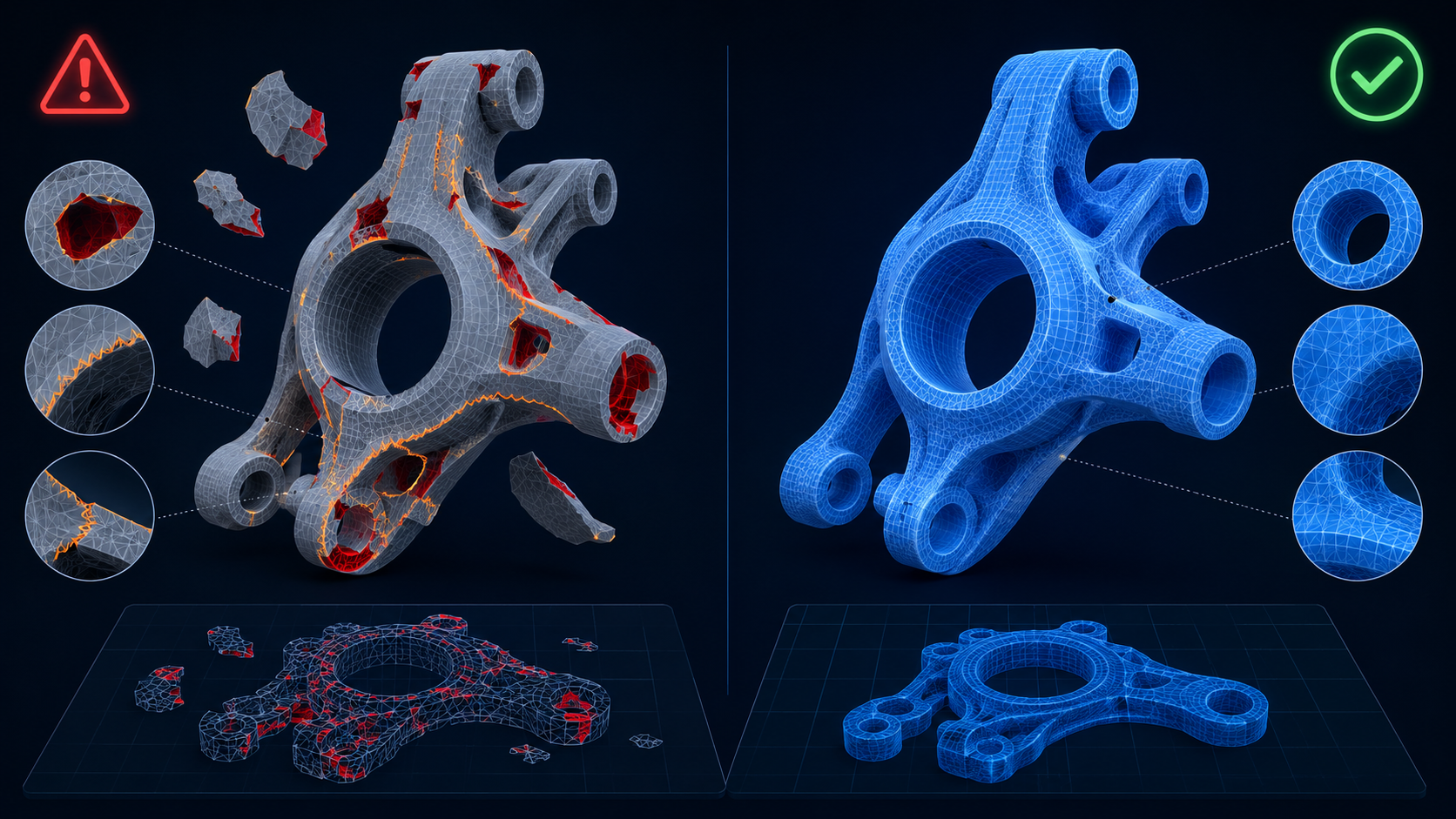
Import your STL into 3D Builder on Windows. The model appears with problem areas highlighted in red. Click Repair, the red regions turn blue, and the repaired mesh is ready to export. The entire process takes under 30 seconds. Note that Microsoft deprecated 3D Builder in 2024 and pulled it from the Store in some regions. If you cannot install it, move to Meshmixer.
Meshmixer (Best Free Cross-Platform Repair)
Meshmixer remains the most capable free STL repair tool despite being in legacy status. Open your STL, go to Analysis → Inspector, and you get a color-coded error map showing every non-manifold edge, hole, and disconnected shell. Click Auto Repair All to fix simple errors in one pass. For overlapping or intersecting geometry, use Edit → Make Solid to merge all shells into a single watertight body. This is especially useful for fixing STL mesh files that combine multiple overlapping components.
Blender with 3D Print Toolbox
For complex manual STL repair work, Blender’s free 3D Print Toolbox add-on (activate it in Edit → Preferences → Add-ons) provides one-click manifold checks, thin wall warnings, and intersection detection. Key operations for manual repair:
• Merge by Distance removes duplicate vertices that create non-manifold geometry.
• Fill Holes patches boundary edges with planar or tangent fills.
• Recalculate Normals flips inverted face orientations to point outward.
• Remesh modifier rebuilds the entire topology into clean, evenly distributed triangles.
Slicer Auto-Repair
Before opening a dedicated repair tool, try your slicer first. PrusaSlicer, Orca Slicer, and Bambu Studio all run automatic STL repair on import (Windows only for Orca and Bambu). Many errors (especially simple non-manifold edges and small holes) resolve at this stage with zero manual work. If you frequently need fix STL mesh files, consider using AI tools designed for 3D printing that output clean geometry from the start. For a step-by-step guide on how to repair STL file mesh errors, see the Meshmixer workflow below.
Part 3: Professional STL Repair Software for Serious Makers
When free tools cannot handle the complexity of a damaged STL, typically with CAD-derived models containing hundreds of intersecting surfaces or million-triangle scan data, professional software provides industrial-grade repair capabilities. These tools are also the right choice when you need to repair STL file batches for production runs.
Autodesk Netfabb offers the most trusted automatic repair engine in the industry. It analyzes STL files for all common error types and applies corrective algorithms in a single pass. Netfabb also generates custom infill, supports, and lattice structures directly on the repaired mesh. The free Netfabb Online service was discontinued in 2025; the full desktop version requires a paid subscription.
Materialise Magics is the enterprise standard for production-scale 3D printing. It provides manual and automated repair tools alongside build preparation, nesting, and support generation. Magics excels at STL file recovery for large assemblies where individual parts have different error types requiring different fix strategies.
Fusion 360 includes integrated mesh repair in its free personal tier. The Mesh workspace provides tools for closing holes, removing degenerate faces, and converting meshes to editable solid bodies. This is particularly useful if the STL needs design-level edits alongside geometry repair.
Stop Fixing Broken STL Files. Start Clean.
Every hour you spend repairing mesh errors is time you could spend printing. Neural4D generates watertight STL files from a single image or text prompt, so the closure errors behind most repairs never make it into the file. Print preparation is still yours to do: check wall thickness, orientation and scale before you slice.
Free 50 credits every week, no credit card required.
Other professional options worth noting: Rhinoceros 9 includes an updated MeshRepair command with dedicated panels for non-manifold edge analysis, degenerate face removal, and hole filling. ZBrush handles organic and scanned models with minimal geometric loss during repair, making it the go-to tool for complex sculpted STL files.
Part 4: How Neural4D Generates Print-Ready STL Files
The most efficient way to deal with a broken STL is to keep the closure errors out of the file in the first place. Neural4D’s Direct3D-S2 engine works at the generation stage, and the exported mesh is watertight, so the repair pass described in the two sections above usually has nothing to fix.
The difference is in how the geometry is built. Many image to 3D systems estimate the visible surface and infer whatever is hidden behind it, which is where the holes, non-manifold edges and internal overlaps in Part 1 come from. Neural4D’s Direct3D-S2 architecture works on the full volume of the target shape instead, so the surface closes all the way around and the exported mesh is watertight. An N4D export should clear a slicer’s validity check, but that check only answers the closure question. Run the pre-print checks in Part 1 for the questions it does not cover.
Generation speed follows this breakdown: an untextured base mesh completes in approximately 90 seconds. PBR maps (normal, roughness, metallic) are generated as an additional step on top of that geometry, and a fully textured asset takes 2 minutes or more depending on model complexity. Either way the mesh is watertight at export, textured or untextured.
Neural4D’s Image to 3D and Text to 3D workflows allow you to generate STL from text prompts or upload a reference photo and export a watertight STL, so the closure errors that send most people searching for how to repair STL file problems are not usually part of the output. The export pipeline supports direct STL, OBJ, GLB, FBX, and USDZ formats. For additional workflow guidance, see our guide on preparing and exporting 3D models for printing. And for turning 2D source material into 3D prints, our guide on converting images to STL files covers the complete pipeline from photo to print. Our complete mesh fix guide covers manual repair workflows for existing models.
Part 5: Common Questions on STL File Repair
Q: Can you repair an STL file for free?
Yes. Microsoft 3D Builder (Windows) offers the fastest one-click free fix. Meshmixer provides cross-platform free repair with color-coded error maps and auto-repair. Blender with the 3D Print Toolbox add-on gives you full manual control at no cost. Many slicers including PrusaSlicer and Orca Slicer also include built-in free repair on import (Windows only).
Q: What causes non-manifold edges in STL files?
Non-manifold edges form when an edge is shared by more than two faces or by only one face. Common causes include boolean operations that leave internal “fins” inside the mesh, duplicate vertices that were not merged after editing, and incomplete intersections where two surfaces cross but do not share proper edge connections. Low-quality STL export settings in CAD software also produce non-manifold geometry by generating overlapping triangles at curved surfaces.
Q: How do I fix holes in an STL file?
Small holes can be closed automatically by slicer repair or Meshmixer’s Auto Repair All. For larger gaps, use Blender’s Fill Holes tool (limited by the Max Hole Size parameter) or manually bridge edge loops across the opening. In Meshmixer, the Inspector tool highlights each hole boundary as a small sphere; clicking individual spheres fills them one at a time.
Q: Is it better to repair an STL file or generate a new one?
It depends on the severity of the damage and the tool you have available. Minor errors like small holes, a few inverted normals, or duplicate vertices can be fixed in minutes with Meshmixer or Blender. Heavily corrupted files with thousands of intersecting shells, large missing surface areas, or file-level corruption often take longer to repair than the time required to regenerate the model. If the original design source is available, re-exporting with proper tessellation settings produces a cleaner result. For AI-generated models, exporting a fresh STL from a watertight pipeline is usually faster than repairing a damaged file from another generator, because the closure errors never enter the mesh. The pre-print checks in Part 1 still apply. If the file cannot be opened at all by any tool, it has file-level corruption and needs dedicated recovery software like DataNumen STL Repair before any mesh repair can begin.
Q: What is the best STL repair software in 2026?
There is no single best tool because the right choice depends on your specific errors, budget, and workflow. For free one-click repair: 3D Builder (Windows) or Meshmixer (cross-platform). For manual control: Blender with 3D Print Toolbox. For professional production: Autodesk Netfabb or Materialise Magics. For batch or headless repair in custom pipelines: @goodtools/meshrepair (open-source WebAssembly). For prevention: Neural4D generates watertight STL files directly from image or text input, eliminating the need for repair at the source.
Get Clean STL Files from the Start
Every hour of STL repair is time you did not spend printing. The tools covered here (from free desktop software to professional suites) can all fix a broken mesh. But the fastest way to how to repair STL file problems is to never have them in the first place. Neural4D generates watertight STL files from a single image or text prompt, so the closure errors that account for most repairs never reach your slicer. The Direct3D-S2 engine produces the base mesh in approximately 90 seconds, with PBR maps generated as an additional step on top of it. What remains is the pre-print check: wall thickness, orientation, scale and fine detail.
Go From Image to a Watertight STL
Upload a photo or describe your model. Neural4D exports a watertight STL with no closure errors to repair. Check wall thickness, orientation and scale before you slice.
Free 50 credits every week, no credit card required.
External reference: Spatial.com glossary on STL file repair provides additional technical background on mesh error types and repair methodologies.